
As per the reports, a lot of Battlefield users are unable to access the game. When they try to launch the game, they see the following error message:
Unable to connect to the EA servers. Please check your Internet connection, make sure the Platform Client is online and try again. Please see ea.com/unable-to-connect formore information.
Error Code: 1:4688822970:100J:1004G
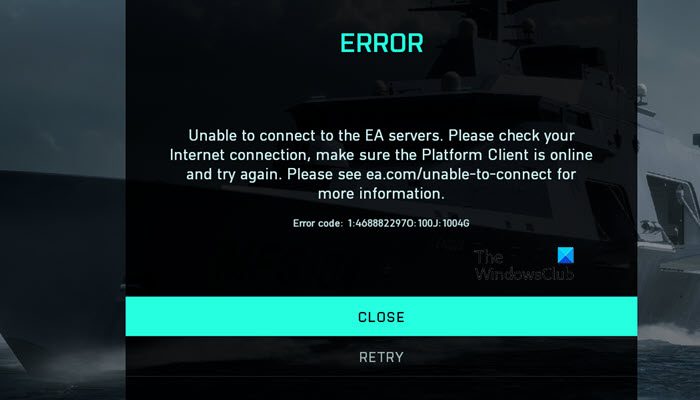
Instead of Error Code :4688822970:100J:1004G, you may see 1:468822970:1502l:-403319830:0B, 1:4688822970:2003I, 1:4688822970: 1502I:-1057125876O:0B, etc.
In this article, we are going to talk about this in detail. And see what should be done to resolve Error 4688822970 on Battlefield 2042.
Can’t connect to EA servers Battlefield 2042?
You will fail to connect to the EA server while playing Battlefield 2042 because of a network issue. It can be client-side or server-side. As for the former, the solutions are mentioned later in this article; for the latter, the only thing you can do is wait for the engineers to do the job. So, without wasting any time let us hop into it.
Fix Error 4688822970, Make sure the Platform Client is online on Battlefield 2042
If you are seeing Error 4688822970 on Battlefield 2042, then check out the following solutions to resolve the issue.
- Fix your Internet Connection
- Check the server status
- Use Google DNS
- Restart Router
- Allow the game or launcher through Firewall
- Fix Corrupted Files
Let us talk about them in detail.
1] Fix your Internet Connection
Let us start with the first solution, since this issue is network-related, checking Internet Connections is a great starting point. Use an Internet Speed checker to know your bandwidth. Also, check the Internet speed on other devices connected to the same network and see if it is uniform. If all the devices connected to the same network have network problems then contact your ISP. In case, yours is the only device with low bandwidth, check out our guide to fix slow Internet.
2] Check the server status
If your Internet connection is fine, check the server status for Battlefield 2042. In case the server is down, the only thing you can do is wait for the engineers to resolve the issue. So, use a free down detector to check the status, if the server is down, wait for some time, it wil be fixed.
3] Use Google DNS
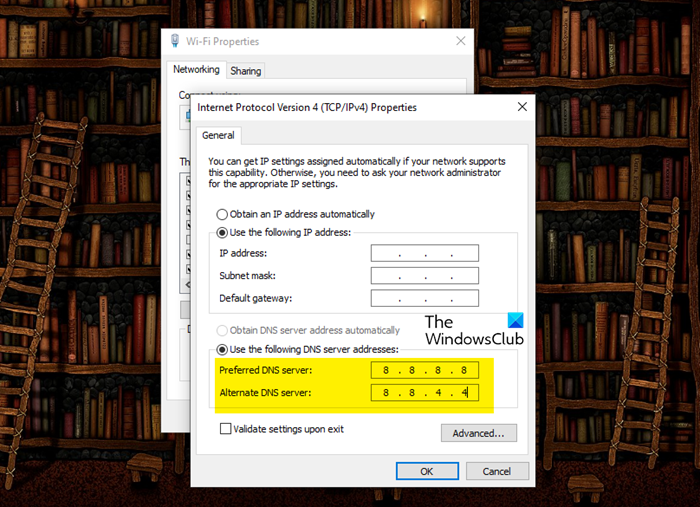
This might not be a solution but a workaround that will fix a lot of network issues permanently. This will resolve the DNS inconsistency. So, follow the given steps to switch to Google DNS.
- Open Control Panel.
- Go to Network and Internet > Change adapter settings.
- Right-click on your network, WiFi or Ethernet and select Properties.
- Click on Properties.
- Double-click on Internet Protocol Version 4 (TCP / IP4)
- Check “Use the following DNS server address”.
- Set Preferred DNS server to 8.8.8.8 and Alternate DNS Server to 8.8.4.4.
- Click Ok.
- Now, go to Internet Protocol Version 6 (TCP / IP6)
- Check “Use the following DNS server address”.
- Set Preferred DNS server to 2001:4860:4860::8888 and Alternate DNS Server to 2001:4860:4860::8844.
- Click Ok.
After doing all this, restart your computer and check if the issue persists.
4] Restart Router
Your game may also fail to start because of a network glitch. The best way to resolve the issue, in that case, is to restart the router. Follow the given steps to restart the router.
- Turn off the Router.
- Unplug and wait for some time.
- After a minute, plug the router back in and turn it back on.
Finally, connect your computer back and check if the issue persists.
5] Allow the game or launcher through Firewall
Your firewall can block your game from functioning if it flags it as a virus or malware. If you have a third-party application, you can whitelist the app. If you are using Windows Firewall, then allow the game or launcher through it and see if it works.
6] Fix Corrupted Files
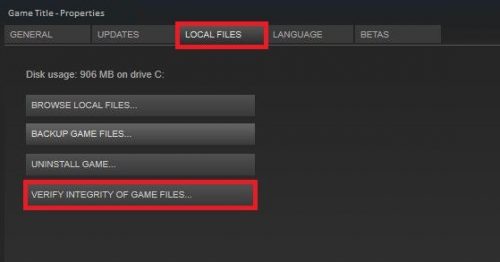
Last but not least, we need to verify your files and repair any that are corrupted. Since Battlefield 2042 is available on various platforms, we have provided a guide to repairing the files on all platforms.
For Steam
- Open Steam.
- Go to Library.
- Right-click on the game and select Properties.
- Click Local Files > Verify Integrity of Game Files.
For Origin
- Go to Origin > Library.
- Right-click on the game you want to repair
- Select Repair Game.
For Epic Games
- Go to Epic Games.
- Click on Library.
- Click on the three dots next to Battlefield 2042 and click Verify.
Wait for the process to complete, and hopefully, this will work for you.
Tip: Use Ethernet
If you are using WiFi to play games, you will face many network issues, as it is prone to fluctuations. You should switch to Ethernet, as it will provide seamless Internet access.
Related: Unable to connect to EA servers; You lost connection to EA servers
How do I fix error codes in Battlefield 2042?
There are many errors in Battlefield 2042, so there is no single solution to resolve them all. You should first check what the error code relates to, then start troubleshooting. If you are seeing 1:4688822970:100J:1004G, you obviously need to check the solutions mentioned here to resolve the issue. But if it is something else, use that error code to search for solutions.
Following are some of the guides related to Battlefield 2042 that you may want to check out:
- Battlefield 2042 keeps crashing or freezing on PC
- Fix Battlefield 2042 DirectX Errors
- Fix Battlefield 2042 Launch Error 0xC0020015
- Battlefield 2042 Error 4C or 13C, Unable to load persistence data.
