
During normal use, some PC users may encounter the Blue Screen Stop Code 0xc0000022 on Windows 11 or Windows 10. This post provides the most suitable solutions to resolve the issue.
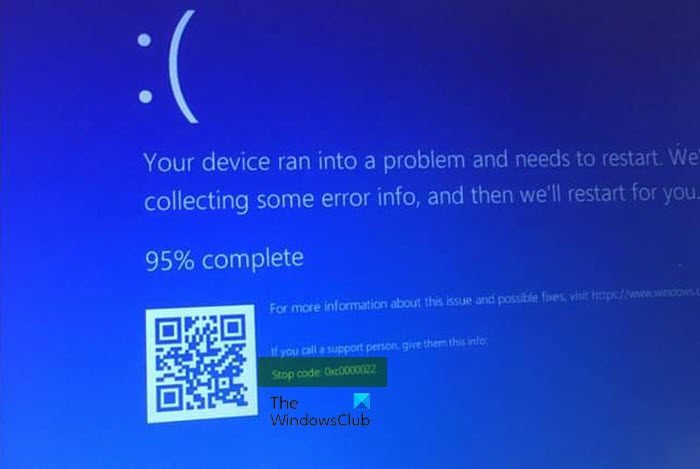
There seems to be no clear reason why this error is triggered on your device. However, one investigation found that the error started occurring for the affected user after installing a new hard drive and SSD, then downloading and installing a Windows update. This error can also be caused due to permissions or access problems, missing DLL files, corrupted system files, etc.
Fix Stop Code 0xc0000022 Blue Screen in Windows 11
If the Blue Screen Stop Code 0xc0000022 triggers on your Windows 11/10 computer, try the recommended fixes below in any order to resolve the issue. If you recently installed a Windows update prior to the error. we suggest you uninstall the update or perform System Restore and continue running your PC as normal and see if the error reappears. If it does, run the Blue Screen Online Troubleshooter from Microsoft – the wizard helps beginners & novice users to automatically troubleshoot Blue Screen errors.
- Run SFC and DISM scan
- Uninstall and Install OneDrive
- Check Windows Activation
- Check recently installed programs
- Check for firmware update failure
- Reset/Reinstall Windows 11/10
Read: How to find and view BSOD log files in Event Viewer
Let’s review the process for each listed solution. If you can log in normally, good; else you will have to boot into Safe Mode, enter Advanced Startup options screen, or use the Installation Media to boot to be able to carry out these instructions.
1] Run SFC and DISM scan
You can start off troubleshooting the Blue Screen Stop Code 0xc0000022 that occurred on your Windows 11/10 device by running the System File Checker (SFC) and DISM (Deployment Image Servicing and Management) – both native tools to the Windows OS which PC users can utilize to fix corrupt or missing system/image files on the Windows 11/10 computer.
2] Uninstall and Install OneDrive
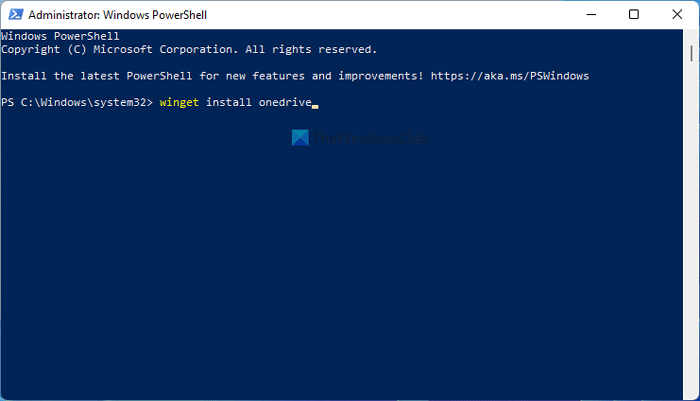
There are reported instances where the error in highlight is triggered by the OneDrive app installed on your Windows 11/10 system. In this case, the applicable solution requires you to completely uninstall OneDrive using Command Prompt, and afterward, you can install OneDrive using WINGET on your computer.
3] Check Windows Activation
According to reports from some affected users, the issue occurred after they installed a new hard drive and SSD, then downloaded and installed Windows. In this case, it’s likely an issue of activation error after a hardware change. So, to resolve the issue in hand, you can try the suggestions in the guide on how to activate Windows after hardware change and see if that helps. Otherwise, try the next solution.
Read: Windows failed to start; A recent hardware or software change might be the cause
4] Check recently installed programs
If you have recently installed any software or program prior to the error in highlight you can uninstall the app and see if that helps, and make sure to reinstall the latest version of the app if need be.
You can also troubleshoot in Clean Boot State and see if the issue at hand is resolved. If the software/game runs smoothly in the Clean Boot State, then you may need to manually enable one process after the other and see which is the offender that creates problems for you. Once you have identified it, you need to disable it or uninstall the software that uses this culprit process.
Read: The application was unable to start correctly (0xc0000022) when opening Adobe apps
5] Check for firmware update failure
Here again, if you have recently installed new hardware, for example, a new drive, you may be dealing with a possible firmware update failure which could be narrowed down to the error 0xC0000022: STATUS_ACCESS_DENIED. In this case, to resolve the issue, you can try the suggestions in the post on how to fix Firmware update failed in Windows 11/10.
6] Reset/Reinstall Windows
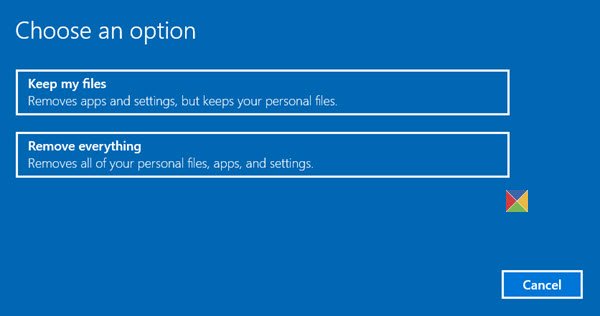
As a last resort in the unlikely event nothing has worked for you to resolve the issue at hand, you can first reset PC with the option to keep your personal files; and if the error repeats, you may have to consider backing up your files and then clean install Windows.
Related post: Fix 0xc0000135 Blue Screen error on Windows
How do I fix error 0xC0000022?
To fix error code 0xc0000022 on Windows 11/10, follow these steps:
- Right-click on the application that triggered the error.
- Choose Properties.
- Go to the Security tab.
- Change permissions for all the Administrators, Power Users and System to Allow Full Control.
- Click Apply.
What does error code 0xC0000022 mean?
Error code 0xC0000022 can occur when access rights are affected by a damaged or stopped Software Protection Service. This critical Windows system service manages the download, installation, and enforcement of all digital licenses for the Windows operating system and its applications.
