
Did you just change your computer’s hardware and hope to regain your free Windows 11/10 license? Planning to change your Windows 11/10 computer’s Motherboard, Hard Drive, Processor, or GPU, or Transfer your Windows 11/10 license to a new computer? If you have changed your computer hardware and find that your Windows has been deactivated, this post will show you how to re-activate your Windows license again.
Here’s the thing: your free Windows 11/10 license is tied to your computer, so using it on another computer isn’t easy. But what if you change a particular component or hardware in your computer? Would you still be able to regain your free license? We show you how to activate Windows 11 after a hardware change.
Activate Windows 11 free license after changing computer hardware
Microsoft doesn’t provide much information about this because it wants to keep pirates in the dark as much as possible. However, doing this only confuses legitimate users.
The free Windows 11 license vs. Paid license
Microsoft doesn’t include a product key with the free license, but it does with the paid version. Because the free version of Windows 11/10 is tied to your computer, changing specific hardware components can be troublesome, as there isn’t a product key to work around the issue.
We do know that should you change the Hard Drive, Processor or GPU, everything will be okay, but the real issue comes up if you have to replace the Motherboard.
It is like replacing a person’s brain with a freshly made brain. He or she will be a different person because this new brain does not contain the same memory of the old.
Read: Windows licensing – Acceptable changes in hardware.
How to successfully move past this issue
Install Windows normally and skip the step where it asks you to enter a product key. After installation, Windows will attempt to activate itself, but will fail. You will now have a system that says you have a non-genuine version of Windows.
The activation screen will ask you to activate or purchase a key from Microsoft.
Now, according to Gabriel Aul, Vice President of Engineering for the Windows & Devices group at Microsoft, users who are facing this problem can contact support from within Windows 11/10 and explain what is happening.
You can contact Customer Support after you’ve made a hardware change to regain entitlement, said Gabe.
From here, Microsoft will activate Windows for you.
This would have been an easier process if Windows 11/10 was tied to a Microsoft account. Still, it might help if you signed in to the same Microsoft account after installing Windows 11/10 on a system with new hardware attached.
How to activate Windows 11 after hardware change
If you have a digital license, run the Activation troubleshooter.
First, add your Microsoft account and link your account to the digital license on your device. Then, run the Activation troubleshooter.
Select I changed hardware on this device recently, followed by Next. Enter your connected Microsoft account and password and Sign in. Now, from the list of devices, select the device you are using right now, and click Activate.
If you don’t have a digital license or product key, you may have to purchase a Windows digital license from the Microsoft Store after installation finishes.
Related: Windows 11 deactivated after Disk Clone
Can’t reactivate Windows 11 digital license after changing Motherboard
When you replace a motherboard, Windows 11 sees it as a new computer, which disassociates your digital license. If it fails, you can resolve this using the Activation Troubleshooter or other specific methods. If you can’t reactivate your Windows digital license after changing the motherboard, follow the solutions below.
- Run Activation Troubleshooter
- Check your license type
- Manually reactivate via Command Prompt
- Contact Microsoft Support
Let us talk about them in detail.
1] Run Activation Troubleshooter
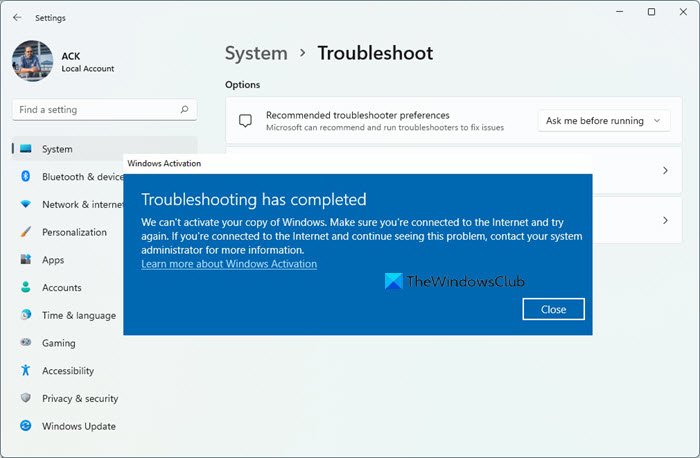
The Activation Troubleshooter is the official process for transferring a digital license. When you previously linked your Microsoft account to your Windows license, it stored your device’s activation state online. The troubleshooter lets you identify your old device in your Microsoft account, proving you own the license and allowing Microsoft to reassociate it with your new hardware. You need to go to Start > Settings > System > Activation. Select the Troubleshoot option and follow the instructions. This now uses the Get Help platform. The troubleshooter will guide you through steps, such as verifying your Microsoft account and selecting your old device if you’ve made a major hardware change like replacing a motherboard.
2] Check your license type
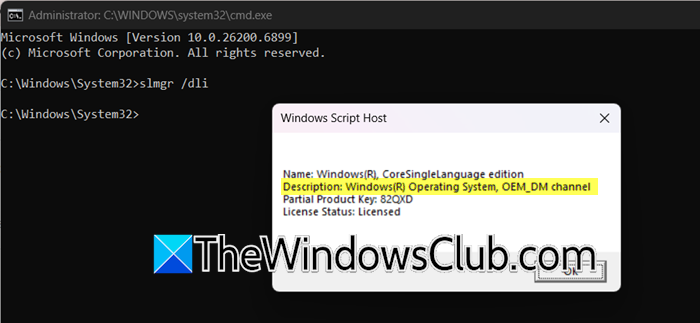
We need to identify your license type to determine if transfer is even possible. A Retail license is legally transferable to new hardware, while an OEM license is permanently bound to the original motherboard by Microsoft’s licensing terms. Knowing which you have tells you whether to continue troubleshooting or accept that you need a new license.
Open Command Prompt as an admin and then run the following command.
slmgr /dli
A Windows Script Host dialog will appear showing your license information. Look for Description: Windows(R) Operating System, RETAIL channel or OEM_DM channel.
If it says RETAIL, your license is transferable and you should continue with other solutions. If it says OEM_DM or similar OEM variant, your license is permanently tied to your old motherboard and cannot be legally transferred.
3] Manually reactivate via Command Prompt
This method clears any conflicting license data and resets the activation state using a generic product key for your Windows edition. The slmgr /ato command then forces the system to contact Microsoft’s activation servers and match your device’s hardware signature with the digital license stored in your Microsoft account, effectively reactivating Windows.
In admin mode of the Command Prompt, you need to run the following command to uninstall the current activation.
slmgr.vbs /upk
Then,
Install generic Windows 11 product key for your edition:
Windows 11 Pro
slmgr.vbs /ipk W269N-WFGWX-YVC9B-4J6C9-T83GX
Windows 11 Home
slmgr.vbs /ipk TX9XD-98N7V-6WMQ6-BX7FG-H8Q99
Activate Windows using – slmgr.vbs /ato.
The system will contact Microsoft’s activation servers and should automatically reactivate using your digital license.
4] Contact Microsoft Support
If nothing works, go to support.microsoft.com to contact Microsoft Support.
Transfer your Windows 11 license to a new Computer
If you have changed your laptop or desktop computer and want now to transfer your Windows license to the new computer, you could try the following:
- Uninstall the Windows Product Key from the old computer
- Install this Windows Product Key on the new computer and Activate it.
If you face activation problems, Activate Windows by Phone. Otherwise, you should contact Microsoft Support and explain your situation. The Windows Support agent will verify your Windows Product Key and provide an activation ID for Windows 11/10 on the new computer.
Related reads:
- Windows won’t activate after Reset, Clean Install or Update
- Unable to activate Windows (0xc0ea000a).
How do I reactivate my Windows 11 digital license?
If you have a digital license, you can use Activation troubleshooter to reactive account. If you have changed your laptop or desktop computer and you need to transfer your Windows license to the new computer. Hopefully, with this, you will be able to reactive your Windows 11 digital license.
Why can’t I reactive Windows Diginal license after changing motherboard?
A digital license in Windows is linked to your device’s unique hardware profile. If you replace a major component, such as the motherboard, Windows may no longer recognize the license, prompting reactivation. To ensure a smooth recovery, it’s best to use a transferable Retail license and link it to your Microsoft account before making any hardware changes.
Now read: Digital Entitlement and Product Key Activation methods in Windows.
