
Here is a comprehensive guide on how to fix the black screen issue with Far Cry 6 on Windows 11/10 PCs. Far Cry 6 is the most recent edition of the popular Far Cry series. It is an amazing action-adventure first-person shooter game that is loved by millions of gaming enthusiasts worldwide. However, some gamers have complained of experiencing a black screen while playing Far Cry 6. If you are one of those getting the same issue, we’ve got you covered. In this guide, we will share multiple working solutions that reportedly worked for affected users.
What causes the black screen issue with Far Cry 6?
This issue can arise due to multiple varying reasons for an individual affected gamer. Here are some of the possible causes for black screen issues while gaming:
- In case your game files are corrupted, you might face a black screen problem with the game. You can try verifying and repairing your game files if the scenario applies.
- Outdated and faulty graphics drivers can also be a reason for this issue. Additionally, if you haven’t updated your Windows to the latest build, you may encounter this problem. So, try updating Windows and graphics drivers to fix the issue.
- Software conflicts can also trigger black screen issues with Far Cry 6. In that case, you can restart your PC in a clean boot state to resolve the problem.
You can apply the below fixes based on the scenario that applies to you.
Fix Far Cry 6 Black Screen issues on Windows PC
Here are the methods to fix Far Cry 6 Black Screen crash issues on startup, after mission, or after a cutscene on your Windows 11/10 PC:
- Verify the integrity of game files.
- Update your graphics drivers.
- Install recent Windows updates.
- Turn off the Ubisoft Connect overlay.
- Change to windowed mode.
- Troubleshoot in a clean boot state.
- Uninstall, then Reinstall Far Cry 6.
Let us now elaborate on the above fixes.
1] Verify the integrity of game files

You may encounter a black screen issue with Far Cry 6 if there are corrupted game files or a missing game file. If the scenario is applicable, you should be able to resolve the issue by verifying the integrity of your game files.
If you use Epic Games Launcher, here are the steps to verify game files associated with Far Cry 6:
- Firstly, launch the Epic Games Launcher and then tap on Library.
- Next, locate the Far Cry 6 game and select the three-dot menu option present next to it.
- Now, press the Verify option to start verifying your game files. The verification process will be finished in a few minutes
- When the process is complete, relaunch Far Cry 6 and check if the black screen issue is resolved.
For Ubisoft Connect users, below are the steps to follow:
- First, launch Ubisoft Connect and go to the Games tab.
- Now, click Far Cry 6 and then press the Properties option.
- Next, tap on the Verify Files option and if prompted, click Repair.
Ubisoft Connect will now attempt to verify your games files and repair and replace corrupted or missing files. You can relaunch the game once the process is complete and check if the black screen issue has been resolved.
If this doesn’t resolve your problem, proceed to the next potential fix in the guide.
See: Far Cry not launching on Windows PC.
2] Update your graphics drivers
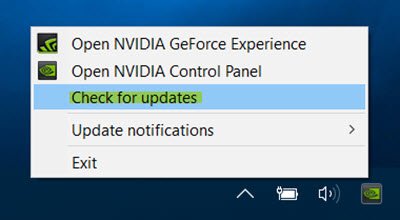
Graphics cards and drivers play an important role in gaming. If you are experiencing the black screen issue with Far Cry 6, the problem might lie with your GPU drivers. You may have faulty and outdated graphics drivers. If you don’t remember updating your graphics drivers, it’s time to update the drivers. This may resolve the issue for you.
You can manually update graphics drivers via Optional Updates under Settings > Windows Updates. Or, you can also automatically update your GPU drivers by using a third-party driver updater. Another option is to visit the official website of the device manufacturer and get the latest driver updates from there.
After updating your graphics drivers, restart your PC and then launch Far Cry 6 to see if the black screen issue has been resolved.
Read: Fix Screen Dims when playing Games on full screen on Windows PC.
3] Install recent Windows updates
Make sure you have installed all the latest Windows updates as the new updates have bug fixes along with new functionalities. So, open the Settings app using Windows + I hotkey and then navigate to the Windows update tab. Here, click on the Check for updates button and wait for some time to let Windows check for available updates. If updates are available, download and install them, then restart your PC. Hopefully, on the next startup, you won’t face black screen issues with Far Cry 6.
4] Turn off the Ubisoft Connect overlay
You can try disabling the Ubisoft Connect overlay as some users reportedly fixed black screen issues with Far Cry 6 by doing so. This may work for you as well. Here are the steps to disable the Ubisoft Connect overlay:
- Firstly, start Ubisoft Connect and then press the three lines that you see at the top left corner.
- Now, select the Settings option.
- Next, go to the General tab and uncheck the Enable in-game overlay for supported games option.
- After that, relaunch Far Cry 6 and see if the problem is resolved now.
Read: Fix Resident Evil crashing or showing Black Screen on Windows PC.
5] Change to windowed mode
A temporary glitch can cause the black screen issue in Far Cry 6. If so, you can try switching to windowed mode. It is a kind of workaround and might fix the issue for you if nothing else did. You can press the ALT+Enter hotkey to switch to windowed mode while in full-screen mode. If this works for you, GREAT! If not, you can try the next method to resolve the problem.
6] Troubleshoot in a clean boot state
The black screen issue might be triggered in case your background applications are interfering with Far Cry 6. If the scenario is applicable, try performing a clean boot and see if it fixes the issue for you. By doing so, you will avoid any software conflict if that is what causing the black screen issue with Far Cry 6. Here are the steps to perform a clean boot in Windows 11/10:
- Firstly, open Run using Win+R hotkey and enter msconfig in it.
- Now, in the System Configuration window, go to the Services tab and enable the Hide all Microsoft services option.
- Next, uncheck all the services except services related to your graphics card or sound card such as Realtek, AMD, NVIDIA, and Intel. And, press the OK button.
- After that, open the Task Manager using Shitf+Ctrl+Esc hotkey, go to the Startup tab, and disable all the startup programs.
- Finally, reboot your PC, launch Fary Cry 6, and hopefully, the problem will be resolved now.
Read: Monitor screen dims and goes dark when playing full-screen games.
7] Uninstall, then Reinstall Far Cry 6
If none of the above solutions work for you, the last resort is to reinstall Far Cry 6. The problem might lie with your game installation, so this should work for you. You can uninstall the game and then reinstall it to fix the issue.
Here are the steps to reinstall Far Cry 6 on Ubisoft Connect:
- Firstly, open Ubisoft Connect and click Games.
- Now, hover the mouse over Far Cry 6 and you will see a downward arrow; click on it.
- Next, press the Uninstall button to remove the game.
- When uninstallation is complete, reinstall the game and check if the issue still persists.
On Epic Games Launcher, you can follow the below steps to
- Start the Epic Games Launcher and press Library.
- Tap on the three dots present next to Far Cry 6 and select Uninstall.
- Once the uninstallation is complete, reinstall the game and see if the problem is resolved now.
That’s it! I hope this helps you resolve the black screen issue in Far Cry 6.
See: How to Remove Black Bars from Games in Windows PC.
Why is my PC black screening when I play games?
If you encounter a black screen when starting a game on a Windows 11/10 PC, you can resolve the issue by ensuring that you have installed all the latest Windows updates. There are two more things you can do. First, update your graphics card driver to the latest version. Second, make sure that your PC is not facing any overheating issues.
