
Here is a full guide on how you can fix the error 0x80780113 when the backup has failed on Windows 11/10. Windows offers a built-in Backup and Restore tool which is primarily used for creating a full system image backup so that you can restore the system to its original status if Windows gets corrupted. However, some users have experienced an error message “Not enough space to create the volume shadow copy” along with error code 0x80780113 while creating a Windows backup image. This error prevents you from successfully creating the backup image.
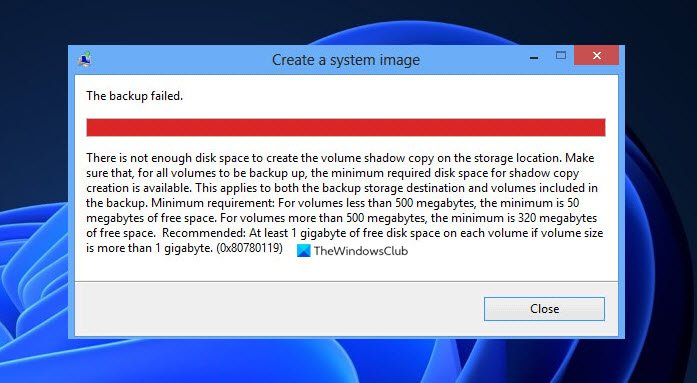
While the error message indicates low space for creating the backup image, there can be several other reasons for this error. It can be caused by bad sectors on your drive, too many junk files, faulty disk drivers, etc. Now, if you are facing the same error in any scenario, you can resolve it using the methods we have listed here. Let’s check out!
Error 0x80780113, Not enough space to create the volume shadow copy, The backup failed
Here are the methods you can try to fix Windows Backup Image Error 0x80780113 on Windows 11/10:
- Create a new System Volume.
- Extend System Reserved Partition or Recovery Partition.
- Run Disk Cleanup Tool
- Run the Chkdsk command.
- Clear the current USN Journal.
- Ensure that System Protection is enabled.
- Update Disk Drivers.
1] Create a new System Volume
You can try creating a new system volume and then see if you can take a system image backup. To make a system volume on a primary partition of an MBR disk, you can use the following steps:
- First of all, open the Command Prompt with administrator privilege.
- Now, enter the following command in CMD:
bcdboot.exe /s C:\Windows /s F:
In the above command, C: is the current system drive, while F: is the new partition of an MBR disk. You can change the drive letter as you want.
- When the above command is executed, you have to access the DISKPART tool in CMD. For that, you can type the below command and press Enter:
diskpart
- Now, you have to activate the newly created partition as the main system reserved partition by using the below command:
select volume F
active
- Finally, press Enter and then reboot your system.
On the next startup, try taking system image backup and see if the error is now fixed.
2] Extend System Reserved Partition or Recovery Partition
As the issue is most likely caused by low space to create a shadow copy, you can try extending the system reserved partition or recovery partition. You can extend the system partition using the Disk Management tool. Or, you can also use a free third-party partition manager to easily extend the system or recovery partition. See if this fixes the error for you. If not, move to the next potential method to resolve the error.
See: Fix The backup failed, 0x80780119 error on Windows.
3] Run Disk Cleanup Tool
If there are too many junk files and unnecessary data on your drive, it can cause storage issues and you might end up running into error 0x80780113. Try clearing the junk files and then check if the error is resolved. To do that, you can run the built-in utility in Windows called Disk Cleanup. Just launch it from the Start menu, select the drive to clean up, check all the items in Files to delete, press OK, and confirm the deletion.
Alternatively, you can also use Storage Sense to clear up disk space.
When the jun files are deleted, you should be able to create a system image backup without any error. If not, you can proceed to the next potential fix to resolve the issue.
Read: System Image Backup failed, Error 0x80780038.
4] Run the Chkdsk command
This error can be a result of bad sectors on your hard drive. If the scenario is applicable, you should be able to fix it up by running the Chkdsk command to scan and fix drive errors. Here are the steps to do that:
First, launch the Command Prompt as an administrator.
Now, type the below command in it:
chkdsk C: /f /r /x
In the above command, C is the drive for which we are running the command.
Next, press Enter and let it repair the bad sectors and disk errors.
Once the process is complete, reboot your computer and then create a system image backup.
5] Clear the current USN Journal
Windows has a function that records the file change and maintains a particular record which is called the update sequence number (USN) to record changes to the volume. Now, it might have grown and can cause the error in question. In that case, you can clear the current USN Journal to resolve the issue. Here are the steps to do that:
- Firstly, press the Windows + X hotkey and then select the Disk Management tool from the pop-up menu.
- Next, in the Disk Management app, right-click on the “System Reserved” volume and press the “Change Drive Letter and Paths…“ option.
- Now, click on the Change button and then select the “Assign the following drive letter:” option.
- After that, from the drop-down list, select a new drive letter (say F) for the reserved partition, press OK, and close the Disk Management window.
- Then, you have to launch the Command Prompt with administrative rights.
- Now, type the below command and then press Enter:
fsutil usn queryjournal F:
fsutil usn deletejournal /N /D F:
In the above command, F is the drive letter you selected in step (4). You can change it as applicable.
- Finally, restart your computer and then check whether the error is now fixed.
See: Backup Error 0x8078012D, The request could not be performed because of an I/O device error.
6] Ensure that System Protection is enabled
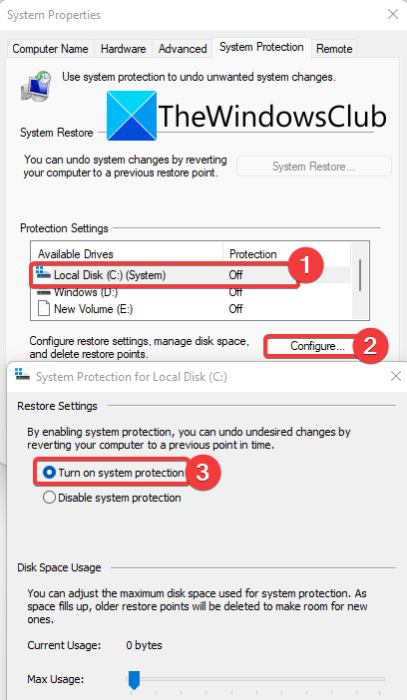
Some users reportedly fixed the error by enabling System Protection. You can also try doing the same and then check if the problem is fixed. To enable System Protection, here are the steps to use:
- Firstly press Win+R to evoke Run dialog and then enter sysdm.cpl in it to open up the System Properties window.
- Now, go to the “System Protection” tab, select the C drive from the list, and tap on the Configure button.
- Next, enable the Turn on system protection option. You can also adjust the Max Usage slider as per your requirement.
- After that, press the OK button to save changes.
- Try creating the system image backup and then see if the error is fixed.
7] Update Disk Drivers
Issues with disk drivers can also cause this error. So, try updating disk drivers and then see if the error is resolved.
You can also get the latest disk driver updates via Optional Updates that you can find under Settings > Windows Update. After updating disk drivers, reboot your PC and hopefully, the error will be resolved now.
See: Windows Backup or System Restore failed, Errors 0x80070001, 0x81000037, 0x80070003.
How do I fix the Volume Shadow Copy Service error?
The Volume Shadow Copy Service errors can be fixed by restarting the related services. If that doesn’t work, you can try running System File Checker and DISM scans, performing Chkdsk, and removing any tune-up utilities. In case you are facing a particular Volume Shadow Copy Service error, here are some guides that you may find useful:
- Fix Volume Shadow Copy Service error 0x81000202 or 0x81000203.
- Fix VSS Error Code 0x8004231f on Windows.
- Volume Shadow Copy Service Error calling a routine on a Provider.
How do I set maximum shadow copy storage space?
To set the maximum shadow copy storage space, here are the steps you can follow:
- First, open the File Explorer using Windows + E hotkey and navigate to the section of the hard drive.
- Now, right-click on a hard drive and then select the Configure Shadow Copies option from the right-click menu.
- Next, in the Shadow Copies window, select the volume for which you want to allocate shadow copy storage and press the Settings button.
- In the Settings window, select the volume and storage area to allocate maximum size.
- Next, set the maximum size to “No limit” and click the OK button. To set a specific size limit, click the “Use limit” option and enter the desired size.
What happens when I run out of space for the storage area of shadow copies?
If your system displays an error message related to ‘Not enough space to create the volume shadow copy,’ you will be unable to create a backup of your system. This problem arises when you have little space left to store the backup, so you need to delete some files to create free space for the backup. Additionally, your system may automatically delete the oldest shadow copy if you had previously enabled this setting.
How much disk space is required for Volume Shadow Copy?
Microsoft recommends allocating a minimum of 10% of the volume size for Volume Shadow Copy storage. This ensures there is enough disk space to create and maintain shadow copies efficiently. Adjusting this allocation can depend on factors like the frequency of changes and volume size, but 10% is a good starting point. Keeping these settings to Microsoft-recommended ones is always best!
Now read:
