
This post covers how to restore Previous Versions of Files and Folders in Windows 11/10. This can come in handy when unwanted changes are accidentally added to a file or folder, or when you’ve deleted a file/folder from the Desktop, Documents, Downloads, etc. You can check all previous versions of that file or folder and restore it to a previous version with just a few mouse clicks.
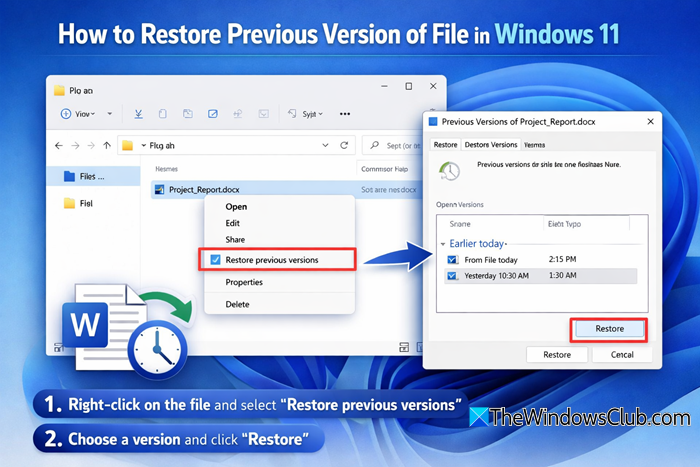
There is a built-in Windows restore previous versions feature that you can use for this purpose, and this post includes all the steps to use that feature. In the image above, you can see previous versions available for Desktop. While you can use File History to back up and restore files, using this process is another option you can try.
How to restore Previous Version of File in Windows 11
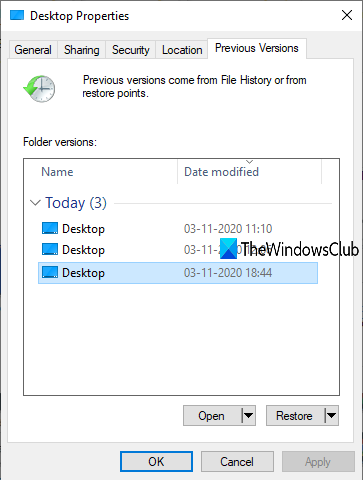
You can restore to an earlier version of a file and folder only when File History or System Restore is enabled and configured by you. If not, you first need to turn on and set up File History or turn on the system restore and create a system restore point to benefit from this feature. This post will show you how to enable Previous Versions to recover files on Windows. After that, follow these steps:
- Access Restore previous versions option
- Select a Previous version
- Use the Restore button
- Apply and save the changes.
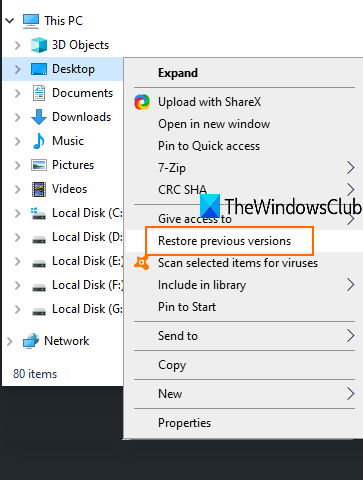
First of all, go to a folder (say Desktop) or file. If you have deleted a folder/file, then you should access the main folder or hard drive where that item was stored. Now right-click on file/folder and click on Restore previous versions option.
The Properties window of that item will open with the Previous versions tab. Alternatively, you can also right-click on a folder, click on the Properties option, and then access the Previous versions tab.
Now, depending on the number of restore points or File History created by you, the list of all previous versions for that particular item will visible. Select a previous version and click on the Restore button.
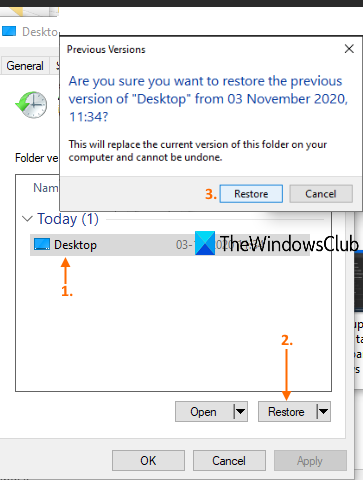
A small confirmation box will open. In that box, use the Restore button.
It will restore that particular version. This way, you can restore other versions of a file or folder.
Having earlier versions of a file or folder is helpful in many cases. Whether the file is modified accidentally or for another reason, you can easily restore it to an earlier version on your PC.
This post will help you if you want to restore Previous Version of Document in OneDrive, Personal or Business.
Related reads:
