
ELEX II is a great game and is supposed to carry the legacy of its predecessor ELEX. However, has a lot of issues and one of them is that it ceases to launch on some computers, and even if it launches, the game crashes in the middle of a session. In this article, we are going to talk about what you need to do when ELEX II keeps crashing on your Windows 11/10 computer.

Why does my game ELEX II keep crashing PC?
ELEX II or any other game will crash when the system requirements are not met. More often than not, users check the requirements before downloading the game, but if you haven’t done so, now is the time to review the requirements listed below.
Since the game is pretty demanding already if you run a lot of apps alongside it, chances are your computer will overheat and will try to stop the application that’s taking the most resources, which obviously is ELEX II.
Some very common reasons, such as corrupted game files and outdated drivers, should not be ruled out. The best part about these things is that they are repairable, and we are going to see how.
We will also see other reasons and solutions that will help you resolve the problem and get the game back on track. So, let us check the system requirements, and then we will see the solutions.
System Requirement to play ELEX 2
You need to make sure your computer matches the configurations listed below for it to run ELEX II.
RECOMMENDED
- OS: Windows 11/10 or above (64-bit)
- Processor: AMD Ryzen 7 2700 / Intel Core i5-9500F
- Memory: 16 GB RAM
- Graphics: Radeon RX 5700 XT / Geforce RTX 2060
- DirectX: Version 11
- Storage: 45
If the system requirements are not the cause of the problem, let us move to the solutions.
ELEX 2 crashing or freezing on Windows PC
If ELEX II keeps crashing or freezing on your Windows 11/10 computer, then follow these suggestions to fix the issue:
- Kill background apps
- Repair Corrupted Game Files
- Update Graphics Drivers
- Update or Install DirectX and Visual C++ Redistributable
- Install the latest game patch
- Troubleshoot in Clean Boot
Let us talk about them in detail.
1] Kill background apps
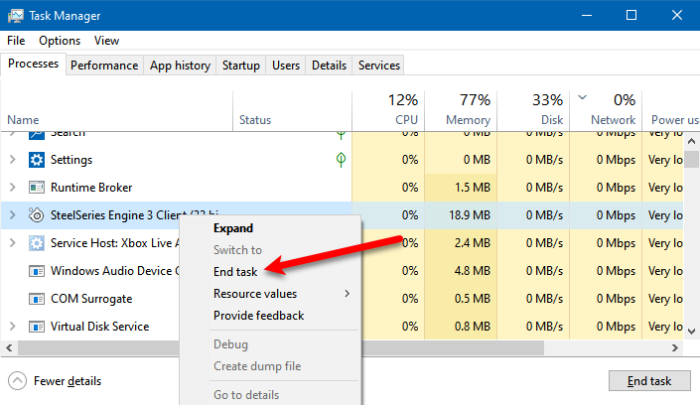
First and foremost, we need to stop all the background apps. These apps tend to take resources that should have been allocated to the game, also, they tend to overheat the computer, as a result of which, ELEX II crashes. So, open Task Manager, right-click on unnecessary programs, and click End Task. Hopefully, this will do the job for you.
2] Repair Corrupted Game Files
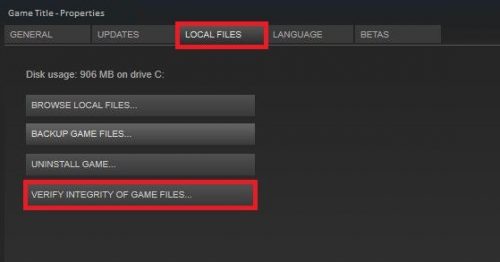
If your game files are corrupted, then they won’t be able to get loaded by your computer. If they can’t get loaded, your game won’t launch. We need to verify and repair the files. Follow the given steps to do the same.
- Open Steam.
- Go to the LIBRARY.
- Right-click on ELEX II and go to Properties.
- Click LOCAL FILES > VERIFY THE INTEGRITY OF GAME FILES.
Wait for the process to complete and hopefully, your issue will be resolved
3] Update Graphics Drivers
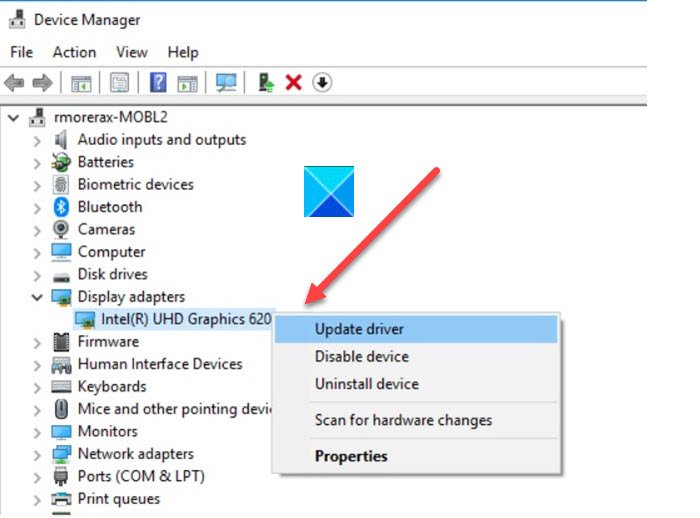
An updated Graphics Driver is a must. You can play a graphically demanding game with an outdated driver. Also, outdated drivers can cause compatibility issues. The following are some of the methods to
- Check Optional Updates from Windows Settings.
- Go to the manufacturer’s website and download your driver.
Hopefully, this will resolve the issue.
4] Update or Install DirectX and Visual C++ Redistributable
DirectX and Visual C++ Redistributable are necessary to run the game. Also, the system requirements clearly state that the game requires DirectX 11 to run. What we need to do is install the latest version of DirectX and Visual C++ Redistributable, and check if the issue persists.
5] Install the latest game patch
ELEX II developers are constantly releasing new updates to fix the bugs. And it is possible that the error is caused by an update that contains that bug. The only way to resolve the issue in that case is to update it. Just open the game and Steam will automatically detect and install the update.
5] Troubleshoot in Clean Boot
A third-party application could have interfered with your game and caused the abrupt crashing. To know what is causing the problem, we have to perform Clean Boot. So, do that, and once you know the cause, just remove that program, and your issue will be resolved.
Read: How to fix Performance issues in Windows 11.
How do I fix a program that keeps crashing?
Before fixing the program, you need to find what’s causing it. Usually, corruption is responsible for the issue. If your program is a game, then check if the launcher has a repair option; most launchers have an option to verify and repair game files. Sometimes, overheating can also cause programs, this is very common in video editing apps as they crash while rendering an HD video.
Also Read: Best real-life simulation games available for Windows PC.
