
Many Deathloop players are unable to play the game because it crashes on their Windows 11/10 computers. Usually, the game crashes because of a bug or corrupted files, however, we are going to discuss all the possible reasons and see how you can fix the game. If Deathloop is crashing on your computer, try the solutions in this article to resolve the issue.
What causes Deathloop to crash on PC?
Usually, the game will crash on your computer if it doesn’t meet the system requirements. That’s why, before downloading any game, you should check the system requirements. If you don’t know the requirements, you can check the “System Requirements” section. However, your game can also crash if your computer is barely meeting the requirements, so, as a precaution, you should not open any other app while playing, as that can make it crash.
Next up, a potential cause can be corrupted game files. Corrupted files don’t mean that the only thing you can do is to delete the game and reinstall it, although that is a potential solution. First, we will see how you can repair those files.
There are some other reasons as well, such asan outdated Graphics Driver, bumped-up Graphics settings and more. We are going to talk about all of them in detail.
Fix Deathloop crashing or freezing on Windows PC
If Deathloop is freezing or crashing on your Windows 11/10 computer, check out the solutions mentioned below to resolve the issue.
- Open Deathloop or Steam with administrative privileges
- Update your Graphics Driver
- Suspend redundant tasks
- Repair game files
- Troubleshoot in Clean Boot
Let us talk about them in detail.
1] Open Deathloop or Steam with administrative privileges
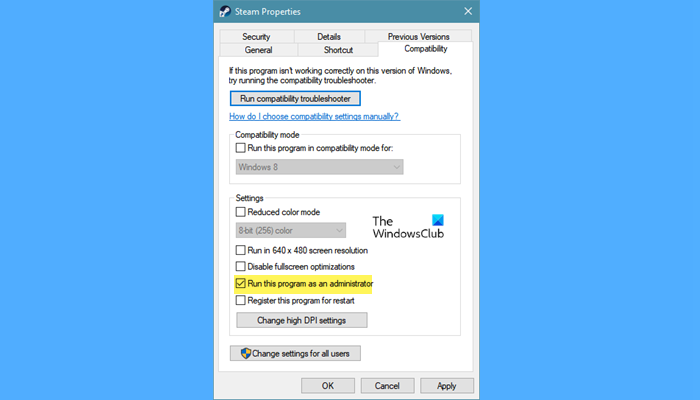
A lot of you may not know that Deathloop or any other needs to create a folder and write to it as it runs. That is why, sometimes, if it is not launched with administrative it crashes. So, go ahead and right-click on the game or the Steam launcher and select Run as administrator. However, you have to do this every time you open the game, that is why we recommend you make the game such that it launches with administrative privileges. Follow the given steps to do the same.
- Right-click on the game or Steam and select Properties.
- Go to the Compatibility tab.
- Tick Run this program as an administrator.
- Click Apply > Ok.
Restart your computer and check if the issue persists.
2] Update your Graphics Driver
Outdated graphics drivers cause compatibility issues and prevent the game from opening on your computer. So, you need to check whether an update to your Graphics Driver is available. The following are the methods by which you can update your Graphics Driver.
- Update your Windows to update the drivers
- Use a free driver update software
- Open Device Manager and update your Graphics Driver
- Download the latest version of the driver from the manufacturer’s website.
Hopefully, that will resolve the issue.
3] Suspend redundant tasks
If you are running a bunch of tasks alongside the game then chances it’s not getting enough resources. And because of that, it’s crashing. So, go to Task Manager by Ctrl + Shift + Esc and see if there are such processes. If you see such processes, right-click them and select End Task. Then, restart your game and see if that works. If not, restart your computer, then try playing to see if that works.
4] Repair Game files
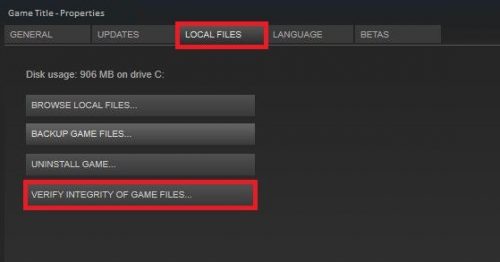
It’s time to pull out the big guns. As mentioned earlier, the game can crash because of corrupted game files. Therefore, we are going to see how you can repair game files and see if that works. Follow the given steps to do the same.
- Open Steam.
- Go to LIBRARY.
- Right-click on the game and select Properties.
- Click on LOCAL FILES > VERIFY INTEGRITY OF GAME FILES.
Hopefully, your issue will be resolved.
5] Troubleshoot in Clean Boot
A third party can interfere with your game and cause the issue. That is why we need to troubleshoot in Clean Boot as that allows you to turn off all the processes at once and then turn them back on five at a time and find out what’s causing the issue.
Hopefully, you can resolve the issue with these simple solutions.
Read: Unreal Engine keeps crashing or freezing on Windows PC
What are the system requirements to play Deathloop?
If you want to play Deathloop, your computer should meet the following system requirements.
Minimum
- OS: Windows 11/10 (64-bit)
- CPU: Intel Core i5-8400 and 2.80GHz / AMD Ryzen 5 1600
- RAM:12GB
- Storage: 30GB
- GPU: Nvidia GTX 1060 (6GB) / AMD Radeon RX 580 (8GB)
Recommended
- OS: Windows 11/10
- CPU: Intel Core i5-8400 and 2.80GHz / AMD Ryzen 5 1600
- RAM: 12GB
- Storage: 30GB
- GPU: Nvidia GTX 1060 (6GB) / AMD Radeon RX 580 (8GB)
Does Deathloop crash a lot?
Sometimes, you may experience crash issues while playing Deathloop. This does not mean Deathloop crashes often. The performance of a game depends on the computer’s hardware. If your system meets the minimum hardware requirements for Deathloop, you will experience the best performance. On the other hand, if your system does not meet the minimum hardware requirements, you will experience many issues with the game. Apart from that, several other factors can cause a game crash, but the primary one is the system requirements.
Read: God of War keeps crashing on PC.
