
Unreal Engine 5 is one of the most popular games of the current day and age. However, it is not completely free from errors. Users are complaining that the game is crashing on their PCs and here we are with the solutions. So, if Unreal Engine keeps crashing or freezing on your computer then this article can help you resolve the issue.
Why does my game keep crashing PC?
There are many reasons the game can crash on your system. First of all, you should check the system requirements and make sure that your computer meets them. Other than that, you should also check whether all components of your OS are up to date. However, the most important component is your Graphics Driver; if it’s outdated or not meeting the requirements, your game is likely to crash.
One also needs to check and make sure that neither game nor the system files are corrupted. If they are, your game will crash every time that file is needed. In this article, we will discuss additional reasons and solutions to resolve the issue.
Unreal Engine keeps crashing or freezing on PC
If Unreal Engine keeps crashing or freezing on your device, then start the troubleshooting by checking for your updates. You can take extra measures by making sure that your Windows is updated. It’ll boost your performance and help fix the error. In this article, we have assembled simple fixes that you can follow.
- Update Unreal Engine
- Update your Graphics Driver
- Stop Overclocking
- Change your default Graphics card
- Repair your system files
- Change registry settings
- Disable Antivirus temporarily
- Reinstall Unreal Engine
Let’s get to know them in detail.
1] Update Unreal Engine
Developers release the latest patch periodically. These patches address issues and aim to solve them. You can update Unreal Engine to resolve the error. Follow the given steps to do the same.
- Open Launcher, navigate to Unreal Engine > Library.
- Click on the Engine Version drop-down menu.
- If there is a new update, install it.
Now relaunch the program to ensure the issue is not affecting Unreal Engine.
2] Update your Graphics Driver
Outdated Graphics Drivers cause crashing and launching issues. Therefore, it is recommended to always have an updated Graphics Driver and an updated version of Windows. If you have recently updated it then the problem is something else. But if you haven’t done it in a while then update your Graphics Driver.
3] Stop Overclocking
CPU/GPU settings at the highest level can improve performance, but also crash the program. You can switch the overclocking setting from highest to the default to make it work. Please set the GPU setting to the lowest. After doing so, restart your device and launch Unreal Engine. Check whether you are free of the issue.
4] Change your Default Graphics settings
Your integrated Graphics Card can also lead the game to crash. You can switch the graphics settings to default and then launch the program. You should also try disabling features you may have enabled, such as 3-D, changing the sound profile, etc.
Hopefully, you won’t need any other fixes, but if it persists, then see the next fix.
5] Repair your system files
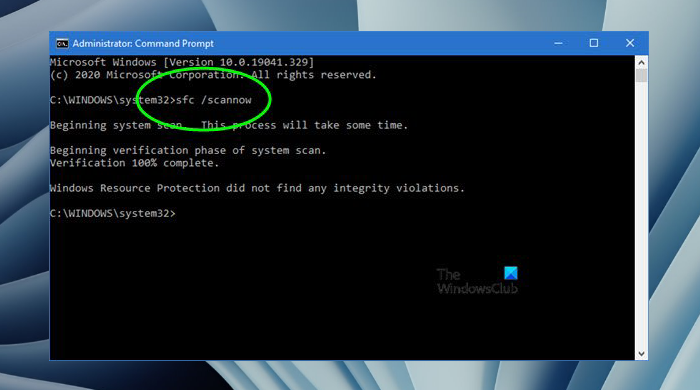
Corrupted/Missing system files and Unreal Engine do not get along well. Repairing them seems the best and easiest option to tackle this issue. You can do the same by following the steps.
- Click Win+R to open Run Dialog Box.
- Type the following
cmd
- Click Ctrl+Shift+Enter to open Command Prompt as an administrator.
- Execute the following command
sfc /scannow
The procedure may take time, as System File Checker checks for corruption. It will automatically replace damaged files.
If that doesn’t work, then try executing the following commands as well.
dism.exe /online /cleanup-image /scanhealth
dism.exe /online /cleanup-image /restorehealth
Now launch the system and check for any issues. If this fix wasn’t helpful then try the next one.
6] Change your registry settings
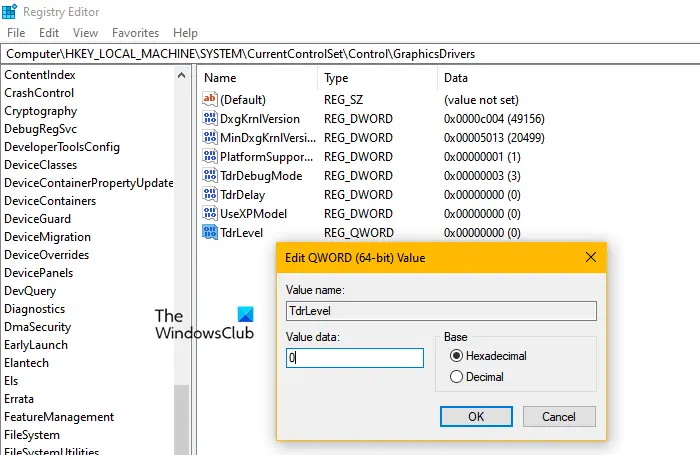
Changing your registry settings can also resolve crashing issues if the program is not opening because of TDR recovery level settings. Timeout Detection and Recovery is a tool that ensures the Graphics Driver and the device work in harmony.
Open Registry Editor. Click the Files tab, then click Export. Save the backup at the location you want. And click on the Save button. Now, reopen Registry Editor and navigate to the following.
HKEY_LOCAL_MACHINE\SYSTEM\CurrentControlSet\Control\GraphicsDrivers
Now, see if can find TdrLevel. If you can find it, double-click on the value and set the Value data to O. However, if you can’t find TdrLevel, follow the given steps to create one.
- Right-click on the empty space and move to New.
- Click on QWORD (64-bit) Value.
- Set the new name as
TdrLevel
- Double-click on it and set the Value data to 0.
- Click Ok.
Restart your PC and now open the program again and see whether you can run it perfectly.
7] Disable Antivirus temporarily
Antivirus Software can make the game crash. It more often than not put important game files in the backlist. You can either allow the game through the firewall or you can temporarily disable the Antivirus software.
After disabling the Antivirus software, check for any issues in your program. Hopefully, there won’t be any. But if it still continues then move to the next fix.
8] Reinstall Unreal Engine
If nothing works for you then you should uninstall the application and reinstall it again. As some times the program itself gets corrupted or outdated. Before uninstalling the program, make sure that you have a backup. And clear and set all the settings to their lowest, including registry settings. Now Uninstall and reinstall to see any issues.
Unreal Engine 5 system requirement
The following are the recommendedsystem requirements to play Unreal Engine 5.
- Operating System: Windows 11/10 or later
- Processor: 8‑core Intel i7/AMD Ryzen 7
- Graphics: DirectX 12 GPU, 8 GB VRAM (e.g., RTX 2070/3070)
- RAM: 32 GB
Also Check: Genshin Impact not launching on Windows 11.
