
If Credential Manager is not working and showing UI Host is not responding error, these solutions will be helpful for you. It mainly appears when your computer cannot allocate a sufficient amount of RAM or memory to open Credential Manager. However, there could be other reasons too. This article explains almost all possible causes and solutions so you can fix this issue in minutes.
Credential Manager: UI Host is not responding RDP error
To fix UI Host is not responding RDP error of Credential Manager, on Windows 11/10 systems, follow these steps:
- Restart Windows Explorer
- Close unnecessary apps
- Restart Credential Manager service
- Scan for malware
To know more about these steps, continue reading.
1] Restart Windows Explorer
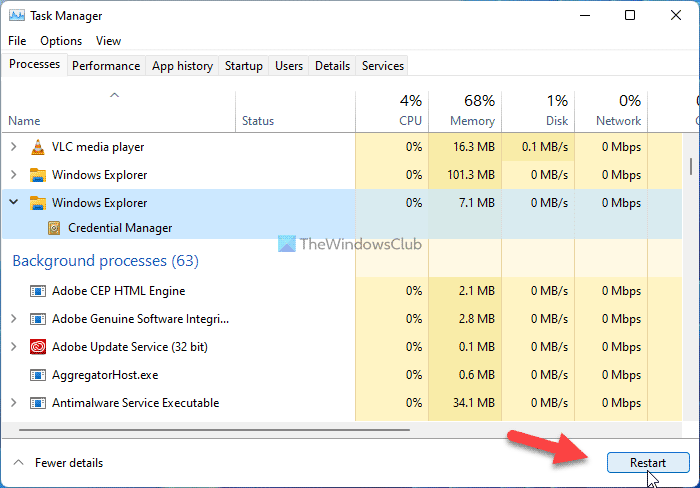
Sometimes, restarting the Windows Explorer process can help fix this issue. If this issue is caused by an internal file conflict, restarting Windows Explorer can fix it within moments. The easiest way to restart Windows Explorer is by using Task Manager.
To restart the Windows Explorer in Windows 11/10, follow these steps:
- Right-click on the Start Menu.
- Select the Task Manager from the Win+X menu.
- Click on the Windows Explorer process.
- Click the Restart button.
Then try opening Windows Credential Manager on your computer. If the problem persists, continue with the other solutions.
2] Close unnecessary apps
As mentioned earlier, this error message appears when Windows cannot allocate enough memory to open Windows Credential Manager. If you have low RAM, it is highly recommended to close unnecessary apps. If you haven’t used an app in a while and it is still open, you can use Task Manager to close it.
On the other hand, if you have opened multiple heavy-weight apps simultaneously, you can close a few of them as well. Once done, restart Windows Explorer and open the Windows Credential Manager.
3] Restart the Credential Manager service
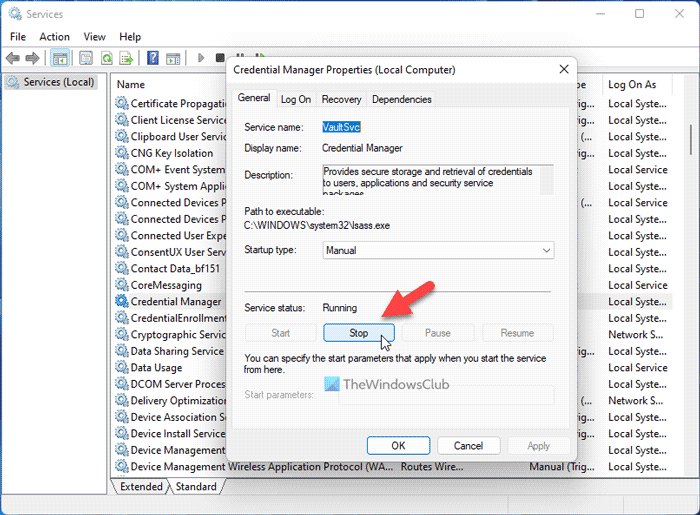
If the Credential Manager service is no longer running in the background, you can find the same issue on your computer. As this service is mandatory to run on your computer, make sure its startup type is set to Manual and it is running. Even if it is running, you may face this issue. Therefore, follow these steps to restart the Credential Manager service:
- Press Win+R to open the Run prompt.
- Type services.msc and hit the Enter button.
- Double-click on the Credential Manager service.
- Click on the Stop button.
- Choose the Manual option.
- Click on the Start button.
Following that, click the OK button, close all windows, and restart your computer. Hopefully, the problem won’t show up again.
4] Scan for malware
If your computer is infected with malware or adware, you may get this issue. You need to scan your computer with a reliable antivirus or antimalware and adware removal tool.
That’s all! Hope these solutions worked.
Read: Credential Manager not showing, opening or working properly
Why are my network credentials not working?
Network Credentials work when you have set things up correctly. However, if you have done everything correctly and it still isn’t working, check the Credential Manager service in the Services panel. If you get an error when opening Windows Credential Manager, fix that issue first.
Related reads:
- Windows Credential Manager loses credentials after reboot
- Credential Manager, The system cannot find the path specified, Error 0x80070003
- Credential Manager Access is denied
- Credential Manager Error 0x80090345
Is it OK to clear Credential Manager?
If you clear the Credential Manager or delete credentials from the Credential Manager, you won’t be able to access that username and password anymore. Other than that, there is no harm in clearing the Credential Manager. Whether you are talking about Web Credentials or Windows Credentials, the rule applies to both.
