
While opening the Credential Manager on your computer, if you get The system cannot find the path specified, Error code: 0x80070003, here is how you can bypass the issue and open the Credential Manager. Although it happens on an enterprise system, you might see the same problem on your home computer. Either way, you’ll need to use these solutions to fix it. The entire error message says:
Credential Manager Error
The location could not be found. If the selected location is on a removable device, ensure that the device is connected.
Error code: 0x80070003
Error Message: The system cannot find the path specified.
Credential Manager: The system cannot find the path specified, Error 0x80070003
To fix The system cannot find the path specified error in Credential Manager on Windows 11/10 computers, follow these steps:
- Restart Credential Manager service
- Check service dependencies
- Add exclusion in Dell Security Management Server
To learn more, continue reading.
1] Restart Credential Manager service
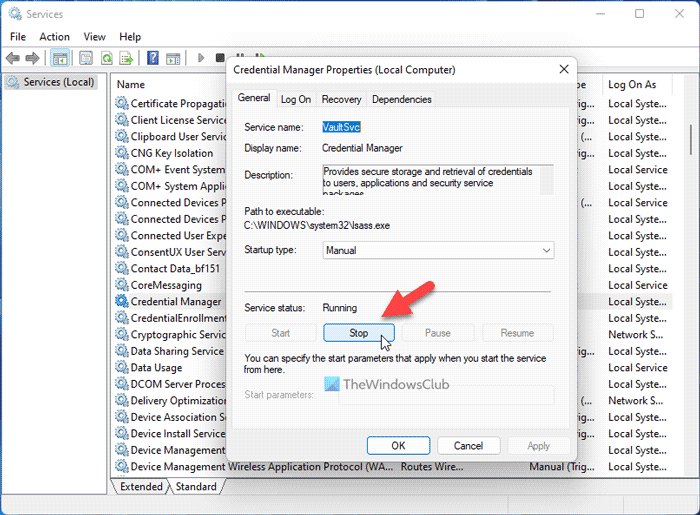
The Credential Manager service is required for users to use Windows Credential Manager on their computers. Whether you use Windows 11, Windows 10, or another version, this service must run in the background at all times. Otherwise, you might run into problems like this. Make sure its startup type is set to Manual and it is running. Even if the service is already running, you might still see the same issue. In that case, restart the service to resolve the issue.
Therefore, follow these steps to restart the Credential Manager service:
- Press Win+R to open the Run prompt.
- Type services.msc and hit the Enter button.
- Double-click on the Credential Manager service.
- Click on the Stop button.
- Select Manual from the Startup type drop-down list.
- Click the Start button.
After that, you need to restart your computer. If the issue doesn’t resolve, follow the other solutions.
Read: Credential Manager: Access is denied error
2] Check service dependencies
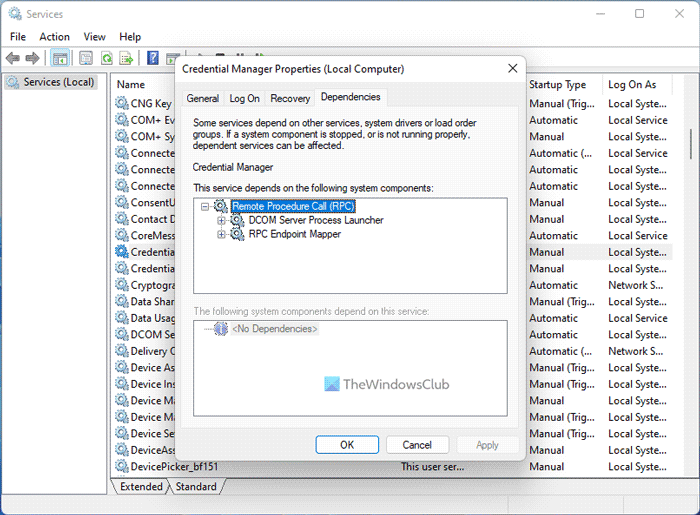
Most of the services, including Credential Manager, have various dependencies. In other words, one service is dependent on another service. It could be one or multiple services. If one of the dependencies isn’t running correctly, youwill see the issue above.
To find the Service Dependencies of the Credential Manager service, you need to double-click on the respective service and switch to the Dependencies tab. Then expand the service listed there to view the list.
On most computers, you can find these two services:
- DCOM Server Process Launcher – Startup: Automatic
- RPC Endpoint Mapper – Startup: Automatic
If you are getting the same, you need to close the current window and double-click on those services one after one and check if they are running properly or not. Ensure that their Startup type is set to Automatic. You can restart these services also.
Read: Credential Manager not showing, opening or working properly.
3] Add exclusion in Dell Security Management Server
If you are getting this problem in a Dell enterprise environment, you need to follow something else other than those two aforementioned solutions. You need to head to the following path:
Populations > Enterprise > Policy-Based Encryption > SDE Encryption Rules
Here you need to enter the following line:
-^%ENV:USERPROFILE%\AppData\Local\Microsoft\Vault
Then, click on the Save button.
Following that, navigate to Management > Commit and click on the Commit Policies button to apply the change.
Once done, you won’t find the issue anymore.
Read: Credential Manager Error 0x80090345
Where does Windows Credential Manager store passwords?
The location of the Windows Credential Manager store is %Systemdrive%\Users<Username>\AppData\Local\Microsoft\Credentials. This folder contains the credentials you’ve saved in Credential Manager in an encrypted format. Make sure not to change anything inside it, and it should only be used through the Control Panel. To access and use Windows Credential Manager, you can follow this guide.
Read: Credential Manager: UI Host is not responding RDP error
How do I restart the Credential Manager service?
To restart the Credential Manager service in Windows 11/10, you need to open the Services panel first. For that, press Win+R > type services.msc and hit the Enter button. Then, double-click on the Credential Manager service and click the Stop button. Next, click on the Start button and finally, click the OK button.
Read: Windows Credential Manager loses credentials after reboot.
