
If the Windows Credential Manager is losing credentials after reboot or logout, here is how you can fix the issue. Whether you are getting this problem on Windows 11, Windows 10, or any other version, you can go through the same solutions to get it fixed.
Windows Credential Manager helps you save the username and password of various websites, programs, networks, etc., so that you can use them automatically during login. By default, Windows Credential Manager should save credentials whether you log out or restart your PC. Nonetheless, at times, it may not do what it should be. In these cases, follow these solutions to troubleshoot the issue and keep your credentials after a reboot.
Windows Credential Manager loses credentials after reboot
If Credential Manager loses credentials after reboot on Windows 11/10 computers, follow these steps:
- Restart the Credential Manager service
- Recreate the Vault
- Scan with adware/anti-malware
- Run SFC and DISM scans.
To learn more about these above-mentioned steps, continue reading.
1] Restart the Credential Manager service
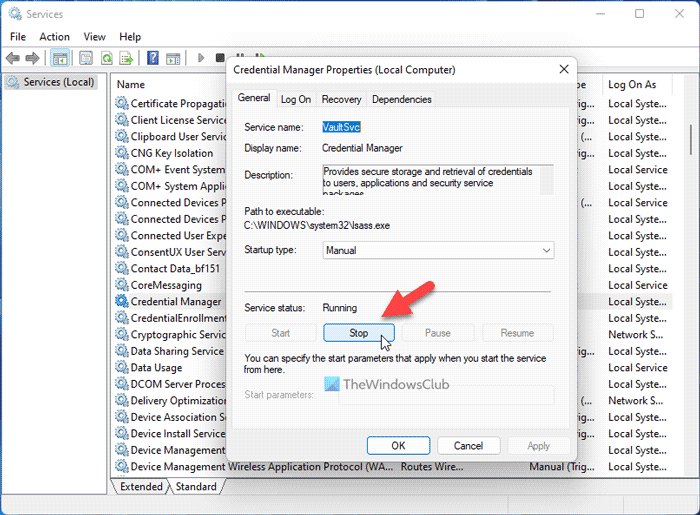
Windows Credential Manager runs in the background because of the Credential Manager service. If the service is gone, the Credential Manager won’t function properly. Therefore, you need to verify if the service is running or not.
If internal conflicts occur, you won’t be able to use Credential Manager. The easiest way to fix this is to restart the service. In case you don’t know how, follow these steps to restart the Credential Manager service:
- Search for services in the Taskbar search box.
- Click on the individual search result.
- Find the Credential Manager service.
- Double-click on it.
- Click the Stop button.
- Click the Start button.
Then, restart your computer and check if it resolves the issue or not.
Read: Credential Manager: The system cannot find the path specified, Error 0x80070003
2] Recreate the Vault

Windows Credential Manager uses a Vault to save or store all the data. This Vault is nothing, but a folder placed in the ProgramData directory in your system drive. If this folder is corrupted due to malware or adware or anything else, you might find the same problem as mentioned above.
That is why you can recreate this folder from scratch by removing all old data. As mentioned, it is a folder, and you can delete it like any other regular folder.
Therefore, follow these steps to re-create the Vault in Windows 11/10:
- Press Win+R to open the Run prompt.
- Type %ProgramData%\Microsoft and hit the Enter button.
- Right-click on Vault and select Delete.
- Restart your computer and open Credential Manager.
- Go to the Windows Credentials tab.
- Click on the Add a Windows credential option.
- Enter the network address, username, and password.
- Click the OK button.
Then check whether the issue is resolved.
Read: Credential Manager Error 0x80090345
3] Scan with adware/anti-malware
Sometimes, malware and adware can cause this issue. If they corrupt system files related to Credential Manager, you won’t be able to use this utility properly. That is why it is recommended to scan your computer with a trustworthy anti-malware and adware removal tool.
Read: Credential Manager: Access is denied error
4] Run SFC and DISM scans
To eliminate the possibility of file corruption, you may want to Run SystemFile Checker and DISM Tool scans.
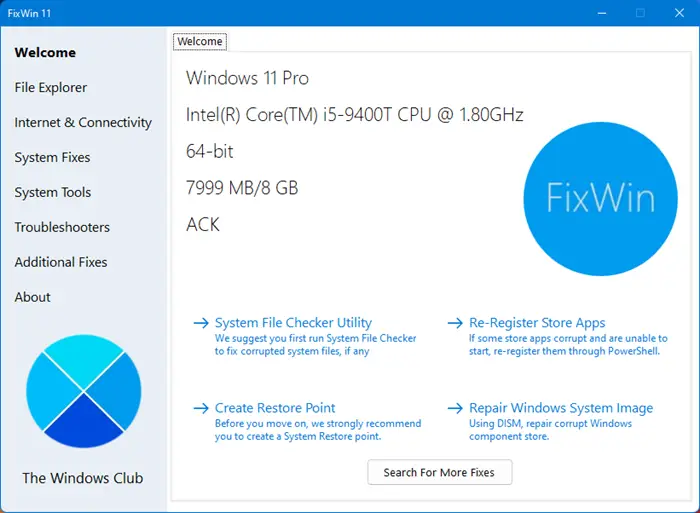
You may download our freeware FixWin Windows repair tool to carry them out with a click!
Why won’t Windows remember my credentials?
There are several reasons Windows Credential Manager won’t remember your credentials. For example, if the Credential Manager service isn’t running, the utility won’t work properly. The second reason is if the Vault is corrupted, the same problem might occur. Lastly, a corrupted user profile could cause the issue.
Read: Credential Manager not showing, opening or working properly
Why can’t I see my passwords in Credential Manager?
If you can’t see your passwords in Credential Manager, switch between Web Credentials and Windows Credentials. Head to the Windows Credentials section to find the network or program passwords. If you want to find website passwords, look in the Web Credentials section.
Read: Credential Manager: UI Host is not responding RDP error.
