
You might see Invalid credentials, delaying next attempt in VMware when the ESXi host, which is part of a vSphere environment managed by vCenter, loses its connection to vCenter or cannot authenticate with it using its stored credentials. In this post, we’ll discuss this issue and explore what you can do to resolve it.

Invalid credentials, delaying next attempt in VMware
If you see the message Invalid credentials, delaying next attempt in VMware, it means that the ESXi host, which is part of a vSphere environment managed by vCenter, has lost its connection to vCenter or cannot log in using its stored credentials. The host regularly communicates with vCenter to share its status and receive instructions. If the password for the ‘vpxuser’ account, used for this communication, is no longer correct, or if there is a network problem, the host will keep failing to log in. The “delaying next attempt” message helps prevent lockouts after several failed login attempts. You can follow the solutions mentioned below to do the same.
1] Restart Management Agents on ESXi
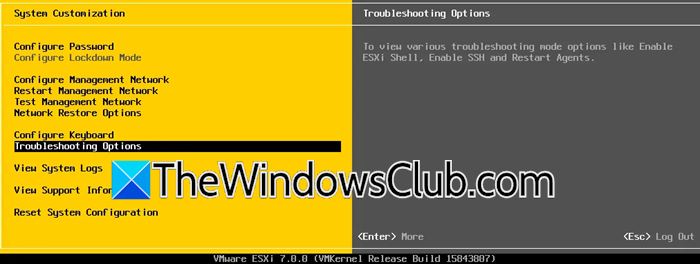
Restarting the management agents fixes the issue by renewing the core services that let the ESXi host communicate with the vCenter Server. This process removes any saved, corrupted, or mismatched authentication tokens and starts the connection from the beginning. It allows the host and vCenter to securely reconnect and verify credentials again to reset the communication channel. In order to restart management agents on ESXi, you can follow either of the methods mentioned below.
Using the Direct Console
- When you are on the error screen, hit F2 to Customize System.
- Then, log in using your root credentials (you may need to press Alt + F1 first).
- Navigate to Troubleshooting Options > Restart Management Agents.
- Confirm by pressing Enter and wait for the services to restart.
Using an SSH Session
- Enable SSH in DCUI under Troubleshooting Options.
- Use an SSH Client (like PuTTY) to log into the ESXi host as root.
- Run the command services.sh restart.
Finally, check if the issue is resolved.
2] Re-sync the Host with vCenter
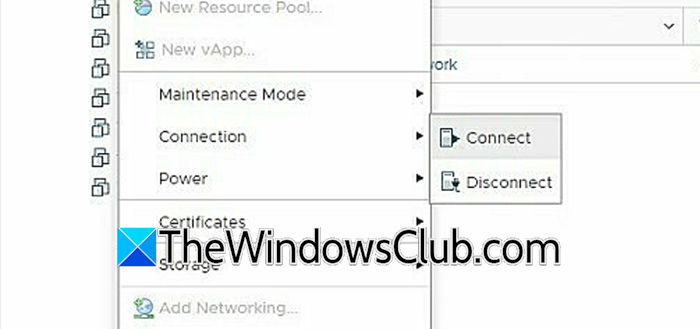
In this solution, we need to reconcile its inventory with the ESXi host’s current state. It repairs the trust relationship by having vCenter re-authenticate with the host and update its configuration, resolving communication gaps that a simple service restart couldn’t fix. Follow the steps below to do the same.
- Log in to the vSphere Client (the web interface for vCenter).
- Navigate to the Host and Clusters view.
- Right-click on the problematic ESXi host.
- Select Connection > Disconnect.
- Then, go to the same option and click on Connect.
Once done, try logging into the system and see if it works.
3] Re-enter Maintenance Mode and exit
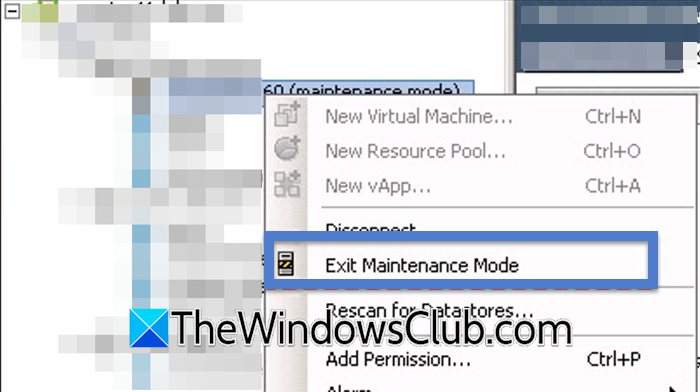
Entering maintenance mode prompts vCenter to re-evaluate the host’s status and credentials. Exiting maintenance mode helps the host re-establish management communication, often resolving transient authentication errors. This effectively acts as a “soft reset” of the host’s state without needing a service restart. You can follow the steps mentioned below.
- In the vSphere Client, right-click on the ESXi host.
- Select Enter Maintenance Mode (Ensure all VMs are migrated off first).
- Once the task completes, right-click on the host again and select Exit Maintenance Mode.
Finally, check if the issue is resolved.
4] Check for Network & DNS Issues
The authentication process fails if the host cannot resolve the vCenter server’s domain name to the correct IP address via DNS or if a network route is blocked. By verifying connectivity, you ensure the host can reach the authentication service on the vCenter server, eliminating a simple but common point of failure that manifests as an “invalid credentials” error.
- From the ESXi DCUI or SSH, check if the host can ping the VCenter server by its IP address.
- Then, try to ping the vCenter server by its fully qualified domain name (FQDN).
- If this fails, DNS is the issue.
- Verify the ESXi host’s DNS and network configuration are correct.
If there is any misconfiguration, fix it, and you will be good to go.
5] Re-add the Host to vCenter
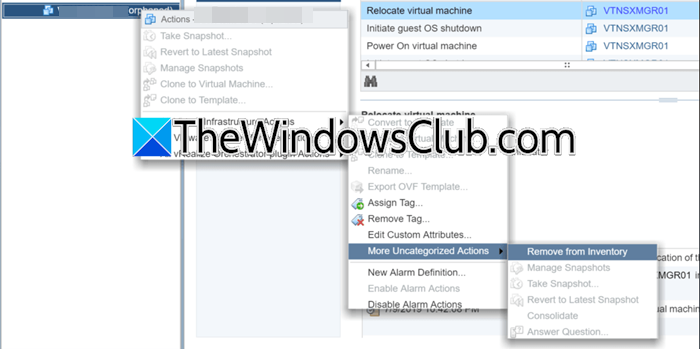
This is a last resort as it involves removing the broken host from vCenter’s inventory and adding it back, which will re-establish the trust. You can follow the steps mentioned below to do the same.
- In vSphere Client, right-click the host and select More Uncategorized Actions > Remove from Inventory.
- Right-click your datacenter or cluster and select Add Host.
- Follow the wizard to add the host back using its root credentials.
Finally, reconfigure the settings and see if the issue is resolved.
That’s it!
Read: How to install VMWare ESXi Hypervisor in Hyper-V Virtual Machine
What does Invalid credentials Please try again mean?
The error message “Invalid credentials, please try again” indicates that the username, password, or security details entered were rejected. Common causes include typos, a locked or expired account, case sensitivity issues, system time synchronization problems, or a corrupted cache. In virtualization environments like VMware, it can also occur if a host loses its secure link with a vCenter Server, even with the correct root password.
Read: How to enable AutoStart of VMs on VMware ESXi and Workstation
How to fix Inaccessible datastore in VMware?
To fix an inaccessible datastore in VMware, start by rescanning all storage adapters on the affected ESXi host using the vSphere Client. If the issue persists, check the storage system’s physical health and connectivity (e.g., SAN or NAS) and confirm that at least one network path is active. Look for any failed cables or switches. As a last resort, reboot the ESXi host to clear transient errors, but be aware that this will cause downtime for all virtual machines on that host.
Also Read: Migrate or import VMs from VMware ESXi to Proxmox.
