
Windows Credential Manager is a built-in tool that stores login information for apps, websites, and networks. However, users are facing issues where saved passwords are not showing, even when the credentials are listed. In this guide, we will explore what you can do if the Windows Credential Manager is not showing the password.
Windows Credential Manager not showing password [Fix]
If passwords are not showing in the Windows Credential Manager, execute the solutions mentioned below.
- Restart the PC and Credential Manager service
- Set the Credential Manager Service to Automatic mode
- Re-add the credentials
- Run System File Checker and DISM
- Create a new user profile
- Check Group Policy Settings
Let’s get started with the troubleshooting guide.
1] Restart the PC and Credential Manager service
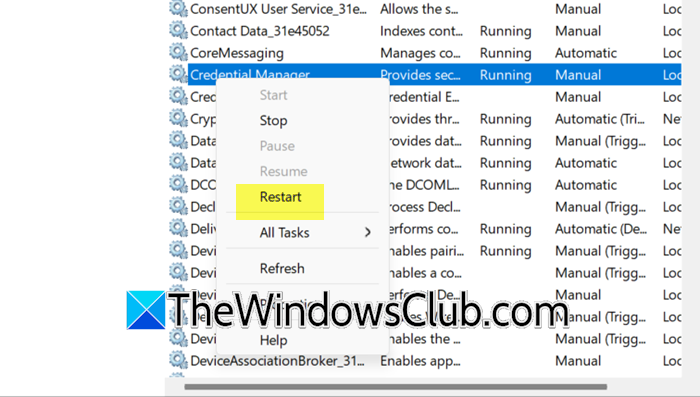
Primarily, the issue can be simply due to glitches, which is why users are facing it. To eliminate this, reboot the PC, and try to see if the password is visible. If the problem persists, we will restart the Credential Manager service.
- Click Win + R to open the Run dialog box, type service.msc, and hit Enter.
- In the Services window, scroll down the list to find Credential Manager, and right-click on it.
- Select the Restart option if it is available, and if it is greyed out, click the Stop button. Wait a few seconds, then right-click on it and select the Start button.
- If it is not running, right-click on the service and select Properties,
- In the Properties window, find the Startup Type drop-down menu, and select the Automatic option.
Close the services window, and check if the issue is resolved in Credential Manager. Move to the next solution if it persists.
3] Re-add the credentials
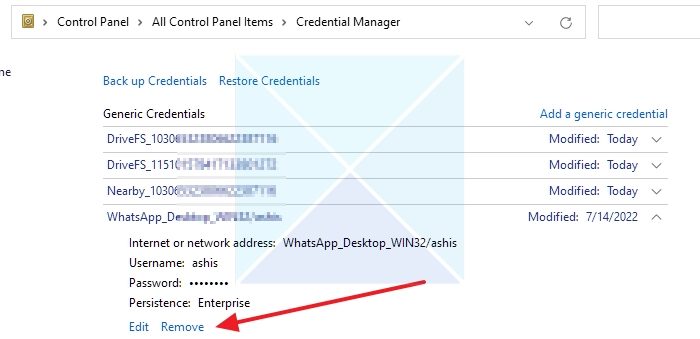
The problem can also be due to corrupted logins that can’t be decrypted. The solution to this is to remove and add the password.
- Go to the Start menu, type and open Credential Manager.
- Click on the Windows Credentials tab, find the login for the website, and click the down arrow.
- Select the Revert button, and then go to the website or app that requires the login.
- Now, enter the username and password again, and choose to save them.
Return to Credential Manager, and the new entry should be visible, revealing the password correctly when you click ‘Show’ and approve the UAC prompt. Execute the next troubleshooting solution if the problem persists.
4] Run System File Checker and DISM
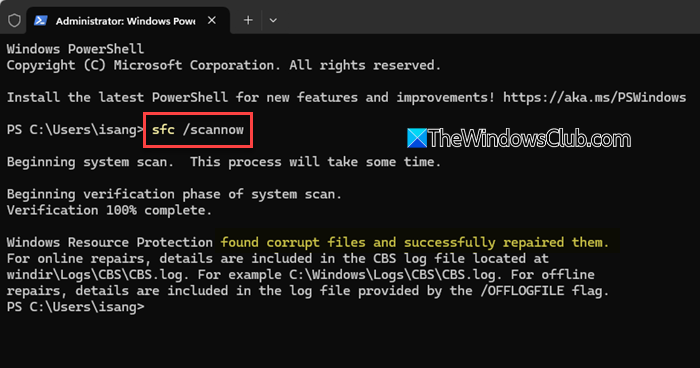
The decryption process relies on specific system files. If these system files become corrupted or go missing, the feature often fails silently. Running DISM and SFC to eliminate this probability is the next ideal step.
- In the elevated Command Prompt, execute the following command to run DISM:
DISM /Online /Cleanup-Image /RestoreHealth
- Let the process complete, and then run the SFC command to identify and resolve any corruption.
sfc /scannow
- Please do not close the window while waiting for the process to complete, and then reboot the device once it has finished.
After rebooting, log in, open Credential Manager, and see if the passwords are visible. See the next solution if the issue persists.
5] Create a new user profile

User profiles can get corrupted due to software conflicts, faulty updates, or file errors. This corruption can disrupt specific functions, such as Credential Manager. To bypass all the potential corruption, it is recommended to create a new user profile.
- Click Win + I to open Settings, go to the Account tab, and select Other Users.
- Under the Other User section, click Add Someone else or Add Account to this PC, and then select I don’t have this person’s sign-in information.
- Follow the prompts to create a new local administrator account. Once done, log out and log in to the new account.
Now, open Credential Manager and test if the password is displayed. If they do, the problem lies within the corrupted main profile, and users need to migrate data to the new profile.
Read: Fix 0x80070425 Credential Manager Error
6] Check Group Policy settings
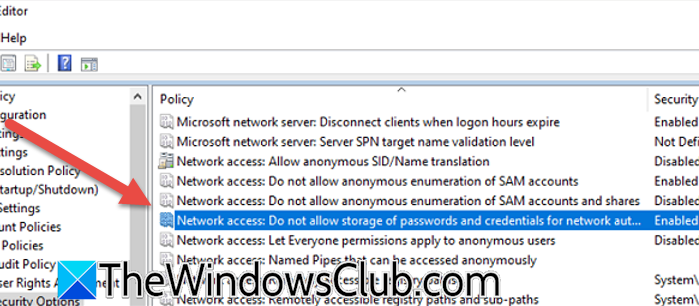
Group Policy can prevent you from saving or using stored credentials for RDP and network authentication. This can make it seem like entries are missing or stop you from using them in plain text. To troubleshoot effectively, adjust the policies to allow saving and using credentials. You can follow the steps mentioned below.
- First, open the Group Policy Editor.
- Go to Computer Configuration > Windows Settings > Security Settings > Local Policies > Security Options.
- Set Network access: Do not allow storage of passwords and credentials for network authentication to Disabled.
- For the RDP client, go to Computer Configuration > Administrative Templates > Windows Components > Remote Desktop Services > Remote Desktop Connection Client.
- Set Do not allow passwords to be saved to Disabled and Prompt for credentials on the client computer to Not Configured/Disabled.
Finally, check if the issue is resolved.
That’s it!
Read: Clear all Credentials from Credential Manager in Windows 11
How to refresh Credential Manager?
Restarting Credential Manager refreshes it. To do the same, open the Services Management Console, locate Credential Manager, and right-click on it. Select Restart and ensure its Startup type is set to Automatic.
Where does the Credential Manager store passwords?
Credential Manager stores passwords in a special encrypted file located at C:\Users\[Username]\AppData\Local\Microsoft\Vault\. This file is heavily protected by the Windows Data Protection API (DPAPI). This encrypts it by using keys tied to the specific user login and prevents unauthorized access.
Also Read: Manage Credentials from Credential Manager using CMD.
