
If you are getting error code 0x80090345 along with an error message saying The requested operation cannot be completed, while accessing the Credential Manager, follow these suggestions to resolve the issue. This problem occurs when you do not have the ProtectionPolicy REG_DWORD value, or the Value data of this REG_DWORD value is set to 0. This article explains how you can set things up correctly to bypass the aforementioned error.
The entire message says the following:
Credential Manager Error
An error occurred while performing this action.
Error code: 0x80090345
Error Message: The requested operation cannot be completed. The computer must be trusted for delegation and the current user account must be configured to allow delegation.
You might come across this error when opening the Windows Credential Manager, if the ProtectionPolicy REG_DWORD value is not set properly.
Fix Credential Manager Error 0x80090345
To fix Credential Manager error 0x80090345 on Windows 11/10 computers, follow these steps:
- Set ProtectionPolicy correctly
- Uninstall problematic Windows Update
The requested operation cannot be completed. The computer must be trusted for delegation
1] Set ProtectionPolicy correctly
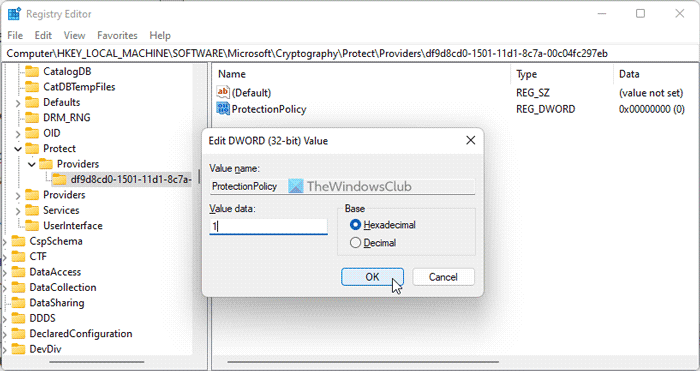
As said earlier, the ProtectionPolicy REG_DWORD value plays a vital role in using the Credential Manager on your Windows computer. If this policy is not set correctly, you won’t be able to use the Windows Credential Manager and end up getting different errors like this one.
Therefore, follow these steps to set ProtectionPolicy correctly:
Press Win+R to open the Run prompt.
Type regedit and hit the Enter button.
Click on the Yes button in the UAC prompt.
Navigate to this path:
HKEY_LOCAL_MACHINE\SOFTWARE\Microsoft\Cryptography\Protect\Providers\df9d8cd0-1501-11d1-8c7a-00c04fc297eb
Right-click on df9d8cd0-1501-11d1-8c7a-00c04fc297eb > New > DWORD (32-bit) value.
Name it as ProtectionPolicy.
Double-click on it and set the Value data as 1.
Click the OK button.
Close all windows and restart your PC.
If you have already got the ProtectionPolicy REG_DWORD value, you do not need to create it again. In that case, you can check the existing Value data. If it is not set to 1, double-click on it and set the Value data as 1. Finally, click OK to save the change, then restart your PC to apply it.
2] Uninstall problematic Windows Update
If you have installed Windows Updates recently and started getting this error after that, you need to uninstall those updates.
Read: Credential Manager: UI Host is not responding RDP error
How do I restore my Credential Manager?
To restore Credential Manager or credentials in Windows 11 or Windows 10, you need to use the Credential Manager itself. Open the Windows Credential Manager first and click on the Restore Credentials button. Then, choose the backup file by clicking the Browse button and clicking the Next button. Again, click on the Next and Finish buttons, respectively to get things done.
Related reads:
- Windows Credential Manager loses credentials after reboot
- Credential Manager, The system cannot find the path specified, Error 0x80070003
- Credential Manager Access is denied
How do I clean my Credential Manager?
To clean your Credential Manager or delete a saved credential on Windows 11/10 PC, you need to open the Windows Credential Manager first. Then, find the credential you want to remove and click on it to expand. Then, click the Remove button and confirm the change.
That’s all! Hope these solutions worked for you.
Read next: Credential Manager not showing, opening or working properly.
