
If Copilot is stuck at Getting your draft ready to edit in Word window, here is how you can fix the issue in Windows 11. This problem appears when you try to open an article or a response from Copilot in Microsoft Word.
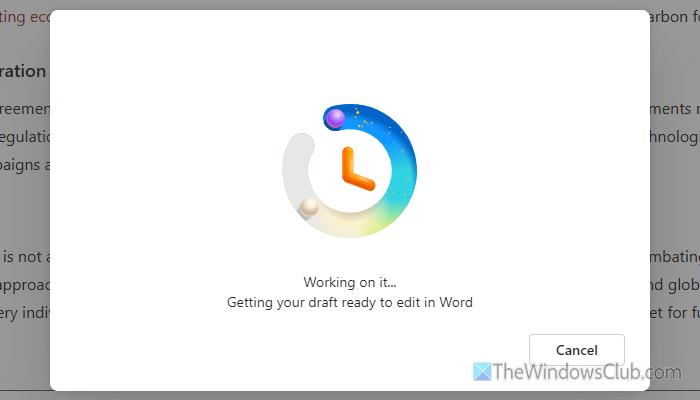
Why is Copilot stuck at Getting your draft ready to edit in Word?
- Third-party software blocks Copilot/Word in the background.
- You have an outdated version of Microsoft Word.
- Your internet connection is not working properly.
- Your administrator has blocked Word.
- The Microsoft 365 subscription has expired.
- An add-in is creating the issue in Word.
Copilot stuck at Getting your draft ready to edit in Word
If Copilot is stuck at Getting your draft ready to edit in Word, follow these solutions:
- Verify your Microsoft 365 subscription
- Ask your administrator to unblock Word
- Check if third-party software is blocking Word/Copilot
- Update Word
- Check Word add-ins
- Run Word in Safe mode
- Repair and Reset Copilot
- Repair Microsoft 365
To learn more about these solutions, continue reading.
1] Verify your Microsoft 365 subscription
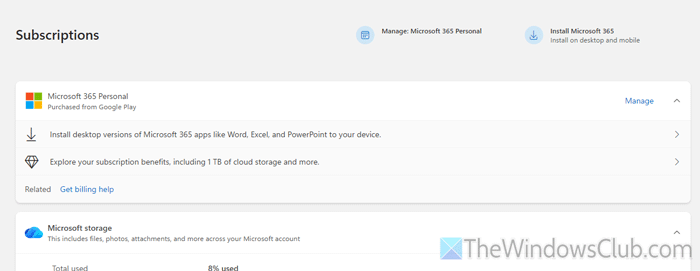
It is the first thing you must check, as Microsoft 365 Copilot requires a valid subscription. To do that, enter account.microsoft.com in your browser. After that, you can find your current subscription. Once you click on your plan name, you can find the expiry date.
Read: Couldn’t verify your Office 365 subscription
2] Ask your administrator to unblock Word

If you have a School or Work account, your system administrator may have blocked Word or Copilot. In that case, you can ask your administrator to unblock you so you can use Word.
Read: How to change File Block settings in Microsoft Office programs
3] Check if third-party software is blocking Word/Copilot

There are so many third-party programs that can block installed programs from opening on your computer. If you use such software, it is time to check the settings. If you have blocked Word from opening on your computer using a program blocker, you must remove it or make an exception.
4] Update Word
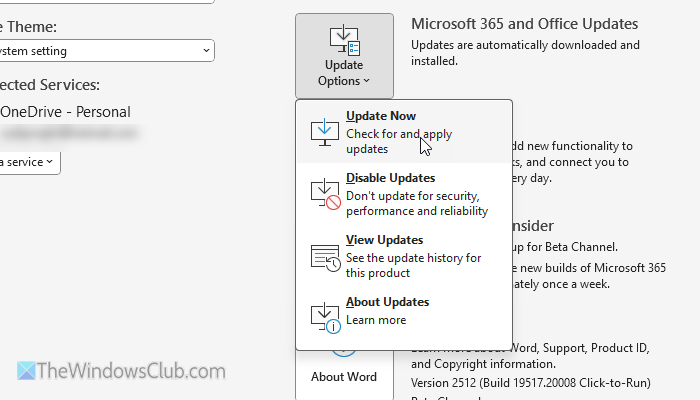
To update Word, follow these steps:
- Open Word on your computer.
- Go to File > Account.
- Click on the Update Options > Update Now.
For your information, it takes a few minutes to download and install the update.
5] Check Word add-ins
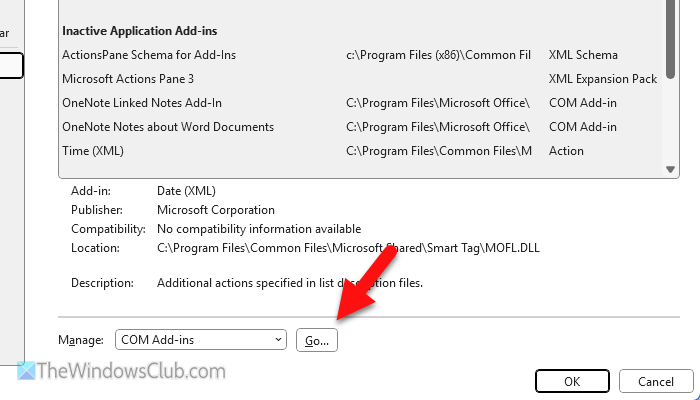
If you have recently installed any add-ins in Word and the problem started after that, it is suggested to disable those add-ins. For that, open Word and go to File > Options > Add-ins. Click on the Go button, remove the tick from the corresponding checkboxes, and click the OK button.
6] Run Word in Safe mode
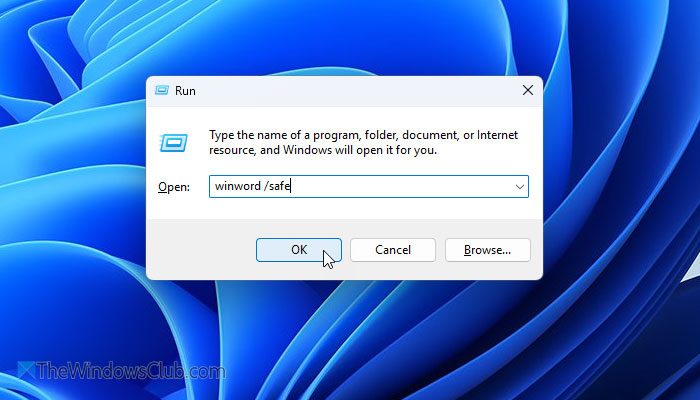
In Safe Mode, you can check whether there are any issues with any driver, add-in, or anything else. If you find that Word works smoothly in Safe Mode, the problem is elsewhere, not in Word. In order to run Word in Safe Mode, press Win+R to open the Run prompt, and enter this command:
winword /safe
7] Repair and Reset Copilot
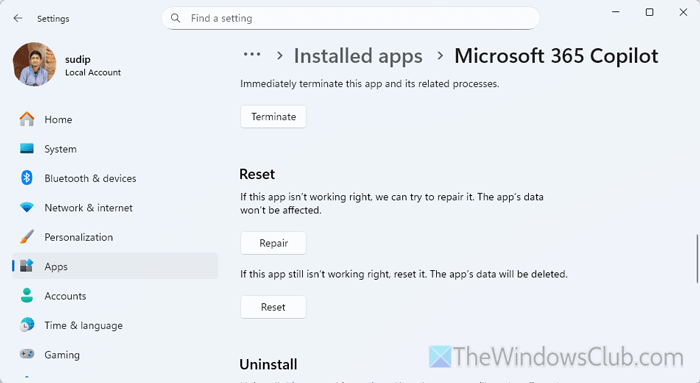
To repair and reset Copilot, follow these steps:
- Press Win+I to open Windows Settings.
- Go to Apps > Installed apps.
- Find Microsoft 365 Copilot.
- Click on the three-dotted icon and select Advanced options.
- Click the Repair button.
- If it doesn’t fix the problem, click on the Reset button twice.
After that, open Copilot and enter your Microsoft account credentials to log in.
Read: Run Copilot Troubleshooters to fix License and Connectivity issues in Windows 11
8] Repair Microsoft 365
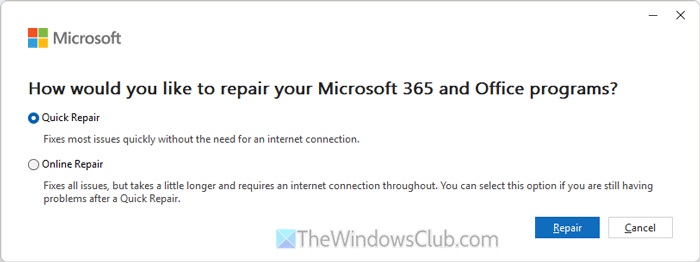
To repair Microsoft 365, follow these steps:
- Open Windows Settings on your computer.
- Go to Apps > Installed apps.
- Find Microsoft 365.
- Click on the three-dotted icon and select Modify.
- Click the Yes button on the UAC prompt.
- Choose the Quick Repair option and click the Repair button.
- If it doesn’t fix the issue, choose the Online Repair option and click the Repair button.
For your information, the latter option requires more time and a valid and uninterrupted internet connection.
Read: Copilot not working in Windows 11
How to get rid of the draft with the Copilot icon in Word?
To remove the Draft with Copilot icon in Word, click File, then open Options. Then, switch to the Copilot tab and uncheck the Enable Copilot checkbox. Click the OK button.
Why isn’t my Copilot working in Word?
Copilot may not work in Word if:
- You do not have a valid subscription.
- You have an outdated version of Microsoft Word.
- Your Microsoft account has some issues.
- You have installed some conflicting add-ins.
