
If Read aloud is not working in Copilot, here is how you can fix the issue in Windows 11. No matter whether you face this problem in the Copilot desktop app, Microsoft 365 Copilot, or Copilot for Edge, you can go through these solutions to get rid of this problem.
Why is Read aloud not working in Copilot?
- You have an outdated version of Copilot or Edge.
- You belong to a region where the Read aloud feature is still under development or not available as of now.
- You do not have a valid subscription.
- You do not have an uninterrupted internet connection.
- You have muted your Edge.
Copilot Read aloud not working
If the Copilot Read aloud feature is not working, follow these solutions:
- Update Copilot
- Repair and Reset Copilot
- Update Edge browser
- Reset Edge browser
- Check your Microsoft 365 subscription
- Check Volume mixer settings
- Check Output device settings
To learn more about these solutions, continue reading.
1] Update Copilot
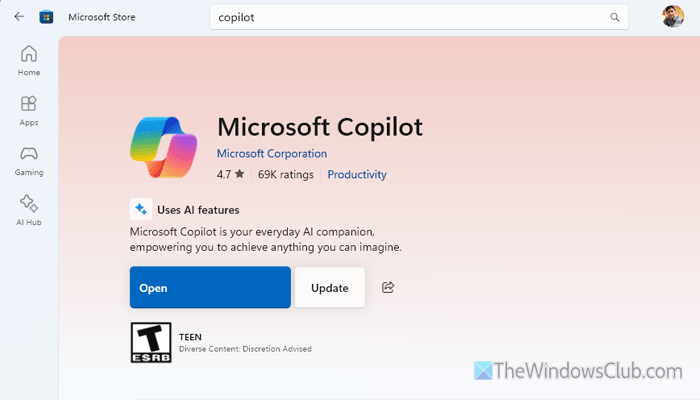
To update Copilot, follow these steps:
- Open the Microsoft Store on your computer.
- Search for Copilot and click on Microsoft Copilot.
- Click the Update button.
- Let the update be finished.
Once done, close Microsoft Store and re-open Copilot. However, if you have Microsoft 365 Copilot, it is recommended to choose it when you find the search results.
Read: Windows 11 Copilot Download, Install, Features, Settings, Remove
2] Repair and Reset Copilot
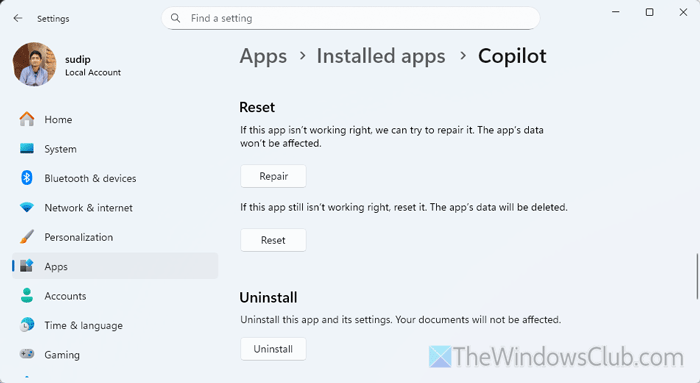
To repair or reset Copilot, follow these steps:
- Press Win+I to open the Windows Settings panel on your computer.
- Go to Apps > Installed apps.
- Click on the three-dotted icon or Copilot and choose Advanced options.
- Click on the Repair button.
- However, if it doesn’t do anything, click on the Reset button twice to reset the app.
Once you do that, you will have to reopen the Copilot app and re-enter your credentials. On the other hand, if you use Microsoft 365 Copilot, click on the three-dotted icon of Microsoft 365 Copilot and go through the same steps as above.
Read: Copilot not working in Edge; Attempting to reconnect
3] Update Edge browser
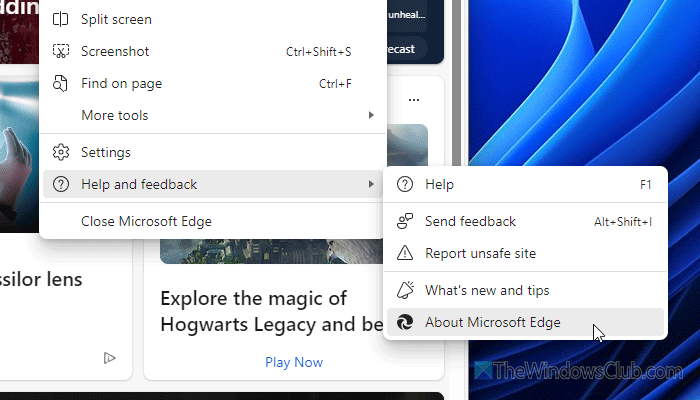
To update the Edge browser, follow these steps:
- Open the Edge browser on your computer.
- Click on the Settings or the three-dotted icon visible on the top-right corner.
- Select Help and feedback > About Microsoft Edge.
- If an update is available, it will be installed accordingly.
Raed: Sorry, we ran into a problem loading this app Copilot error
4] Reset Edge browser
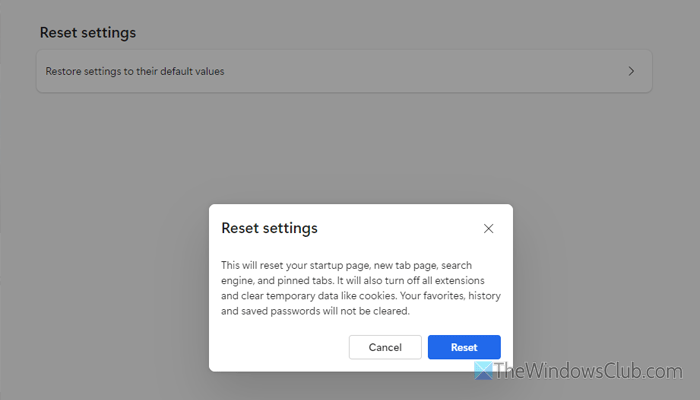
If you face this problem in the Edge browser, it is suggested to reset it. To reset the Edge browser, do the following:
- Open the Edge browser and go to Settings.
- Switch to the Reset settings tab.
- Click on the Restore settings to their default values option.
- Click the Reset button on the pop-up window.
5] Check your Microsoft 365 subscription
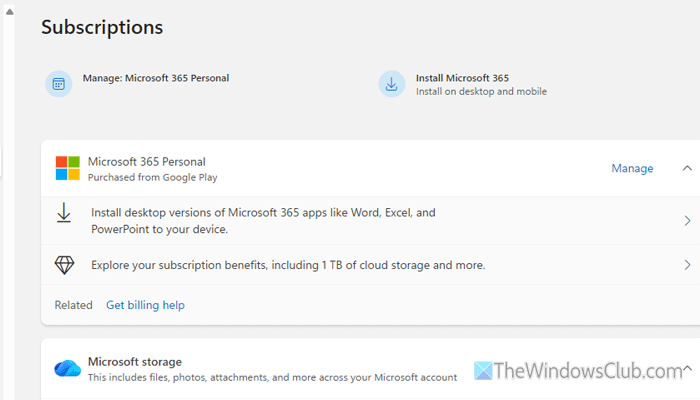
If you are trying to use Microsoft 365 Copilot but you do not have a valid subscription, you won’t be able to use it properly. In that case, you must verify whether you have a valid subscription.
For that, you can open account.microsoft.com/services first. If you have a valid plan, you can find it on your screen. To find the expiry date, click on the Manage button.
Read: Subscription expired, Update payment to keep Microsoft 365
6] Check Volume mixer settings
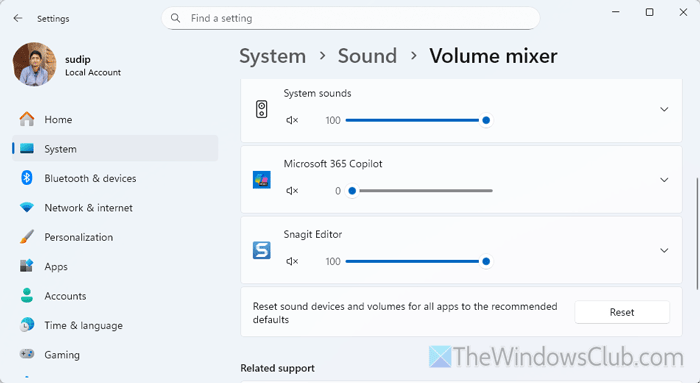
Volume mixer setting helps you set the value on a per-app basis. In other words, it is possible to mute or change the volume of any specific application. Having said that, if you have muted Copilot from the volume mixer by mistake, there is a chance of getting the error above.
To check the Volume mixer settings, follow these steps:
- Open Windows Settings on your computer.
- Go to System > Sound > Volume mixer.
- Head to the Apps section.
- If the volume is low or muted, increase it to 100%.
7] Check Output device settings
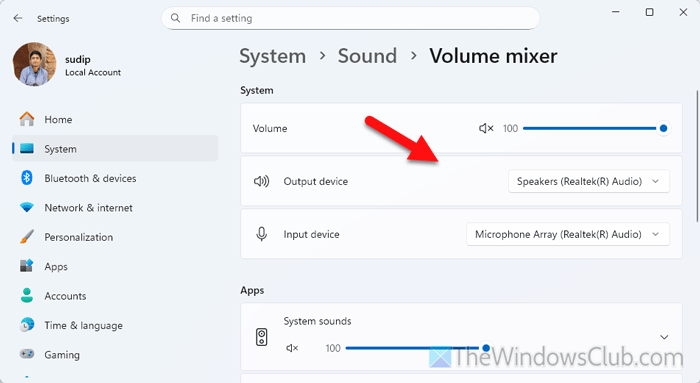
If you have mistakenly set a wrong output device, Read aloud will play the audio, but you won’t be able to listen to it. That is why it is suggested to check the Output device settings once.
For that, do the following:
- Open the Windows Settings panel.
- Go to System > Sound > Volume mixer.
- Head to the System section.
- Expand the Output device drop-down menu and choose the correct device.
Read: Read Aloud not working in Edge
How to get Copilot to read out loud?
To get Copilot to read out loud, allow Copilot to finish the conversation or show the entire response first. Then, click on the three-dotted icon and select the Read aloud option. Click the Pause button to pause the player.
How do I activate read aloud in Copilot?
To activate Read aloud in Copilot, you must get the entire response first. Then, scroll down to the bottom of the response, find the three-dotted icon, and click on the Read aloud option.
