
Chivalry 2 is a paradise for anyone who enjoys action games. It has excellent Graphics on top of a captivating storyline. Unfortunately, some gamers are unable to enjoy the game. According to them, Chivalry 2 is crashing on their computer. Sometimes, the game crashes at startup, whereas sometimes it crashes in the middle of a session. On some occasions, Chivalry 2 makes the system crash because of overheating. In this article, we will discuss all of this in detail and see what should be done to get the game running smoothly.
Why is Chivalry 2 crashing?
We will talk about some common reasons in this section. But one of the reasons, in this case, is overclocking software. Apps such as MSI Afterburner have been giving trouble to this game. Apart from overclocking apps, corrupted game files are a major cause of abrupt crashes. The good news is that they can be resolved; we are going to show how. Also, we need to make sure your display drivers are up to date. If they are not, compatibility issues can get triggered.
Tools such as DirectX and Visual C++ Redistributable are also important for any game, especially demanding titles such as Chivalry 2.
Chivalry 2 keeps crashing, freezing or hanging at startup on PC
If Chivalry 2 keeps crashing, freezing, or hanging at startup on Windows 11/10 PC, here are solutions to help you properly resolve the issue.
- Check for overheating
- Troubleshoot in Clean Boot
- Fix Corrupted Files
- Update Graphics Drivers
- Download or Update DirectX and Visual C++ Redistributable
- Additional Solutions
Let us talk about them in detail.
1] Check for overheating
First up, we need to make sure your game isn’t crashing due to overheating. You need to prevent overheating. Just check if the fan is hot or the area near the processor is steaming. If that is the case, try closing all the other apps, dial down the graphics settings, and play the game at lower graphics settings to stop it from consuming all your resources.
2] Troubleshoot in Clean Boot
Apps such as MSI Afterburner or any RGB-controlling app can cause the game to crash. You should perform Clean Boot to find out exactly what’s causing the problem. Then remove it and your problem will be resolved.
3] Fix Corrupted Game Files
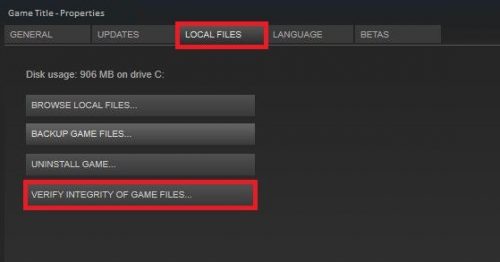
To fix corrupted game files, you can use your launcher. Both Epic Games and Steam offer options to verify and fix the game files we are going to use.
Steam
- Open Steam.
- Go to Library, right-click on your game, and select Properties.
- Click on Local Files > Verify the Integrity of Game Files.
Epic Games
- Open Epic Games Launcher.
- Go to the Library.
- Click on the three dots associated with Chivalry 2.
- Click on Verify.
Once the game is verified, its corrupted files will get repaired, which should do the trick for you.
4] Update Graphics Drivers
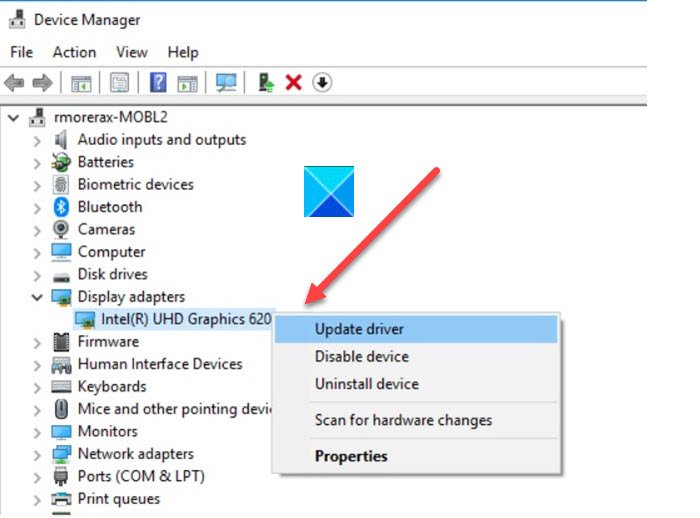
You need to update Graphics Drivers; otherwise, you will face compatibility issues and your game won’t launch. The following are some of the methods to update the Graphics Drivers.
- Check Optional Updates from Settings.
- Go to the manufacturer’s website and download your driver.
Hopefully, this will do the job.
5] Download or Update DirectX and Visual C++ Redistributable
DirectX and Visual C++ Redistributable are essential for your game. If you don’t have them, you should download and install them immediately. In case you are on the previous version of the tools, update to the latest version. Hopefully, it will do the trick for you.
6] Additional Solutions
There are some other things you can try. Open the game or the launcher with administrative privileges. If that doesn’t work, try allowing the game through the firewall. Also, install the latest game patch, actually, you don’t have to do anything as your launcher actually checks and downloads once an update is available. You should also check if your PC meets the hardware requirements.
That’s it!
Can my PC handle Chivalry 2?
The following are the configurations your computer needs to match to play Chivalry 2.
MINIMUM:
- OS: Windows 10 (64-bit)
- Processor: Intel i3-4370
- Memory: 8 MB RAM
- Graphics: Nvidia GeForce GTX 660 or AMD Radeon HD 7870 2 GB
- DirectX: Version 10
- Storage: 20 GB available space.
RECOMMENDED:
- OS: Windows 11/10 (64-bit)
- Processor: Intel i7 6700 or AMD Ryzen 5 3500x
- Memory: 16 MB RAM
- Graphics: Nvidia GTX 1070 or AMD RX Vega-56
- DirectX: Version 10
- Storage: 20 GB available space.
How do you stop stuttering in Chivalry 2?
If Chivalry 2 gameplay is stuttering on EGS (Epic Game Store), then you need to delete the steam_api64.dll file to fix it. First, close Chivalry 2 game, and access the Epic Games folder. Under that folder, navigate to Chivalry2\Engine\Binaries\ThirdParty\Steamworks\Steamv147\Win64 and then delete the steam_api64.dll file. Now start Chivalry 2 game and the problem will be fixed.
Also Read: ELEX keeps crashing or freezing on Windows PC.
