
ChatGPT allows users to generate images through text prompts. Text-to-image generation is available to both free and paid account holders. However, there are some limitations in the free account. For some users, the text-to-image generation is not working properly. If ChatGPT gets stuck on image generation, this article will help you create an image.
ChatGPT gets stuck on Image generation
If ChatGPT gets stuck on image generation or creating image, use the following fixes to resolve the issue:
- Branch the chat
- Start a new chat
- Check the image library
- Clear cache for OpenAI and ChatGPT
- Disable extensions
- Try a workaround
- Use a different web browser
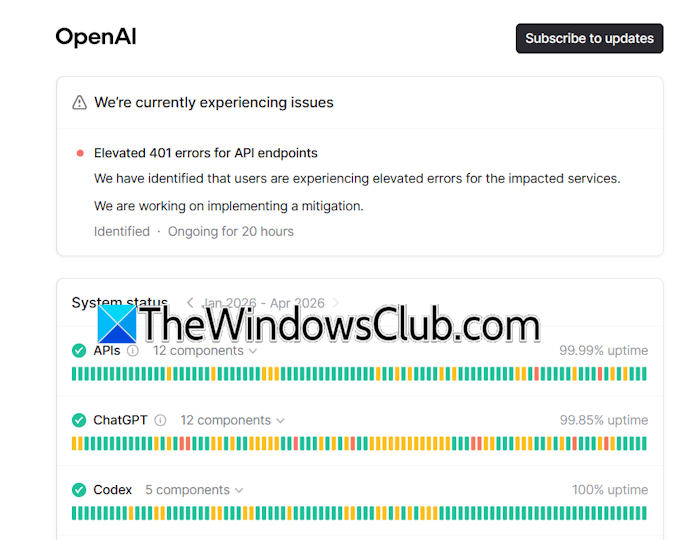
All these fixes are explained in detail below. Before proceeding, it is better to check the ChatGPT server status. Visit status.openai.com to check for a server outage. If there is an issue, wait till OpenAI fixes it.
1] Branch the chat
You can try to branch the chat. The “Branch in new chat” feature in ChatGPT lets you start a new conversation within the existing chat without losing the original. When you use this feature for a particular chat, ChatGPT copies the conversation up to the selected message and creates a new separate chat. The original chat remains unchanged.
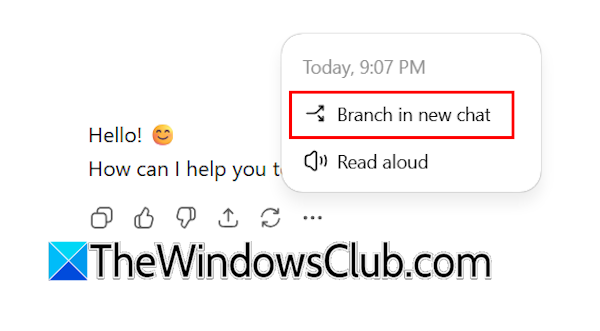
To use this feature, navigate to any of the previous messages in your existing chat and click on the three dots at the end of that chat. Click Branch in new chat. Now, input the prompt to generate the image and see what happens.
2] Start a new chat
If branching the chat option does not work, you can create a new chat and try generating images. See if that works.
3] Check the image library
ChatGPT saves all the images you generate in the image library. Sometimes, the image is already generated but does not appear in the chat and continues showing as processing. In such cases, you can check the Image Library. If the image has been generated successfully, you will find it there even if it is not visible in the conversation.
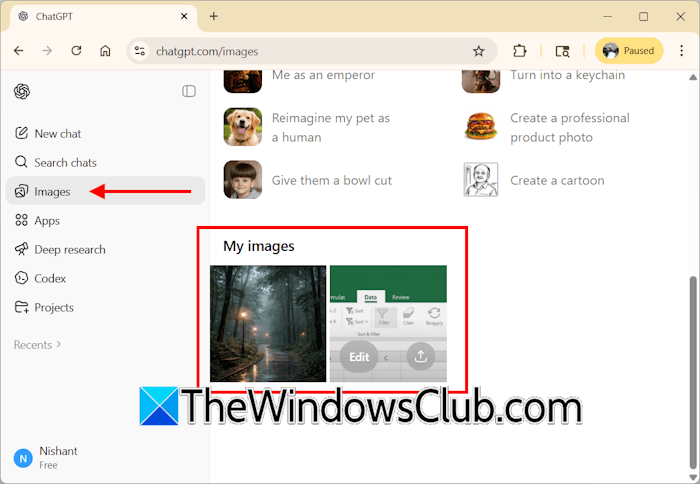
Look for the Library option on the left pane in ChatGPT. If the Library option is not there, click Images and scroll down to view all the generated images.
4] Clear cache for OpenAI and ChatGPT
Corrupt cache and cookies can also cause this problem. I suggest you clear the cache and cookies of your web browser and see if it works. If you do not want to delete the entire cache and cookie data, you can delete it only for ChatGPT and OpenAI.
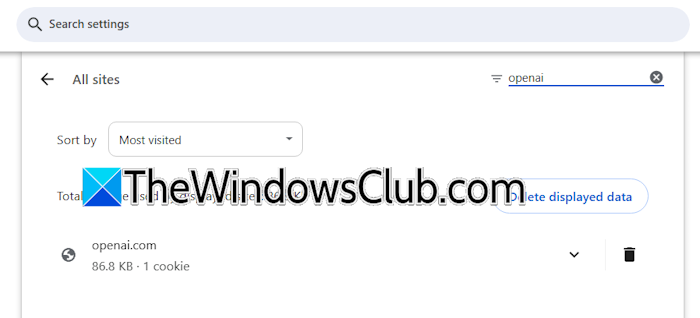
Every web browser has an option to clear cache and cookies for specific sites. The steps will differ depending on the browser you use. Navigate to the required setting in your web browser and search for ChatGPT and OpenAI. Delete all the data for these sites.
5] Disable extensions
A third-party extension might be conflicting with ChatGPT and causing this issue. To check this, disable all the extensions in your web browser and generate the image. If this works, an extension is causing this problem. Now, you can follow any of these two approaches:
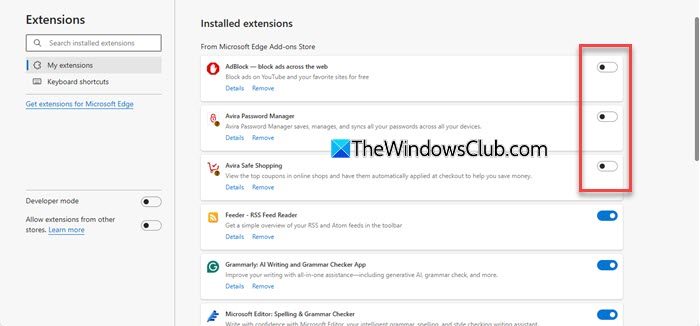
- Keep generating images with extensions disabled
- Identify the problematic extension
If you follow the first approach, you need to disable all the extensions every time you generate an image. Therefore, it is better to find the problematic extension. For this, you need to use the hit-and-trial method. Enable one extension at a time and generate a new image. When the issue reappears, the extension you have just enabled is the culprit. Now, remove that extension and look for its alternative.
6] Try a workaround
If the issue persists, try this workaround:
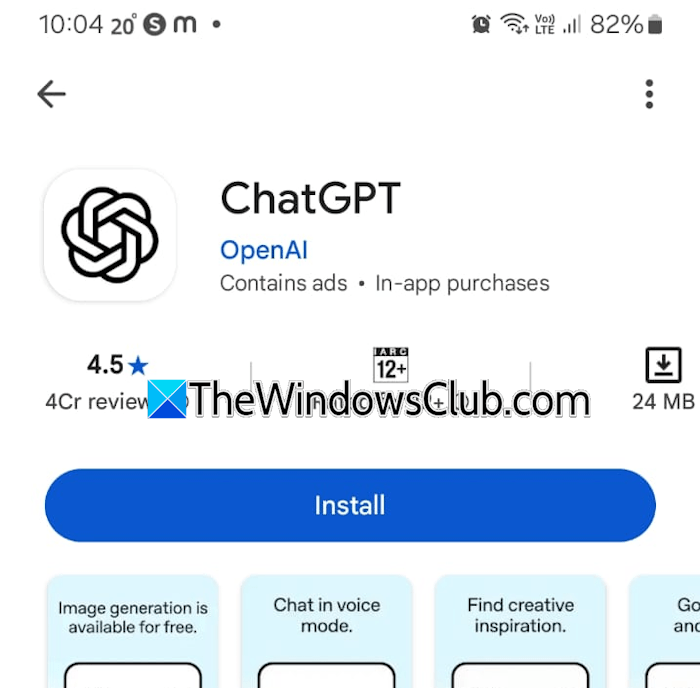
- Install the ChatGPT app on your phone.
- Sign in with the same email ID.
- Open the same chat from the chat history.
- Send any message. This will stop the image generation.
Now, refresh the web page on your PC to reload the existing chat. Type the image generation prompt and generate the image again.
7] Use a different web browser
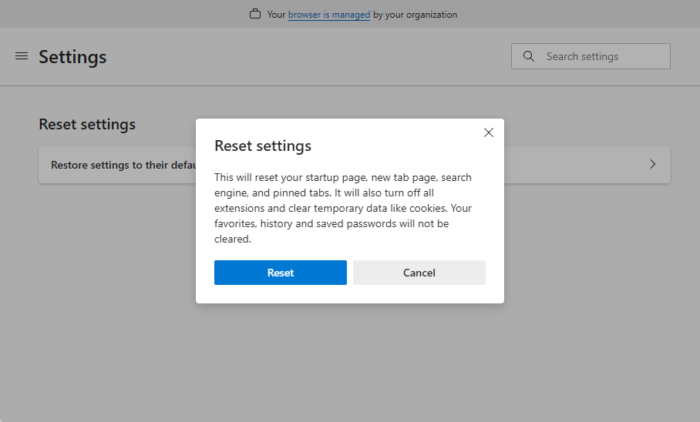
Switch to another web browser. If the issue does not occur on another browser, the problem is with your previous browser. In this case, you can reset the previous browser. Before proceeding, sign in to the browser to save all your bookmarks, browsing history, and extensions to the cloud.
That’s it. I hope this helps.
Related:
- ChatGPT Something went wrong error, Please try again
- ChatGPT Something went wrong while generating the response.
Something went wrong while generating your image, Sorry about that ChatGPT error
If ChatGPT displays a message “Something went wrong while generating your image,” wait a bit and try again. Check your internet connection, hard refresh the web page, clear your browser cache and try again. Disable all extensions, check or switch your browser and see if that helps. You could also try to reduce the request complexity.
Why is ChatGPT taking so long to generate?
If ChatGPT is taking so long to generate responses, it might be due to a corrupted cache or cookies. If you use ChatGPT during peak hours, you may experience response delays due to heavy load on ChatGPT’s servers.
Read next: ChatGPT Streaming interrupted, Waiting for the complete message.
