
Some users encountered the “Streaming interrupted” error in ChatGPT. According to the reports, this issue has affected users with paid accounts as well as those on a free trial. However, it can also occur on free ChatGPT accounts. This error usually occurs when ChatGPT response generation is disrupted mid-way due to connection, server, or processing issues. This article lists some effective fixes for the ChatGPT Streaming interrupted error.
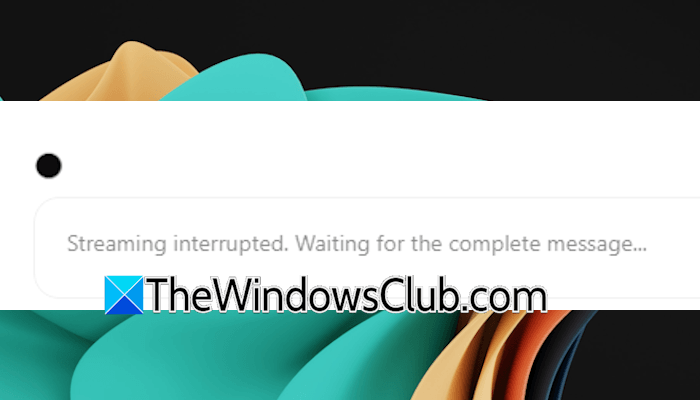
The complete error message is:
Streaming interrupted. Waiting for the complete message…
ChatGPT Streaming interrupted, waiting for the complete message
Use the following fixes for the ChatGPT Streaming interrupted error:
- Check the ChatGPT server status
- Check your internet connection
- Refresh the page
- Connect to or disconnect from VPN
- Switch to another available network
- Switch to another web browser
- Try in incognito mode
- Change DNS
- Reset network
All these fixes are explained in detail below.
1] Check the ChatGPT server status
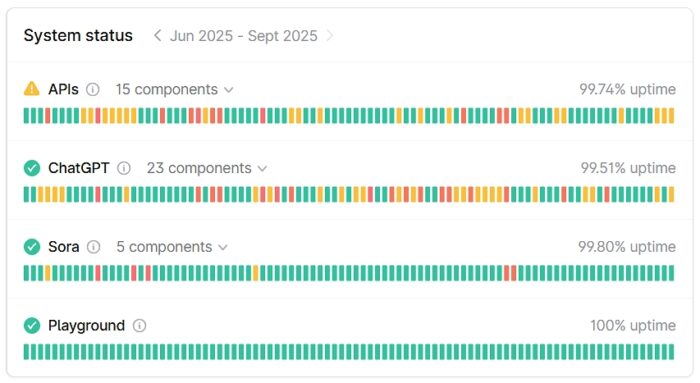
The first thing you should do is check the ChatGPT server status, as such issues can also occur due to a server outage. Visit status.openai.com to check the server status. If there is an outage, you should wait till OpenAI resolves the issue.
2] Check your internet connection
If there is no server outage at OpenAI, the issue might be related to your Wi-Fi connection. An unstable internet connection can trigger this error. You can power-cycle your WiFi router to resolve temporary network glitches.
Follow these steps:
- Turn off your WiFi router.
- Disconnect the adapter from the wall socket.
- Wait for a few minutes.
- Connect the adapter and turn on the router.
Now, check if the issue persists.
3] Refresh the page
This is a workaround that you can try. If the issue persists, you can try reloading the page. Follow these steps:
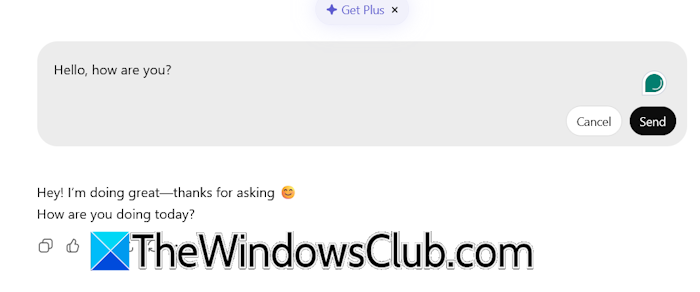
- Reload the page.
- If the Stop button appears in the prompt box, click on it.
- Now, click on the pencil icon on your message, edit it, and click Send.
4] Connect to or disconnect from VPN
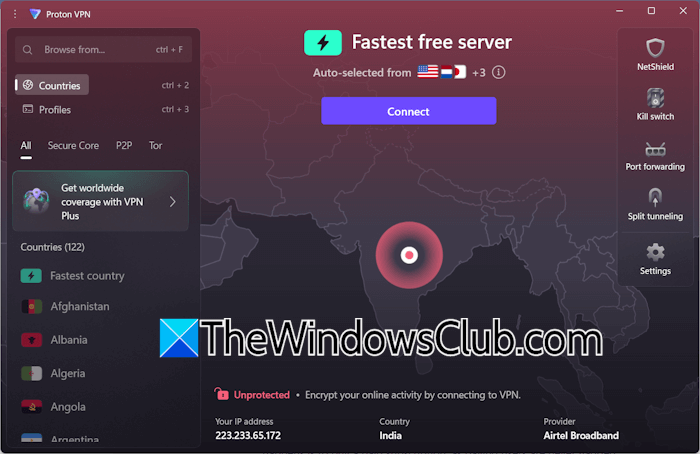
You can use a VPN connection. A VPN makes our network secure by encrypting the internet traffic. Additionally, it also changes our IP address. Hence, using a VPN connection can help. You can use any free VPN, such as ProtonVPN.
If you are already using a VPN, disconnect from it and see if it helps. If this works, but you still want to use a VPN, contact your VPN service provider support (if you are using a paid VPN) or switch to another VPN (if you are using a free VPN).
5] Switch to another available network
You can also try switching to another available Network connection. For this, you can use your mobile data and connect your system to it via the mobile hotspot.
6] Switch to another web browser
The problem might be with your web browser. To check this, switch to another web browser. If the issue does not appear on another browser, you can reset the browser you were using previously.
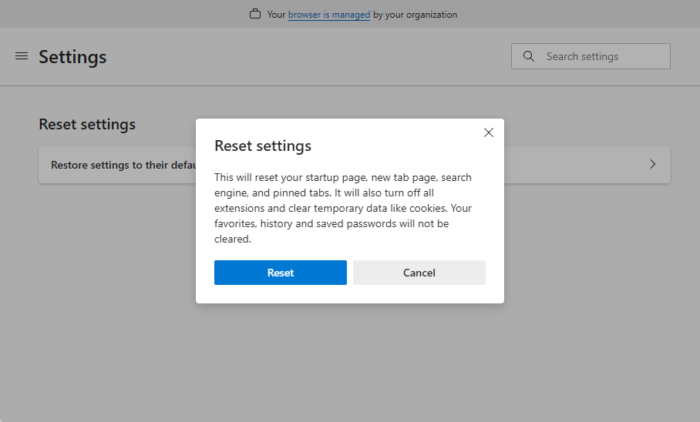
Resetting a browser restores its settings to the default. Your search engine and new tab page will also be reset to the default. Before performing this action, sign in to the browser to back up all your extensions and bookmarks to the cloud.
7] Try in incognito mode
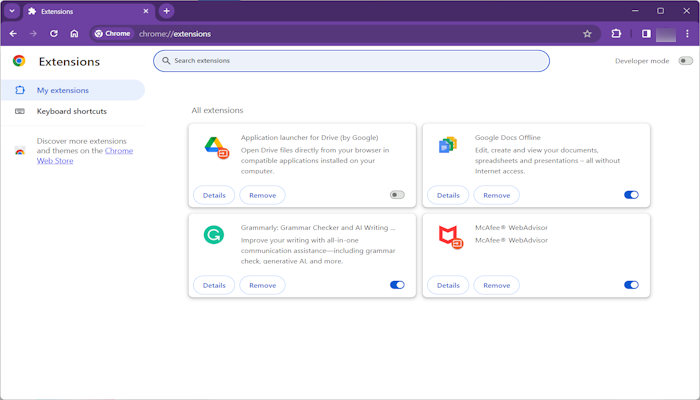
If the error persists, an installed extension may be causing it. To check this, use ChatGPT in incognito mode. If it works flawlessly there, you need to find the problematic add-in. You can do so by disabling all extensions, then enabling them one by one. Refresh the ChatGPT page every time you enable an extension.
8] Change DNS
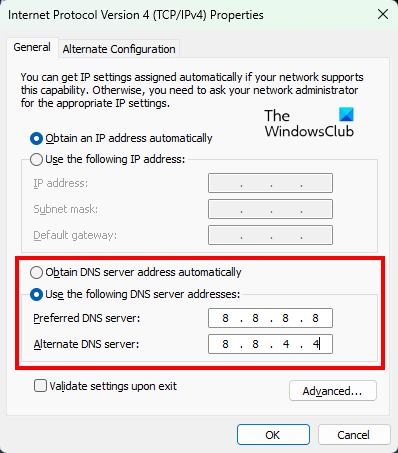
Changing the DNS server settings usually fixes network issues. If the error persists, you can try changing the DNS server. You can use Google Public DNS or Cloudflare DNS.
9] Reset network
If none of these fixes work, reset your network. This action removes and reinstalls your network adapters and resets the networking components to their default values. Open Windows 11 Settings and navigate to Network & Internet > Advanced network settings > Network reset. Click Reset now.
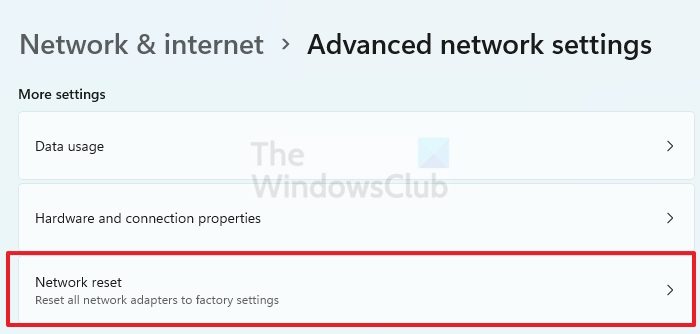
This process takes 5 minutes, and Windows will restart automatically after 5 minutes. Therefore, save all your pending work before proceeding.
That’s it. I hope this helps.
How to fix ChatGPT error in message stream?
To fix the ChatGPT error in message stream, try logging out and back in, reloading the page, or signing in to ChatGPT in incognito mode. Sometimes, issues are associated with a particular network. In such a case, switching to another available network helps.
Why is ChatGPT giving me error messages?
There are many reasons ChatGPT may give you error messages. Though different error messages have different causes, the most common cause in ChatGPT is server outage or an unstable internet connection.
Read next: ChatGPT Conversation not found.
