
You are in the middle of a conversation with ChatGPT, and all of a sudden, you see ChatGPT Error in the message stream, and you can no longer continue with the chat. The error mostly occurs due to OpenAI server overload, API issues with ChatGPT, internet connectivity, or session timeouts. Here are some suggestions that you can try out:
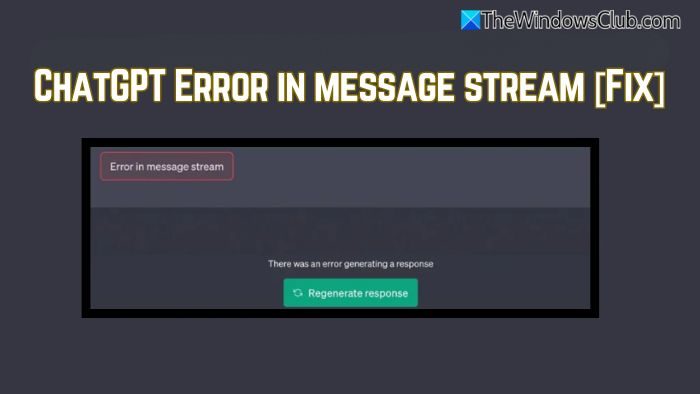
Fix ChatGPT Error in message stream
Try the following solutions for ChatGPT’s Error in the message stream issue:
- Log out and in
- Refresh or restart the app
- Check your internet connection
- Check OpenAI server status
- Delete saved memories
- Try incognito mode
- Disable VPN.
1] Log out and in
Logging out of your ChatGPT account and then signing back in may help.
You could also start a New Chat and see if that helps.
2] Refresh or restart the app
There is a good chance that the chat got hung midway, so a simple restart should fix the issue.
If you are using the app, close it and then reopen it to see if you can continue the same chat.
If you are using ChatGPT on your browser, refresh the page. You could also try clearing your cookies and cache, waiting for a short time, and then see if that resolves the issue for you.
3] Check your internet connection
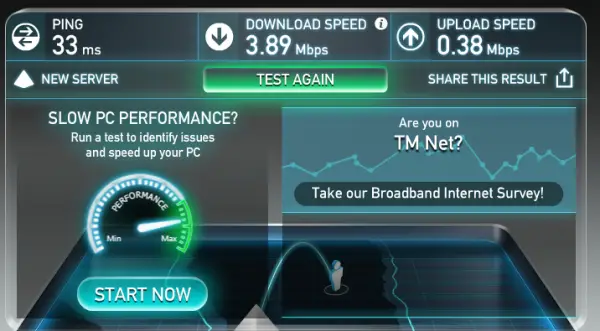
If your internet connection is weak or unstable, then it can cause the message stream error. To resolve this issue, ensure you have a stable internet connection, disable any VPN, and then check if the problem persists.
4] Check OpenAI server status
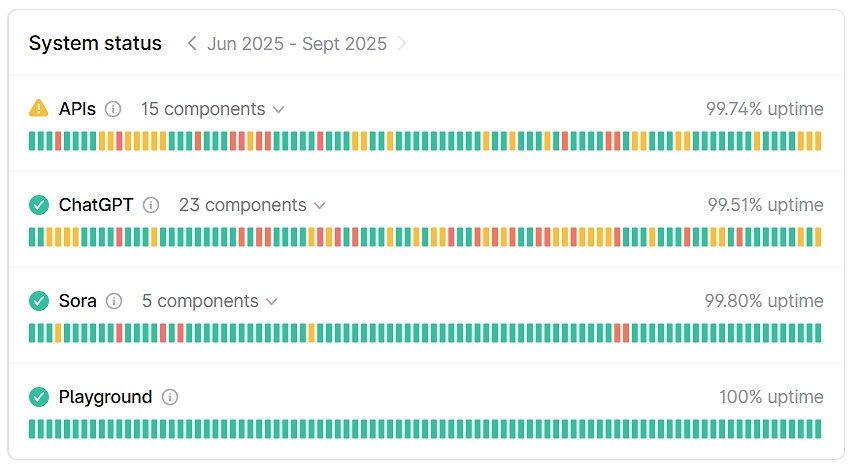
The problem might not be at your end, but ChatGPT’s servers may be down temporarily. To ensure this, check OpenAI’s server status at status.openai.com. If you see “ChatGPT status down” on the website, it means the AI chatbot isn’t functioning at the moment. So you’d better try again after some time.
5] Delete saved memories
Open ChatGPT app > Pofile settings > Personalization > Manage memories > Delete saved memories. See if this helps.
6] Try incognito mode
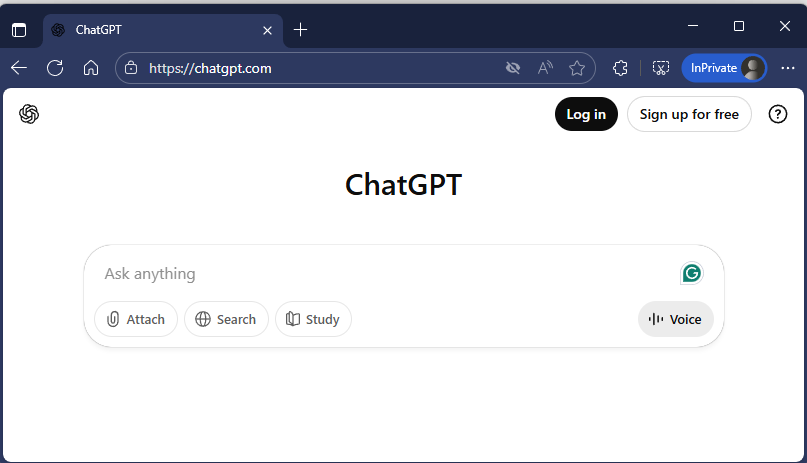
If you continue to receive the same error, try switching to incognito mode to see if you can access ChatGPT and continue your chat. If so, there is a good chance an ad-blocker or browser extension is interfering with ChatGPT’s streaming. Disable any recently installed browser extensions and ad-blockers, then try again and see if it works.
7] Disable VPN
If you are using a VPN, disable it and see if it helps.
Hope something helps.
Will I lose my existing chats if the error occurs?
The error itself doesn’t delete your past chats. Your previous conversations remain saved in your account (unless you’ve manually turned off chat history in settings). Once the issue is fixed (via refresh, restart, or reconnection), you should still be able to access your old chats. You can consider copying important content into a notes app as a backup in case the session ends abruptly.
Can browser/device compatibility cause the message stream error?
Sometimes, the error is triggered by browser-specific issues or outdated app versions. For example, running ChatGPT on an old version of Chrome, Safari, or Firefox can cause streaming glitches.
