
Some users encountered the “Something went wrong while generating the response” error in ChatGPT. This error occurs unexpectedly while requesting answers from ChatGPT, interrupting the workflow and preventing users from continuing the chat. This article covers possible causes and fixes for this error. Hence, if you encounter this error, this article will help.
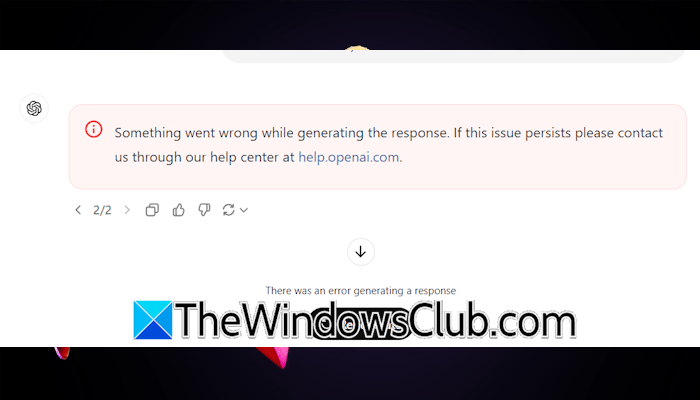
Something went wrong while generating the response ChatGPT error
Use the following fixes for the “Something went wrong while generating the response” error in ChatGPT:
- Check OpenAI server status
- Try Hard Refresh
- Allow third-party cookies
- Check your browser’s tracking protection settings
- Disconnect from VPN
- Switch to another available network
- Disable all extensions
- Use another web browser
- Delete previous chats that are no longer required
All these fixes are explained in detail below.
1] Check OpenAI service status
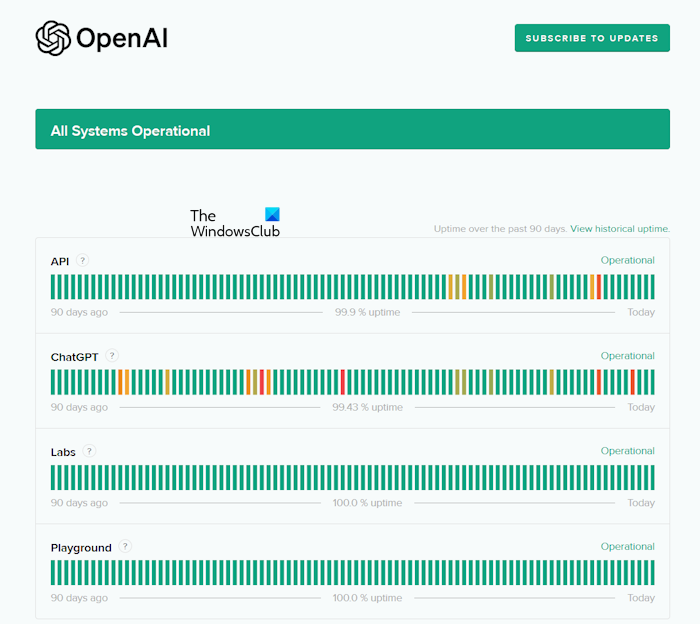
First, check the OpenAI server status. If there is a server outage, you may encounter issues with ChatGPT. In that case, you need to wait until OpenAI fixes the issue. To check the server status, visit status.openai.com.
2] Try Hard Refresh
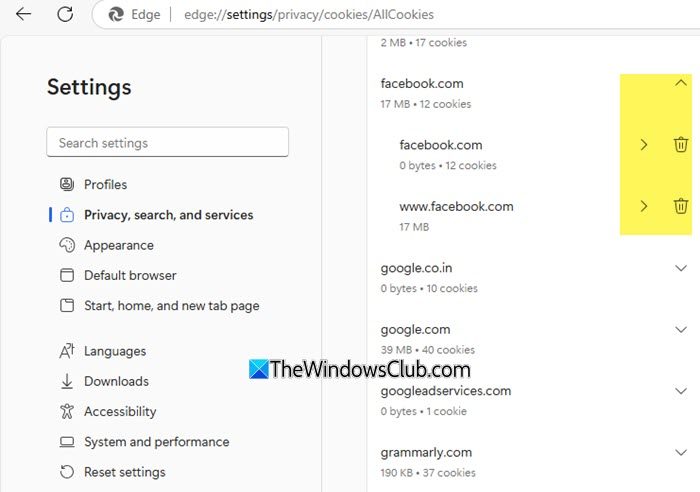
If OpenAI’s servers are working fine, the issue may be with your browser cache or cookies. A Hard Refresh reloads the webpage by bypassing the cache and cookies. If this works, you need to clear the cache and cookies for ChatGPT. Press Ctrl + F5 or Ctrl + R keys to perform this action.
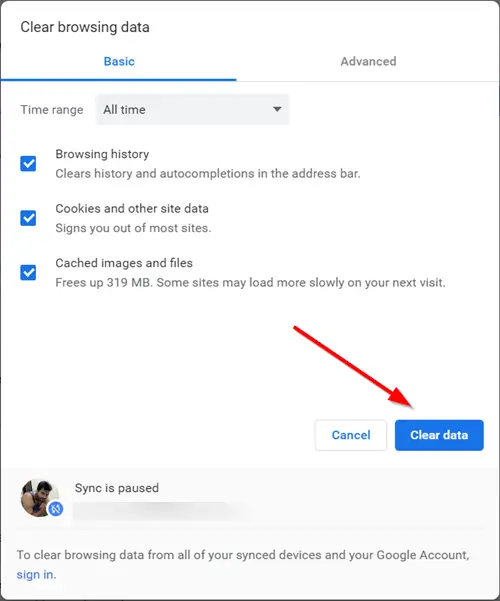
If this does not work, you can try clearing all cache and cookie data. Press Ctrl + Shift + Delete keys to bring up the Clear browsing history window. Now, clear the cache and cookies.
3] Allow third-party cookies
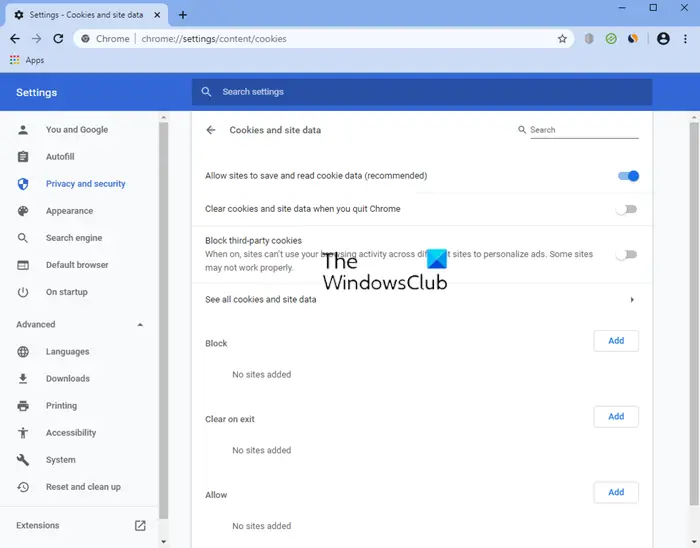
If third-party cookies are blocked in your browser, that might be causing this problem. Check this in your browser’s settings. Allow third-party cookies and see if it helps. The steps to allow third-party cookies vary with different browsers. You need to search for this setting in your browser’s settings.
4] Check your browser’s tracking protection settings
The next step is to check your browser’s tracking protection settings. Every browser offers three protection levels – Basic, Balanced, and Strict. The names of these settings may vary depending on which browser you use. The Balanced protection setting is recommended. If this setting is set to Strict, some websites may break and not work properly.
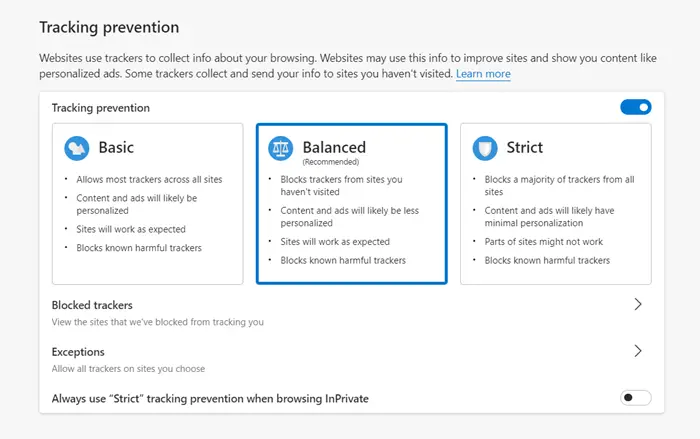
You will find this option in the Privacy section of your browser’s settings. If this option is set to Strict, change it to Balanced.
5] Disconnect from VPN
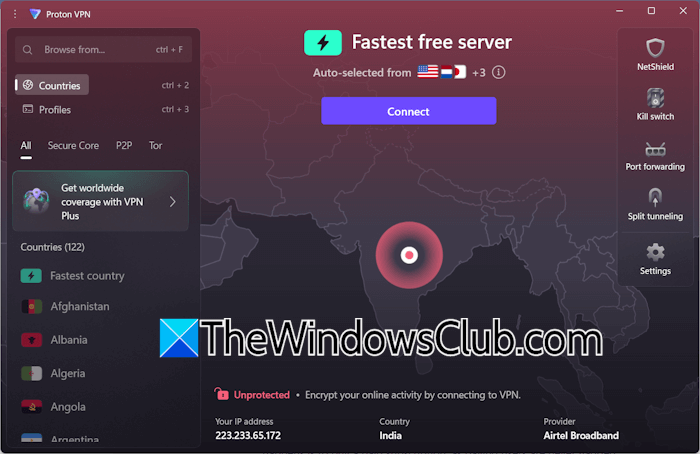
If you are connected to a VPN, disconnect and see if that helps. Sometimes issues occur with certain websites when using a VPN. In that case, disconnecting from the VPN fixes the problem.
6] Switch to another available network
The problem may be with your network connection. To check this, connect your system to another available network and reload the web page. If the issue persists, you can try power cycling your WiFi router.
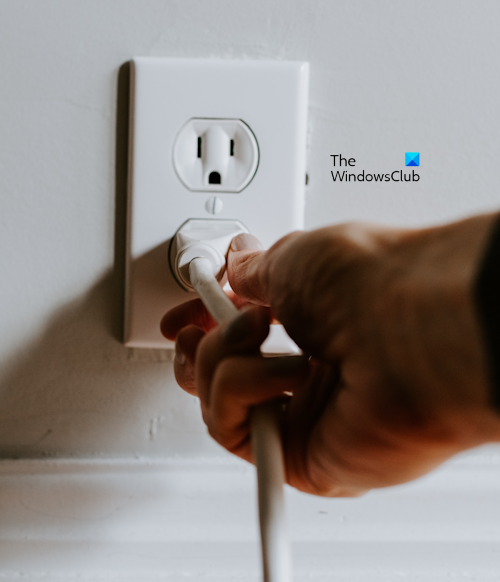
The steps to do this are as follows:
- Turn off your WiFi router.
- Unplug the adapter from the wall socket.
- Wait for a few minutes.
- Plug in the adapter and turn on the switch.
The router will take some time to initialize and connect to the network. Now, check if the issue persists.
7] Disable all extensions
The extensions installed on your web browser might be causing this problem. To confirm this, disable all extensions and reload the web page. Now, check if you can continue the chat.
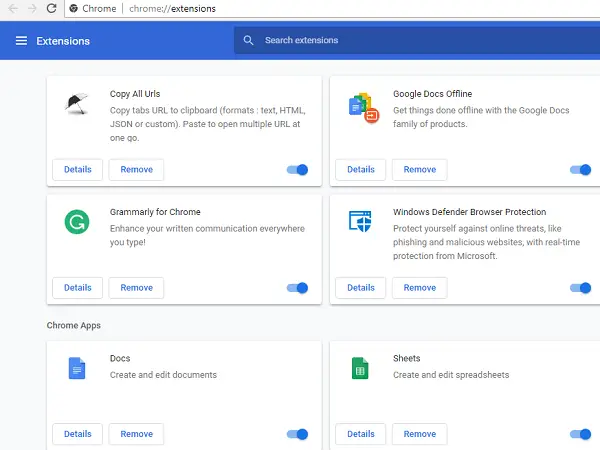
If the issue disappears after disabling the extensions, you need to find the problematic extension. For this, follow these steps:
- Enable an extension.
- Reload the web page and check if the issue reappears.
- If the issue does not occur, enable another extension and repeat step 2.
When the issue reappears, the extension you have just enabled is the culprit. Usually, such issues occur due to these two types of extensions – Privacy extension and Ad blockers.
8] Use another web browser
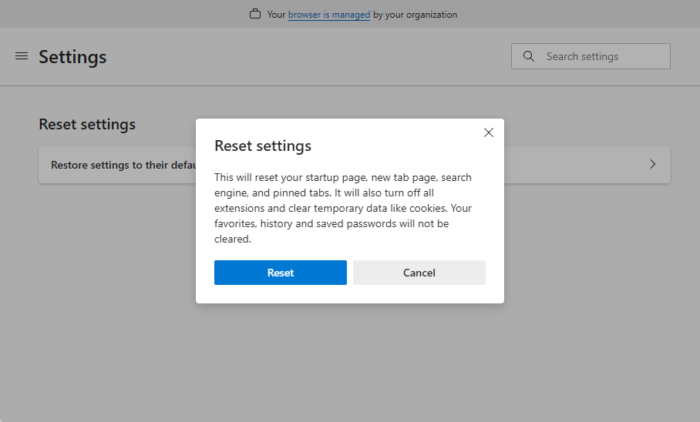
Check if the issue appears in another web browser. If you can use ChatGPT without this error in another browser, some settings might be misconfigured in your previous browser. Resetting it to the factory default settings can help. This action will also reset the new tab page, startup page, search engine, pinned tabs, and other browser settings. Before proceeding, sign in to the browser to save all your bookmarks, extensions, and browsing history to the cloud.
9] Delete previous chats that are no longer required
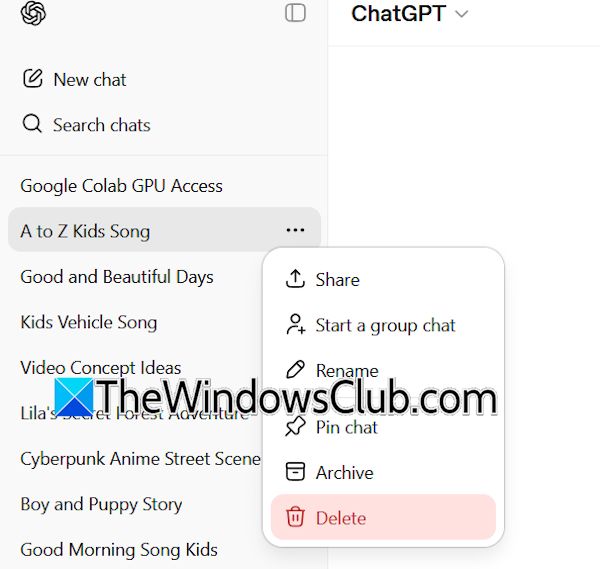
If the issue persists, you can try deleting the previous chats that are no longer required. This is a workaround; hence, it may or may not work for you. To delete a chat in ChatGPT, open your chat history and hover your mouse over the chat you want to delete. Now, click on the three dots and select Delete. Select Delete in the confirmation box.
That’s it. I hope this helps.
Related:
Why does ChatGPT keep telling me something went wrong?
If you receive the Something went wrong error message in ChatGPT, this may indicate a temporary server issue. You can check this on the OpenAI server status page. Sometimes, the corrupt cache and cookies also cause this error. If you use a VPN, turn it off.
Why is ChatGPT failing to generate?
There can be many reasons why ChatGPT fails to generate a response, such as server outages, poor internet connection or issues with your web browser. To fix this issue, you need to troubleshoot step by step.
Read next: ChatGPT Error in message stream.
