
CapCut’s desktop app sometimes displays a No internet Connection error even when your browser and other applications are clearly online. This is a common software conflict on Windows systems that can be resolved with a few adjustments. In this post, we will see what you can do if CapCut says No internet Connection.
![Capcut No internet connection problem [Fix]](https://www.thewindowsclub.com/wp-content/uploads/2026/04/No-internet-connection.jpg "Capcut No internet connection problem [Fix]")
Fix Capcut No internet connection problem
On Windows PCs, this error rarely indicates a broken Ethernet cable or Wi-Fi dropout. Instead, it is usually a case of the CapCut application being blocked from phoning home. The Windows Defender Firewall or a third-party antivirus suite may be flagging CapCut’s outbound traffic as suspicious. Additionally, the Microsoft Store version of CapCut can sometimes experience licensing sync issues that can confuse the app’s login status. Corrupted local data in the AppData folder or a conflict with Windows’ IPv6 protocol are also frequent culprits.
If CapCut says No Internet connection, power cycle your router and see if that helps. If the issue persists, switch to a different network; if that is to no avail, follow the solutions below.
- Grant Firewall and Network Permissions
- Disable IPv6 on your Network Adapter
- Clear DNS Cache and Flush Network Settings
- Download the standalone Installer
Let us talk about them in detail.
1] Grant Firewall and Network Permissions
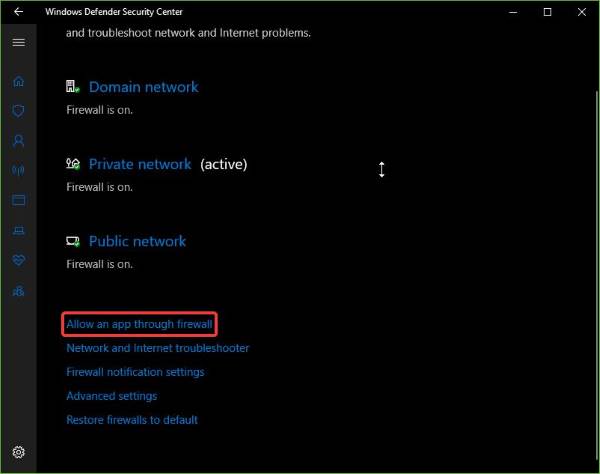
CapCut requires unrestricted outbound access to ByteDance servers. If Windows Firewall or a third-party security suite (like McAfee or Norton) is blocking the app, the interface will show No Internet Connection despite the network being available. Follow the steps mentioned below to allow CapCut through Windows Defender Firewall.
- Press the Windows Key, type Windows Security, and open the app.
- Click on Firewall & network protection.
- Now, click Allow an app through firewall.
- Click Change settings (admin required), then Allow another app.
- Go to Browse and navigate to the CapCut installation folder. This is usually: C:\Program Files\WindowsApps\ (Note: Accessing this folder requires changing permissions/ownership; use the shortcut below instead). Alternative easier path: Browse to C:\Users\[YourUserName]\AppData\Local\CapCut\Apps\CapCut.exe.
- Select CapCut.exe and click Add.
- Ensure both Private and Public checkboxes are checked and click OK.
Finally, start CapCut and see if the issue persists.
2] Disable IPv6 on your Network Adapter
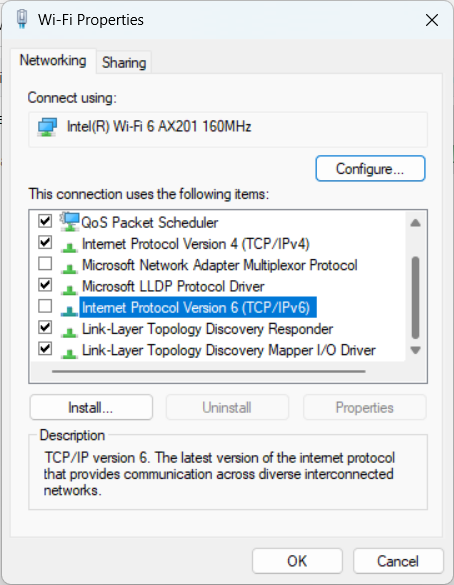
Windows often prioritizes IPv6 traffic over IPv4. If your network router or ISP handles IPv6 poorly (a common issue with some Indian and Asian ISPs), CapCut may fail to resolve the server domain name while IPv4 apps continue working fine. Forcing Windows to rely solely on IPv4 can instantly restore CapCut’s connection. You can follow the steps mentioned below to do the same.
- Press Windows Key + R, type ncpa.cpl, and press Enter.
- Right-click your active network adapter (Wi-Fi or Ethernet) and select Properties.
- Scroll down the list of items and uncheck the box next to Internet Protocol Version 6 (TCP/IPv6).
- Click OK and Close.
- Restart the CapCut application.
Hopefully, this will do the job for you.
3] Clear DNS Cache and Flush Network Settings
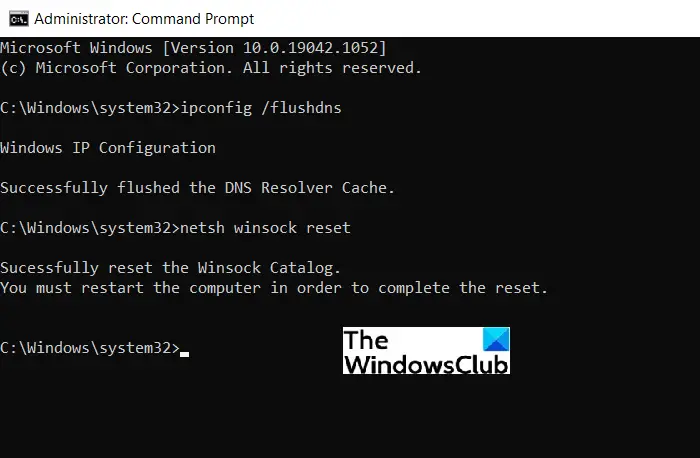
If the above steps do not work, the problem might be a poisoned DNS cache entry on your local machine that points CapCut’s servers to an outdated or invalid IP address. Flushing the DNS, Winsock and TCP/IP forces Windows to request fresh address information.
You need to open press the Win Key, type Command Prompt, right-click it, and select Run as administrator. In the black window, type the following commands one by one, pressing Enter after each line.
ipconfig /flushdns

ipconfig /release

ipconfig /renew

netsh winsock reset
Close the Command Prompt and restart your PC before trying CapCut again.
4] Download the standalone Installer
The version of CapCut installed via the Microsoft Store runs in a sandboxed environment that has limited access to network protocols. The standalone .exe installer from CapCut’s official website runs with native Windows permissions and is significantly less prone to the No Internet Connection error.
Open your browser and go to the official CapCut website – capcut.com. Click Download for Windows (avoid the Get it from Microsoft button). Run the .exe file and install the standalone desktop version. Log in to your account. This version usually connects immediately without hanging on the Store license check.
Now, open CapCut and check whether you can connect to the Internet.
Read: Best CapCut alternatives for Windows PC
Is CapCut blocked in India?
CapCut has been permanently banned in India since June 2020, along with TikTok and 58 other Chinese-owned apps, due to national security and data privacy concerns linked to ByteDance. As a result, CapCut is unavailable on the Google Play Store and Apple App Store, and its official website is blocked by Indian internet providers. Although some users might access the app through manual downloads or VPNs, its official status remains a permanent ban, with no change expected in the near future.
Read: Free Video Editing Software for Windows 11
Does CapCut work with no internet?
CapCut does offer limited offline functionality, but it is not a fully offline application. Once the app is installed on your device, you can edit videos, access basic editing tools, and work on existing projects without an active internet connection. However, certain features require internet access, including the initial login, downloading new templates, syncing projects across devices, and using AI-powered tools. The desktop version of CapCut is designed for offline editing, allowing you to work on projects and export videos locally without an internet connection. For the best experience and to access all features, a stable internet connection is still recommended.
