
OpenClaw is an open-source, self-hosted agent runtime that turns an AI model into a persistent assistant. You can connect OpenClaw to apps and external platforms and let the agent take actions on your behalf. It can potentially browse websites, work with files, run scripts, and communicate with other services through APIs. OpenClaw’s capabilities largely depend on the permissions and system access you grant it. The more access you provide, the more tasks it can perform, but the greater the potential security risk. That is why you should configure its permissions carefully and give it only the access it needs.
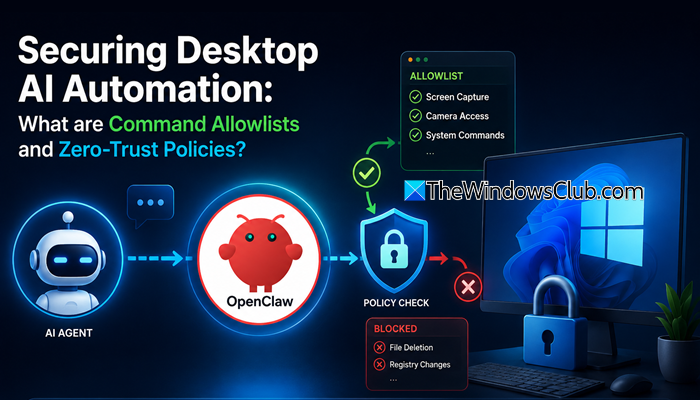
How to secure OpenClaw desktop AI automation on Windows systems
OpenClaw provides several security controls to help manage this access. In this guide, we will look at these security features and learn how to configure them to make OpenClaw desktop automation safer and more controlled.
Securing Desktop AI Automation: What are Command Allowlists and Zero-Trust Policies?
Giving an AI agent unnecessary access to files, commands, credentials, or system settings can increase the impact of an accidental or malicious action. For Windows, OpenClaw provides a native Windows Hub companion app that helps manage several security-related measures while you set it up on Windows. The app is compatible with Windows 10 20H2+ and Windows 11, and can be downloaded from OpenClaw’s official website here.
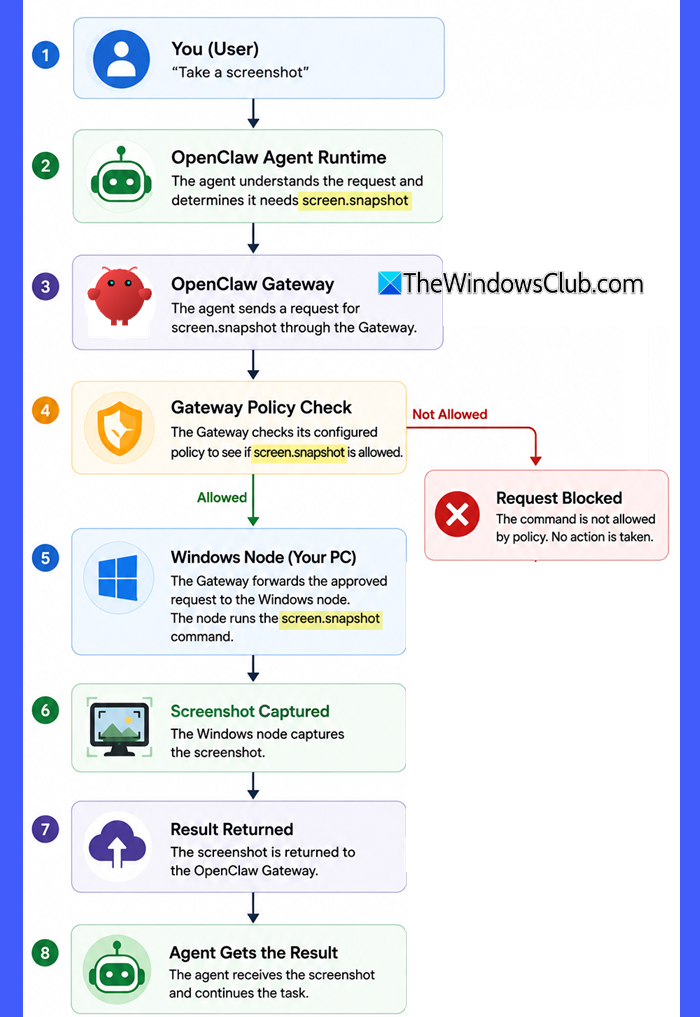
Windows Hub can register your PC as an OpenClaw node. The node connects to the OpenClaw Gateway (the runtime that handles the agent’s operations) and declares the Windows capabilities it supports. These can include screen capture, camera access, notifications, and system commands.
When the agent needs one of these capabilities to complete a task, OpenClaw sends the request through the Gateway. The Gateway checks its configured policy before forwarding the request to the Windows node. The command can run only when the Windows node supports it, and the Gateway policy allows it. The Windows node then performs the approved action and returns the result to the agent.
Command Allowlists and Zero-Trust Policies
OpenClaw uses the exec tool to run shell commands on a computer. To control which commands an agent can execute, OpenClaw provides command allowlists and approval policies.
A command allowlist lets you specify the commands that an agent is allowed to execute through OpenClaw. Instead of allowing the agent to run any command, you can create a list of approved commands. Zero-trust means you do not automatically trust an agent just because you started it or because it is running on your computer. You give it only the access it needs and require additional permission for sensitive actions.
OpenClaw’s Windows node supports several groups of Windows capabilities. Common commands for these capabilities are as follows:
| Capability | Commands |
|---|---|
| Canvas | canvas.present, canvas.hide, canvas.navigate, canvas.eval, canvas.snapshot |
| Screen | screen.snapshot; screen.record require explicit opt-in |
| Camera | camera.list; camera.snap, camera.clip require explicit opt-in |
| System | system.notify, system.run, system.run.prepare, system.which |
| Device | location.get, device.info, device.status |
| Talk | talk.ptt.start, talk.ptt.stop, talk.ptt.cancel, talk.ptt.once, talk.speak |
Configure command allowlists
For Windows, the Gateway’s default policy includes the following commands:
camera.list
location.get
device.info
device.status
system.notify
computer.act
Desktop host commands such as system.run, system.run.prepare, system.which, and screen.snapshot are handled separately. They become available after an operator approves a pairing request that declares those commands. After approval, the Gateway stores the approved command set and carries it forward when the node reconnects.
Some commands require an additional security check because they can access sensitive information or perform privacy-heavy actions. OpenClaw requires a one-time persistent opt-in for these commands through:
gateway.nodes.commands.allow
For example, sensitive capabilities such as camera.snap, camera.clip, and screen.record require explicit authorization before they can be used.
OpenClaw also supports user-in-the-loop approval for commands that require an additional approval step. You can view pending approvals with:
openclaw approvals pending
To resolve an approval, use:
openclaw approvals resolve <id> allow-once
You can replace allow-once with allow-always or deny, depending on the decision you want to make.
To explicitly block commands, use:
gateway.nodes.commands.deny
The deny policy takes precedence over the default command list and any additional allowlist entries. This means that even if a command is normally allowed or has been added to the allowlist, a matching deny rule prevents it from being executed.
Configure an app-owned WSL Gateway
OpenClaw uses WSL2 as its most Linux-compatible Gateway runtime on Windows. If you use Windows Hub, the app can set up an app-owned WSL Gateway for you.
If you prefer to manage the WSL environment yourself, you can install a Linux distribution manually. Open PowerShell and run:
wsl --install
# Or pick a distro explicitly:
wsl --list --online
wsl --install -d Ubuntu-24.04
After installing the distribution, enable systemd inside WSL:
sudo tee /etc/wsl.conf >/dev/null <<'EOF'
[boot]
systemd=true
EOF
This allows the OpenClaw Gateway to run as a managed Linux service inside WSL.
Restart WSL from PowerShell:
wsl --shutdown
Then install OpenClaw inside the WSL environment:
curl -fsSL https://openclaw.ai/install.sh | bash
openclaw gateway status
For advanced WSL configurations: If you are running OpenClaw in a headless WSL environment, you can configure the Gateway to start automatically before Windows login. OpenClaw also provides instructions for exposing WSL services to other devices on your network. Because this changes how the Gateway starts and how it can be reached, review the OpenClaw Windows documentation before enabling these options.
If you do not need LAN access, keep services bound to 127.0.0.1 for local-only access rather than exposing them on 0.0.0.0. This helps avoid making an AI-controlled service unnecessarily accessible to other devices on the network.
Note: The app-owned WSL Gateway provides a dedicated environment for OpenClaw’s Gateway, but it should be viewed as part of the overall security setup rather than as a complete security boundary. For highly untrusted workloads, consider a stronger isolation mechanism such as Windows Sandbox or a virtual machine. Windows Sandbox provides a lightweight, isolated desktop environment and discards its state when you close the sandbox.
That’s all! I hope you find this useful.
Read: Top 10 Free AI Workflow Automation Tools.
Is OpenClaw safe to use?
You can use OpenClaw more safely by carefully controlling the permissions and capabilities available to the AI agent. However, no setup should be treated as completely risk-free, particularly when an AI agent has access to system commands or sensitive data.
How to make OpenClaw secure?
Give OpenClaw only the capabilities it actually needs and use Gateway policies to restrict which commands the Windows node can run. Require explicit opt-in for sensitive capabilities such as screen recording and camera capture, and use the app-owned WSL Gateway when appropriate. Also avoid exposing the Gateway or WSL services to the network unless you need remote access.
Read Next: OpenClaw not running on Windows PC.
