
If OpenClaw is not running on your Windows PC, this post will help you. As a first-time user, installing and running OpenClaw can be frustrating because the process is pretty complicated. However, the good news is that most issues with OpenClaw stem from a handful of common culprits, and all are fixable. In this guide, we’ll walk you through each fix step by step so you can get OpenClaw up and running.
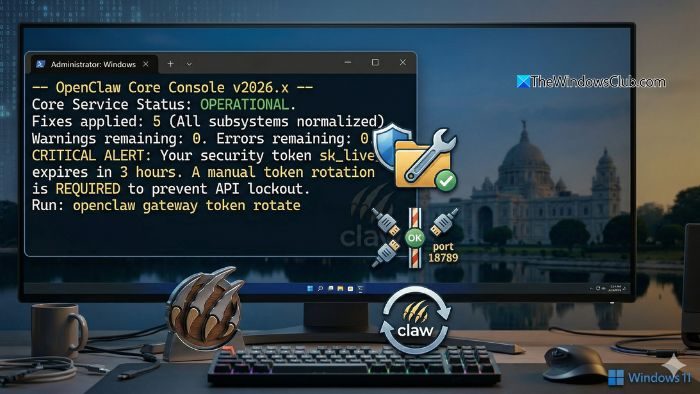
How to fix OpenClaw not running on Windows 11
Follow these steps to fix the issues when OpanClaw is not running properly on your Windows PC.
- Use the built-in diagnostic tool
- Fix Command Not Found error
- Switch to WSL2 instead of PowerShell
- Check Your Node.js Version
- Resolve port conflicts
1] Use the built-in diagnostic tool
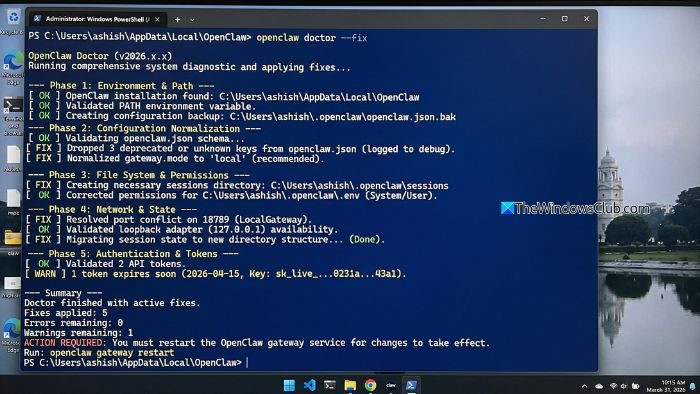
Before getting into any fixes, you can use its built-in diagnostic tool to see what’s really going on.
- Press the Windows key + X to access the quick menu.
- Select Terminal (Admin) and run the following command:
openclaw doctor --fix
The command will then check for corrupted config files, missing environment variables, and expired tokens. If it finds any issues, it will try to repair the files automatically.
2] Fix Command Not Found error
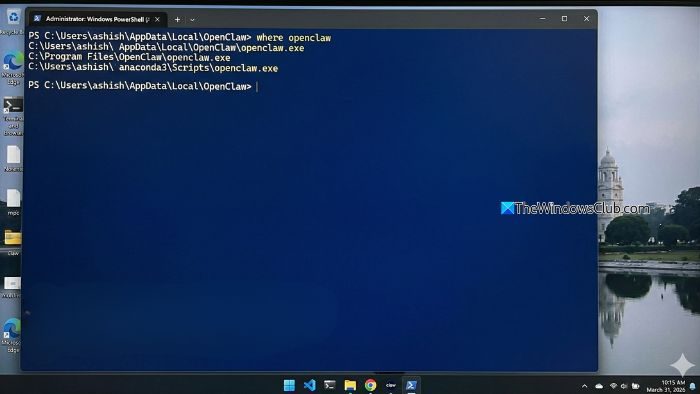
If you have encountered the “command not found” error, then it’s related to a PATH issue. To fix this, you will need to open a new Terminal window after installation and run the following command:
where openclaw
After running the command, if nothing comes back, there is a good chance the binary either didn’t install correctly or is in the wrong place.
To fix this, you will need to manually locate the folder and then add it to your Windows PATH by going to System Properties > Environment Variables.
3] Switch to WSL2 instead of PowerShell
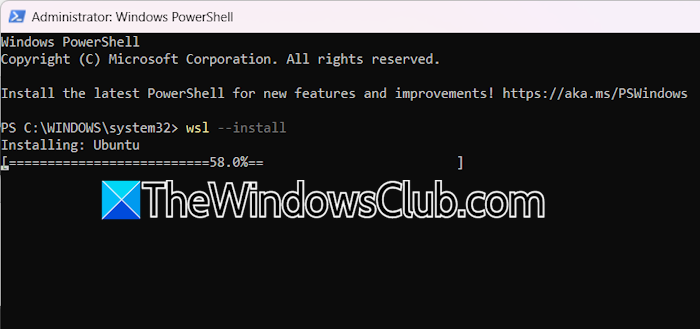
If you are trying to run OpenClaw directly inside PowerShell or CMD, then that might be the problem. Instead, you can use WSL2 and try again.
First, install WSL2 by running the wsl --install command inside Terminal (Admin). Also, you will need to set up a Linux distro, for which you can follow this guide by Microsoft.
Once done, run OpenClaw from inside WSL2 instead of PowerShell.
After switching, run `openclaw doctor` any remaining issues will be flagged in red.
4] Check Your Node.js Version
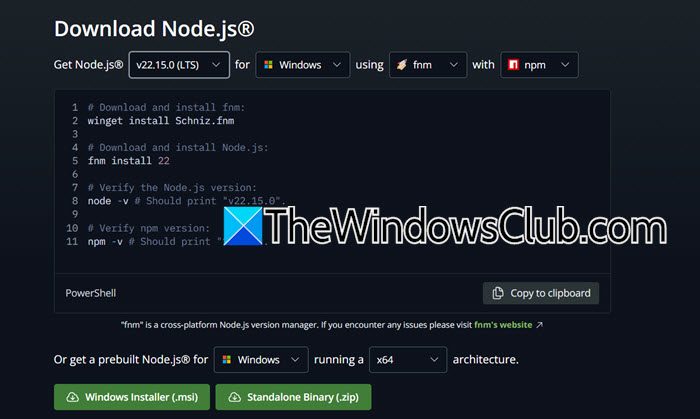
OpenClaw requires Node.js version 22 or higher. So if that’s not installed on your PC, you must do that first.
- Open Terminal (Admin).
- Type the following command to check your current Node version: node -v
- If the version is below 22, go to nodejs.org, download the latest LTS version, and install it.
Once done, try running OpenClaw again and see if you encounter any errors.
5] Resolve port conflicts
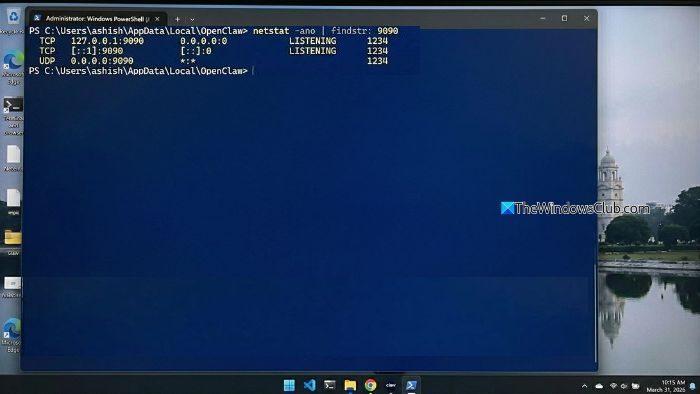
If OpenClaw starts but immediately crashes, or the gateway won’t launch, another program may be occupying the ports it needs, typically 9090 and 18789. To check this, do the following:
Run this in your terminal to check: netstat -ano | findstr:9090
If something is using that port, either close that application or change OpenClaw’s port with: `openclaw config set gateway.port <new_port>`
So those were a few quick ways to fix the OpenClaw not running on Windows issue. Even after all the fixes, if the issue persists, I would recommend doing a fresh OpenClaw install, probably using a different method than you have already tried, and carefully following the on-screen steps.
Why does OpenClaw fail with permission or access errors on Windows?
Sometimes OpenClaw may fail to run due to insufficient permissions, especially when it tries to access protected directories or system-level resources. To fix this, ensure you are running your terminal as an administrator and that OpenClaw has proper read/write access to its installation directory. You can also try reinstalling OpenClaw in a non-restricted directory, such as your user folder, rather than in a system path like Program Files.
Why is OpenClaw running but not responding in the browser or UI?
If OpenClaw appears to start successfully but you cannot access it through your browser or interface, the issue may be due to firewall settings or an incorrect host configuration. Windows Defender or third-party antivirus software may block the required ports even if they are free. In this case, you should check your firewall rules and allow OpenClaw through both private and public networks.
