
If you want to download a photo viewer app with a shuffle facility, you can check out this list. Here are some of the best photo viewer apps with a shuffle feature for Windows 11/10, allowing you to enjoy a slideshow and revive your memories.

Best photo viewer apps with Shuffle feature for Windows 11/10
Some of the best photo viewer apps with a Shuffle feature are:
- XnView Classic
- Amazing Photo Slideshow
- ShuffleBird
- Pictureflect Photo Viewer
- FastStone Image Viewer
- IrfanView
To learn more about these image viewer apps, continue reading.
1] XnView Classic
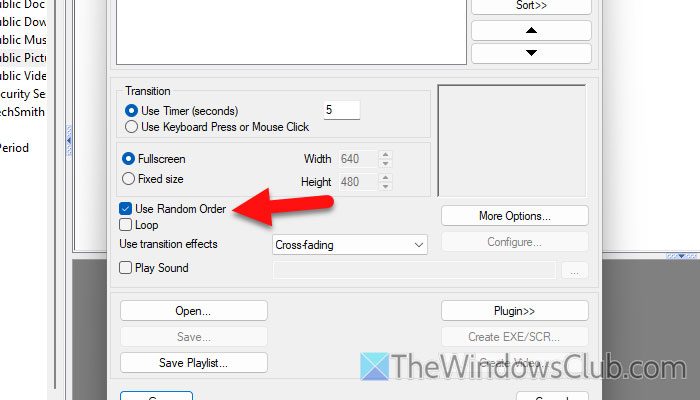
XnView is one of the best image viewer tools that you can use on your Windows 11/10 computer. Whether you want to view a JPEG, PNG, or BMP image, you can certainly go with XnView. Although there are a couple of versions of this program, you can opt for the “Classic” edition to get the job done.
To view an image in XnView Classic in random order, you need to open the wizard and click on Create > Slideshow. Or you can press Ctrl+L.
Then, click the Add Folder button and select a folder full of images. Next, tick the Use Random Order checkbox and click the Go button. Before saving, you can take a look at the shuffled images.
Download XnView Classic from xnview.com.
2] Amazing Photo Slideshow

Amazing Photo Slideshow is a Microsoft Store app that allows you to shuffle images while viewing. As the name suggests, it creates a slideshow so that you don’t need to use your mouse or keyboard to enjoy some old photos.
In order to use this app, you need to open it and click the Add button on the right-hand side. Then, choose a folder containing images.
Next, make sure that the Shuffle option is turned ON on the left-hand side. If so, you can click the Play button.
Download Amazing Photo Slideshow from Microsoft.com.
Read: How to view Photos as a Slideshow on Windows
3] ShuffleBird
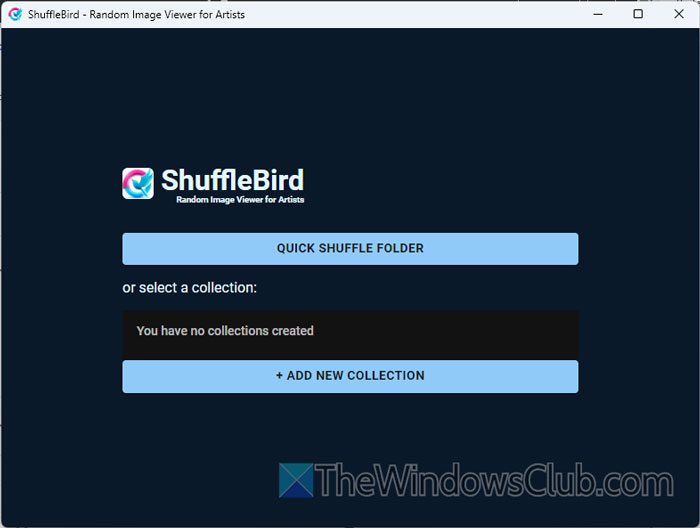
ShuffleBird is an open-source program that allows you to shuffle images on Windows 11/10. The sole intention of this tool is to provide a seamless experience for users who want an image viewer with a shuffle feature.
To use this tool, you need to download and open it first. Then, click on the QUICK SHUFFLE FOLDER button and choose the desired folder where you have stored all the images.
Next, choose an interval and click the START button. Additionally, you can use the Show image path option to check the image location while viewing the image.
Download ShuffleBird from github.com.
Read: HoneyView Review: Free fast Image Viewer Software for Windows PC
4] Pictureflect Photo Viewer
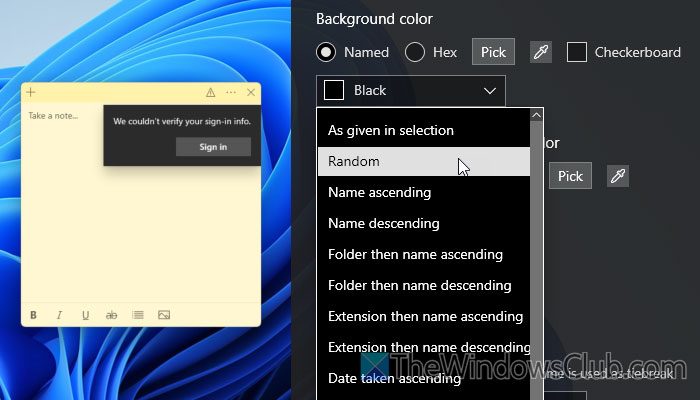
Pictureflect Photo Viewer is yet another image viewer for Windows 11/10 that lets you shuffle images. Although it has a PRO or paid version, you can use the free version to accomplish your tasks.
To use this tool, open it on your computer and click the Folder option to choose a folder of images. Next, click on the Settings button and head to the Order section.
Expand the drop-down menu and choose the Random option.
Download Pictureflect Photo Viewer from pictureflect.com.
Read: Nomacs is an Image Viewer for Windows PC
5] FastStone Image Viewer
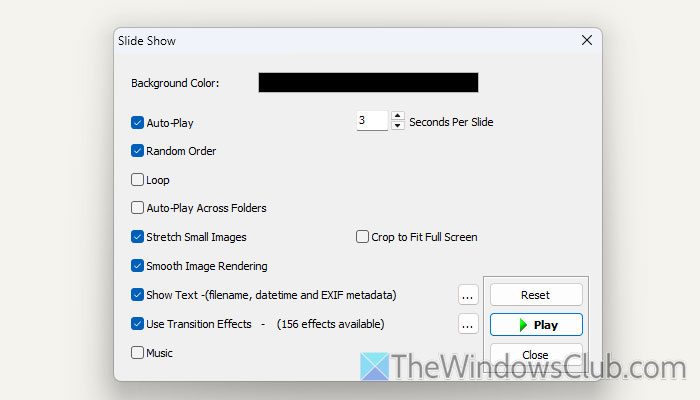
Fastone Image Viewer is one of the best and free image viewer apps for Windows PC. Whether you want to view images, create a slideshow, or make small edits, you can use FastStone Image Viewer.
In this case, you need to select a folder and choose the visible images first. Then, click on the Slideshow option.
Finally, tick the Random Order checkbox and click the Play button.
6] IrfanView
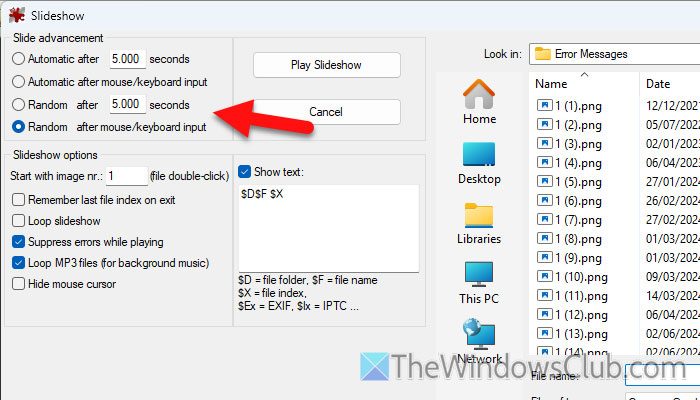
When it comes to an image viewer with multiple options, features, and more flexibility, you must opt for IrfanView. Apart from having the basic image viewing facility, you can create a slideshow as well.
For that, you need to click on the Slideshow icon first. Then, choose a folder of your images.
Before clicking the Play Slideshow button, you need to choose either Random after n seconds or Random after mouse/keyboard input option.
Read: Best free Image and Photo Viewer apps for Windows
Which is the best program to open photos in Windows 11?
If you do not want to download a third-party software, you can always use the built-in Photos app to open photos in Windows 11. However, if you want to try third-party software, you can consider XnView, ImageGlass, or Google Photos, among others.
How to autoplay photos in Windows 11?
To autoplay photos in Windows 11, you need to create a slideshow. Apart from PowerPoint, you can use Icecream Slideshow Maker as well as the Photos app. In the Photos app, click the Slideshow icon and select the photos as needed. Once done, your slideshow will be available to play.
