
AI browsers are becoming increasingly popular as they bring artificial intelligence directly into the web browsing experience. An AI browser can summarize web pages, answer questions about the content you are viewing, compare information across tabs, and, in some cases, perform tasks on your behalf.
If you want to try an AI-powered browser, there are several options to choose from. Some are designed primarily for research, while others focus on privacy and automation. Some even integrate with services you already use. In this guide, we will look at some of the best AI browsers for Windows 11 and explain what makes each one useful.
Best AI browsers for Windows 11
Here are some of the best free AI browsers for Windows 11/10:
- Microsoft Edge with Copilot
- Perplexity Comet
- BrowserOS neo
- Sigma Browser
- Brave with Leo AI
- Other AI browsers.
Let us look at these browsers in detail.
1] Microsoft Edge with Copilot
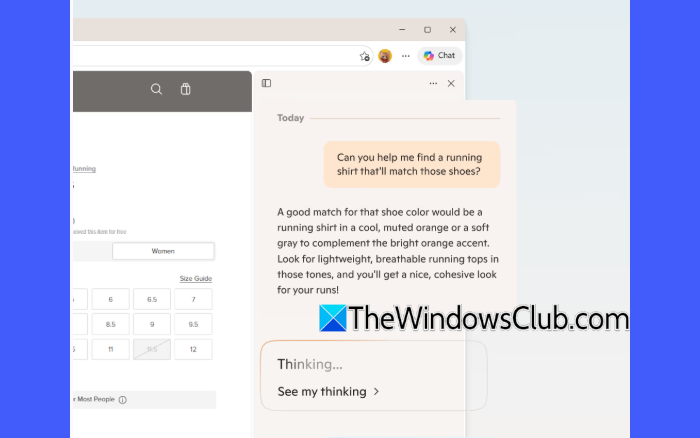
Microsoft Edge is probably the most practical AI browser for most Windows 11 users. It combines a traditional browsing experience with Microsoft’s built-in Copilot assistant.
Copilot includes several AI-powered features that can make browsing, research, and everyday tasks easier. Some of the most notable ones are Copilot Journeys, Copilot Vision, and Copilot Actions.
- Copilot Journeys organizes your browsing activity and research into meaningful groups called Journeys. When you browse or research a topic, Copilot creates a summary based on the pages you visit. The Journey can include URLs, Copilot Chats, related page titles, and web searches. It appears as a card at the bottom of the Microsoft Edge New Tab page, along with a quick summary and a suggested next step. Clicking the card opens a new tab with Microsoft Copilot, where you can continue the task or research you were working on.
- Copilot Vision lets you share an open window with Copilot and get help with what is displayed on your screen. For example, if you are playing a game such as Minecraft and do not know what to do next, you can share the game window with Copilot and ask for help. You can also use Copilot Vision with an open app or file. Share the window containing the file, and Copilot can analyze what is shown and answer your questions about it.
- Copilot Actions lets you instruct Copilot to perform certain tasks directly in Microsoft Edge. For example, you can ask it to open a website, compose and send an email, book an appointment, and perform other supported tasks. You can also control which sites Copilot can access and when it must ask for permission before performing actions.
Edge is a good choice if you already use Windows 11 and Microsoft services. You do not need to install a separate AI browser, and you can continue using your existing bookmarks, extensions, profiles, and browsing settings. It is also a good option if you want AI assistance without giving an AI agent complete control over your browsing experience.
Learn more here.
2] Perplexity Comet
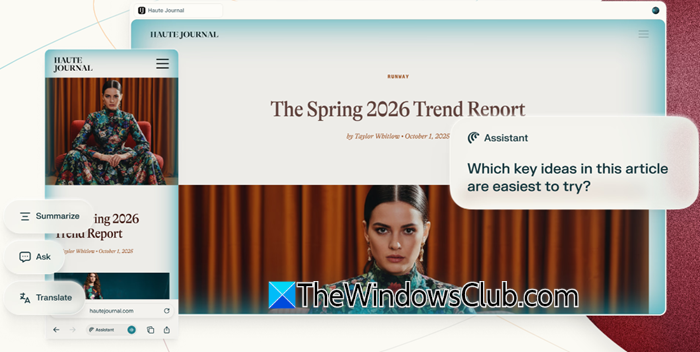
If AI-assisted research is your main reason for trying an AI browser, Comet is one of the first options to consider. Perplexity Comet is an AI-first browser designed around Perplexity’s search and AI capabilities. It provides answers with citations directly within the browsing experience, making it easier to verify the information instead of simply taking the AI’s word for it.
Comet’s AI assistant lives in a collapsible sidebar and can understand the webpages you visit. It can generate instant summaries of articles, videos, PDFs, and social media content, compare and analyze information across multiple open tabs, and understand your instructions through speech for a hands-free browsing experience. Key features of Comet include AI-powered research and analysis, website building, email assistance, content creation, online shopping, and task automation.
Learn more here.
3] BrowserOS neo
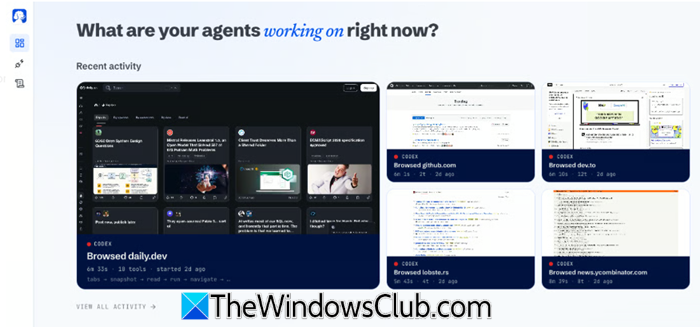
If you want an AI browser that lets AI agents perform tasks on the web, BrowserOS neo is worth considering. It is a free, open-source browser designed specifically for AI agents. Unlike a traditional AI browser where you interact with an assistant inside the browser, BrowserOS neo lets agents such as Claude Code, Codex, Cursor, and other MCP-compatible tools control the browser and perform web-based tasks using your logged-in accounts. Each agent runs in its own tab, letting you run multiple tasks at once while continuing to browse normally.
BrowserOS neo also takes a local-first approach to privacy. It stores session history, screenshots, replays, and settings on your device, while your login information remains in your browser profile.
Note: If you prefer a more general-purpose AI browser, you may also try BrowserOS, an earlier version that understands natural-language instructions and can perform actions such as clicking, typing, navigating webpages, and completing web-based tasks.
Learn more here.
4] Sigma Browser

Sigma Browser is another AI-first browser that is available for Windows 11/10. It combines a conventional browser with several AI features, such as AI Chat, Deep Research, and page-aware help. Sigma also includes a built-in ad blocker and tracker protection, so that you can browse, search, and use AI in one privacy-focused workspace.
One feature that makes Sigma particularly interesting is its support for local AI models. You can download models such as Gemma or Qwen and run them directly on your Windows PC. With a local model, prompts are processed on the device rather than sent to a cloud AI service. Apart from that, Sigma Browser includes a browser-based agent mode that lets you use agents like OpenClaw and Hermes to work with websites, pages, and files directly in the browser.
Learn more here.
5] Brave with Leo AI
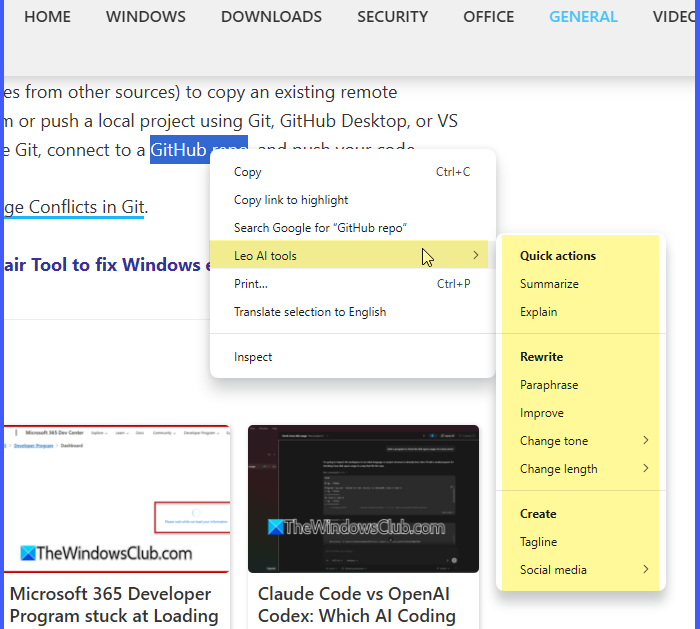
If privacy matters more to you than having the most advanced AI agent, Brave is worth considering. Brave now includes its own AI assistant, Leo, which lets you summarize webpages, generate content, and translate text without leaving the tab. You can run your own models (local or remote) and maintain more control over your AI interactions. Brave does not collect personally identifiable information such as your IP address or retain your prompts, responses, context, or personal data on its servers.
Another advantage is that Brave does not try to automate everything you do online. It is primarily a privacy-focused browser with AI features added on top, so you remain in control of your browsing and decisions. The trade-off is that it is not as focused on advanced, multi-step agentic tasks as browsers such as Comet or BrowserOS neo.
Learn more here.
6] Other AI browsers
Apart from the above, there are several other AI browsers you may want to take a look at:
- Google Chrome is good for ecosystem compatibility and broad extension support, integrating Google’s latest Gemini AI directly into the browsing platform
- Dia has an AI-first design and offers context-aware browsing, tab intelligence and a sleek UI
- Arc offers beautiful workspace management and an AI assistant and is great for organized workflows
- Opera (Aria AI) is familiar to many. It has an AI assistant integrated into the browser.
- Wavebox offers an AI-enhanced workspace for multiple apps and is suitable for heavy web app users.
- Comet, Fellou, and Genspark are next-generation “agentic browsers” designed to research, summarize, and automate complex web tasks for you. This is powerful but requires supervision to avoid errors.
That’s all! I hope you find this useful.
Read: Best alternative web browsers for Windows 11.
Which browser is best for AI?
The best browser for AI depends on your priorities and individual requirements. If you want seamless AI features built into your browsing experience, Edge and Comet are top picks, while privacy-conscious users may prefer Edge, Brave or BrowserOS.
- If you want a privacy + AI balance, go for Edge, Brave or BrowserOS.
- If you want a familiar browser with AI add-ons, go for Edge, Chrome, Opera or Arc.
- If you want maximum AI integration, try Comet or Dia.
- If you’re a productivity-heavy user, try SigmaOS or Wavebox.
Is Microsoft AI free to use?
Microsoft Copilot AI has a free version that is ideal for general chat, writing, brainstorming, summarizing, and image creation. However, advanced features inside Office apps (Word, Excel, Outlook, PowerPoint, Teams) require a paid Microsoft 365 subscription.
Read Next: 15 Best Local AI Agents for Windows.
