
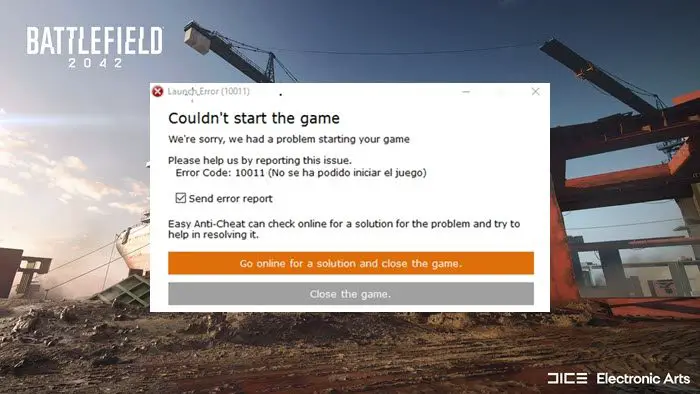
Are you encountering Easy Anti-Cheat error code 10011 while trying to launch Battlefield 2042? Here is a complete guide to fixing the error. Battlefield 2042 is a first-person shooter game that is a gamer’s choice nowadays. But, since its launch, some gamers are experiencing bugs and errors which is creating issues. One error being faced is Error 10011, Couldn’t start the game.
What is Easy Anti-Cheat Error Code 10011?
The Error Code 10011 is an error that pops up when you launch a game stating ‘Error code 10011, Couldn’t start the game’. This is an ‘Anti-cheat’ error that prevents the game from launching successfully. Now, there can be multiple reasons for this error. Let us find out the potential causes of this launch error.
What causes Easy Anti-Cheat Error Code 10011?
There are many causes for this error to pop up, which are mentioned below:
- Corrupted anti-cheat engine files: Sometimes, easy anti-cheat engine files can become corrupted, which can lead to error 10011. You can just repair the collection via Steam installer.
- Antivirus glitch: Your antivirus may be causing this error at launch. It can block the main executable file as the antivirus can falsely detect it as malicious. If applicable, the issue can be resolved by updating the antivirus or disabling the overprotective antivirus suite.
- Disabled Anti-cheat Services: If the Anti-cheat service is disabled on your Windows, it can cause the error at hand. It is a necessary service for a game, as it ensures the game is not hacked or cheated. This may be a reason for error 10011 when launching the game. If applicable, the error can be resolved by re-enabling this service on your PC.
GPU driver version not compatible: When the graphics driver is outdated, this error may also appear because the required files are not up to date. Hence, make sure you have an up-to-date graphics driver. - Corrupted Visuals C++ Redist. Dependencies: This can also be another for the occurrence of the error in the application. Corruption in C++ dependencies can be resolved by uninstalling them and reinstalling them from an official source.
Based on the above scenarios, we have outlined suitable fixes below that you can try. Let us check out!
Fix Easy Anti-Cheat Error Code 10011 in Battlefield 2042
Here are some proven suggestions to fix Battlefield 2042 Easy Anti-Cheat Error Code 10011, Couldn’t start the game on your Windows PC:
- Repair Easy Anti-cheat.
- Reinstall Easy Anti-cheat.
- Enable Easy Anti-Cheat services.
- Update GPU drivers.
- Update Windows.
- Reinstall the latest Visual C++ version.
- Temporarily disable your antivirus
Let us discuss the above fixes in detail now!
Error 10011, Couldn’t start the game
1] Repair Easy Anti-Cheat
If you have installed EAC (Easy Anti-Cheat) on your system and still get this error at launch, there is a high chance of corruption in the EAC engine files affecting the game launch. If this scenario applies, you can try repairing the EAC files by accessing the executables and selecting repair.
You can follow the steps below to repair Easy Anti-Cheat:
- First, go to the location where you installed Easy Anti-Cheat. You are likely to find the files at the below location:
C:\Program Files (x86) \Steam\steamapps\common\BattleField 2042\EasyAntiCheat\EasyAntiCheat_Setup.exe
- Now, right-click on the EasyAntiCheat_Setup.exe file and select the Run as Administrator option.
- After the setup screen appears, select BattleField 2042. Then, you will see a Repair Service option, simply click on it.
- Next, complete the remaining prompts and reboot your computer.
- Finally, try launching Battlefield 2042 and see if the issue is resolved.
If you are still encountering this error, then you can follow other solutions listed below.
2] Reinstall Easy Anti-cheat
In most scenarios, the EAC gets uninstalled anonymously. There is also a possibility that EAC functionality is hindered. If the repair fails, you can try reinstalling EAC, which might resolve the issue. For reinstallation, you must follow the steps below:
- Firstly, open File Explorer using Windows + E hotkey.
- Now, go to the following path:
C:\Program Files (x86) \Steam\steamapps\common\BattleField 2042
- Next, locate the folder named ‘EasyAntiCheat’ and open it.
- In that folder, find the file name ‘EasyAntiCheat_Setup.exe’.
- Next, right-click on the file and select the ‘Run as Administrator option.
- After the setup screen appears, select the game from the dropdown option.
- Now, click on the ‘Install Easy Anti-Cheat’ option.
- Then, complete the installation process by following the prompted guide and rebooting the system
- Finally, try to launch the game and see if the error is popping up or not.
If you still encounter the same error, try the next potential fix to resolve it.
3] Enable Easy Anti-Cheat services
If the first two solutions didn’t help, the EAC services may be disabled in the background. It might be disabled by some applications or utilities to conserve resources for other critical applications. If you find this scenario applicable in your case, you can re-enable the service by using the Service utility and also check for the start-up behavior of the same service.
To enable Easy Anti-Cheat services, follow the instructions given below:
- Firstly, press Window + R hotkey to open up Run, type ‘services.msc’, and click on the ‘OK’ button.
- When the services screen appears, scroll down to the service named ‘Easy Anti-Cheat’.
- Now, right-click on the Easy Anti-Cheat service and click on the ‘Properties’ option.
- After that, go to the General tab and check ‘Service Status’. If it is mentioned ‘Stopped’, just click on the Start button to enable the service.
- Next, click on the Start-up type drop-down button and select Automatic from the drop-down options.
- After restarting the service, relaunch the game and check whether the error is fixed now.
This method has worked for many affected users, so give it a try. If the error persists, move on to the next potential fix.
Read: Battlefield Error 4C or 13C, Unable to load persistence data.
4] Update GPU drivers
An outdated GPU driver can also cause error 10011. It is always recommended to have the latest graphics and other device drivers on your system to run programs and games smoothly. Hence, try updating your graphics driver can resolve the error at hand.
Read: Valorant Vanguard anti-cheat has encountered an error.
5] Reinstall the latest Visual C++ Version
There is a possibility that the outdated version of Visual C++ is not letting ‘Easy Anti-Cheat’ function properly. So, you must install the latest version of Visual C++ so that the error can be resolved. To install the latest version, you need to uninstall the existing Visual C++ version. You can follow the steps below:
- Firstly, press Win + 1 hotkey to open up the Settings app.
- Now, go to the Apps > Apps & features section.
- Next, under the list of installed applications, try locating the ‘Microsoft Visuals C++’ named applications.
- After that, select one by one all the Visual C++ applications and click on the Uninstall option.
- When you are done uninstalling all Visual C++ versions, you can install the latest version of the Visuals C++ version. To download the latest version, you can visit the Microsoft website.
- Then, install the Visual C++ package and reboot your system after complete installation.
Try relaunching the game after reinstallation and check if the error still persists.
6] Update your Windows
There is a chance that an outdated version of Windows may be causing this error. Hence, try updating Windows by downloading and installing all the pending updates on your system. You can open the Settings app using Win+I and then navigate to the Windows Update tab. Here, you can click on the Check for updates button and then download and install all the pending updates. See if this fixes the error for you.
See: Battlefield Black Screen on startup or while loading.
7] Temporarily disable your antivirus
Several antiviruses are overprotective and can block the executable file of Easy Anti-Cheat referring it to potential malware. If this scenario is applicable, you can try disabling the antivirus for some time and see if the error is resolved. In case disabling the antivirus helps, you can be sure it was the main culprit. You can try whitelisting the Easy Anti-Cheat and Battlefield 2042 executables through your firewall/antivirus to permanently fix the issue.
Related: Fix Battlefield Error Code 2002G, Unable to load persistence data.
What is Easy Anti-Cheat code 00000001?
It is a game security violation error that occurs when users play Battlefield 2042 or some other game and it crashes. A pop-up appears showing Easy Anti-Cheat Game Security Violation Detected (#00000001). To fix the issue, you disable or uninstall any RGB software that might be interfering with the game. Also, terminate RGBFusion.exe, SelLedV2.exe, and LightingServices.exe processes and see if the problem is solved. You may also need to update your game launcher software and the game.
How do I fix Easy Anti-Cheat error on Multiversus?
If you launch Multiversus and the Easy Anti-Cheat program stuck on Waiting for game on Windows 11/10, then first verify the integrity of the game files of Multiversus. If that doesn’t work, close the game, and delete the EasyAntiCheat_EOS.sys file from the stored location. You should also perform the SFC scan on your system. If nothing works, then reinstall the Easy Anti-Cheat program.
That’s it!
Now read:
