
In this post, we will see what you should do if the Backspace key only deletes one letter at a time on your Windows 11/10 device. The backspace key is used to correct text while editing a document. When you press it, the cursor starts moving backward and deleting the text. The cursor keeps moving left to right, deleting text, until you release the backspace key. But for some users, it is not happening like that. According to them, when they press the backspace key, it deletes only one letter, no matter how long they hold the key. If you are experiencing this problem, you can try the solutions outlined in this article.
Backspace key not working in Windows 11
You can follow the suggestions written below to get the problem fixed on Windows 11/10-
- Run Keyboard Troubleshooter
- Check your keyboard functionality
- Turn off the Filter Keys
- Adjust the Repeat Delay and Repeat Rate for your keyboard
- Update or reinstall your keyboard driver.
Backspace key deletes only one letter at a time in Windows 11
Before you begin, make sure that your keyboard is physically clean and all keys operate smoothly.
1] Run Keyboard Troubleshooter
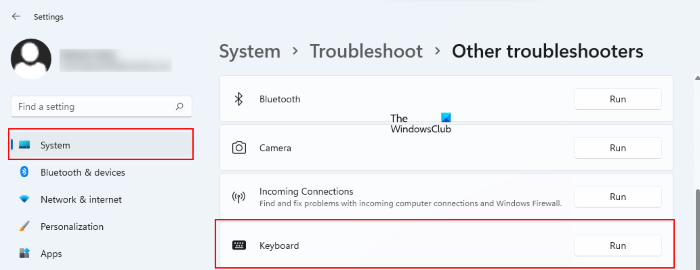
You will find different types of automated troubleshooting tools in Windows 11/10 devices. The purpose of these troubleshooting tools is to help users fix the issues occurring on their systems (if possible). You can run Keyboard Troubleshooter and see if it helps.
If the problem was occurring due to a software issue, the Keyboard Troubleshooter will help you fix it.
2] Check your keyboard functionality
If the Keyboard Troubleshooter fails to fix the issue, the problem might be hardware-related. You can check this by connecting another keyboard to your computer. If an additional keyboard is not available, you can use free keyboard tester software. These keyboard testing software tools will help you test your keyboard’s functionality.
3] Turn off the Filter Keys
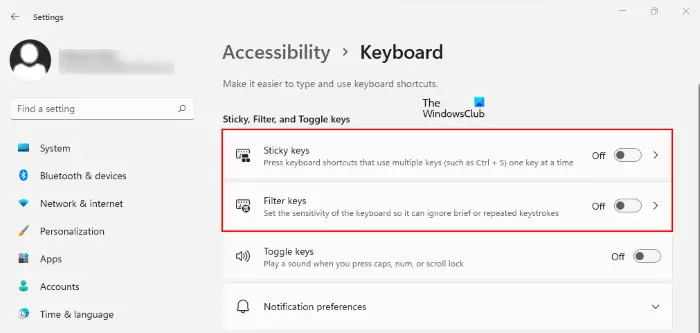
Filter Keys is a Microsoft feature designed for people with physical disabilities. If it is turned on, your keyboard will ignore repeated strokes. The issue you are currently experiencing may be due to Filter Keys. Check this and turn off the Filter Keys if it is enabled on your system.
This should fix the problem.
Read: How to reset Keyboard settings to default.
4] Adjust the Repeat Delay and Repeat Rate for your keyboard
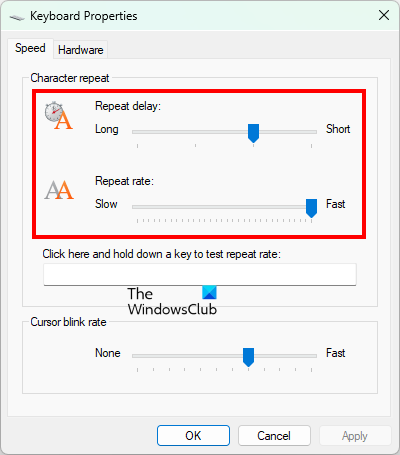
By adjusting the Repeat Delay and Repeat Rate settings for your keyboard, you can increase and decrease the delay time for the repeated strokes. Change this setting and see if it helps. The process to do so is explained below:
- Press the Win + R keys to launch the Run command box.
- When the Run command box appears, type control panel and click OK. This will open the Control Panel.
- Select Large icons in the View by mode.
- Click Keyboard.
- Move the sliders next to the Repeat rate and Repeat delay options to set them at usable limits.
- Click Apply and then OK.
5] Update or reinstall your keyboard driver
If you are still experiencing the issue, your keyboard driver might have been corrupted. To fix such a problem, you should update or reinstall your keyboard driver.
You can use any of the following methods to update your keyboard driver:
- Visit the official website of your keyboard manufacturer and download the latest version of the driver. After that, run the installer file to install the keyboard driver manually.
- If an update for your keyboard driver is available, the Windows Options Updates feature will show it. You can download and install the latest version of your keyboard driver by using the Optional Updates feature.
- You can update the keyboard driver via the Device Manager.
Follow the steps below to reinstall your keyboard driver:
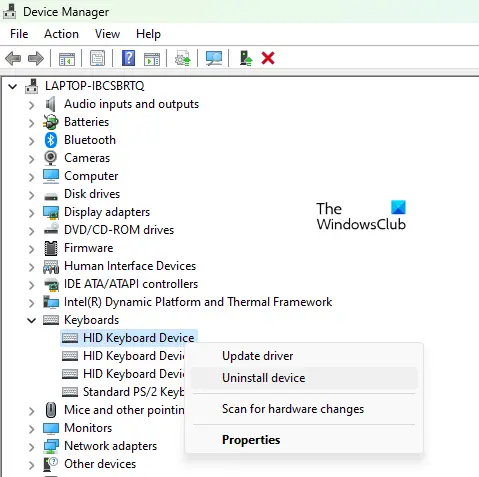
- Open the Device Manager.
- Expand the Keyboards node.
- Right-click on your keyboard driver and select Uninstall device.
- Click Uninstall in the confirmation box.
- After uninstalling the keyboard driver, restart your system.
After restarting the device, Windows will select the hardware changes and reinstall the missing keyboard driver.
Hope this helps.
Related: How to fix slow keyboard response in Windows.
Why is holding backspace not deleting?
If holding the backspace key does not delete any letter or delete only one letter at a time, you should turn off the Filter Keys. If the Filter Keys are already turned off, we suggest updating or reinstalling your keyboard driver. Apart from that, you can use free keyboard tester software to determine whether the issue is hardware- or software-related. Software-related issues with a keyboard can be fixed by running the Keyboard Troubleshooter.
Why is my backspace key not working?
The backspace key does not work if your computer does not receive any input when you press it. This might happen due to the accumulation of dust and dirt. To check this, you can connect another keyboard to your computer. If the backspace key works fine, you should clean the keyboard you are experiencing the problem with.
Another cause of this problem is the corrupted or outdated keyboard driver. In such a case, updating the driver fixes the problem. If the problem still persists, your keyboard might be faulty. In such a case, you should purchase a new keyboard.
Read next: Media Keys not working in Windows 11.
