
Windows Key or the WinKey is one of the core keys in Windows which lets you do multiple tasks. Right from launching Start Menu to Win+Tab, Win+R, Win+S, and many others. Often, this causes a problem, and you cannot use it as you want. This nuisance becomes even worse when you are in a remote desktop solution, and it feels like the Windows Key or WinKey is disabled.
Windows key or WinKey not working
In this guide, we look at various solutions to fix the issue where the Windows key or WinKey is not working on Windows 11/10 – maybe in a game. Try the following solutions to resolve the issue.
- Restart Windows Explorer
- Disable Game Mode on your keyboard
- Check if WinKey is disabled
- Use PowerShell to enable WinKey
- Force Windows to rescan the keyboard
- Look for the WinKey Lock Button on your Keyboard
- Check if the issue is associated with your keyboard driver
- Turn off Filter Keys
- Troubleshoot in a Clean Boot State
- Create a new user account
Let’s see all these fixes in detail.
1] Restart Windows Explorer
The first thing you should try is restarting Windows Explorer. The following steps will guide you on how to restart Windows Explorer on Windows 11/10.
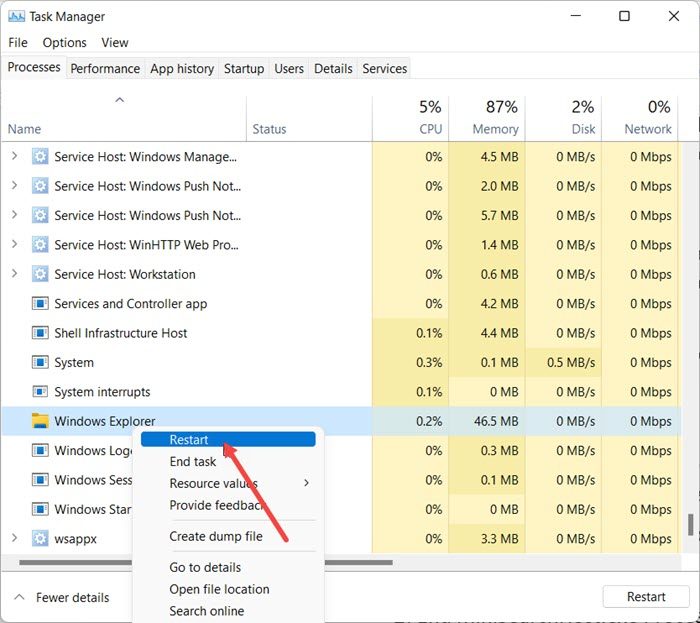
- Open the Task Manager.
- Select the Processes tab.
- Scroll down and locate Windows Explorer.
- Once you find it, right-click on it and select Restart.
Now, check if the issue is fixed.
2] Disable Game Mode on your keyboard
One of the most common scenarios is the Game Mode of Windows. By design, it makes sure that Windows Key is disabled. This ensures that if you accidentally hit the Windows Key, the Start Menu doesn’t take over the focus and ruin your gaming experience. That said, it only works with keyboards that support game mode on a hardware level. Logitech G810 Gaming keyboard offers this.
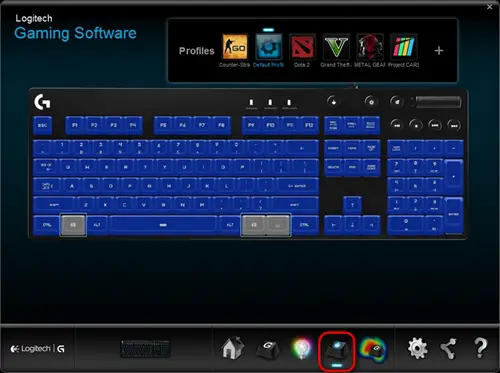
You will have to use the OEM keyboard software to disable the Windows key or WinKey when not gaming.
3] WinKey disabled?
Check if your WinKey has been disabled.
4] Use Powershell to enable Windows Key
Launch Powershell with admin privileges. Copy-paste the below-mentioned command and hit return. Once it executes successfully, you will be able to use the Windows Key as usual.
Get-AppXPackage -AllUsers | Foreach {Add-AppxPackage -DisableDevelopmentMode -Register “$($_.InstallLocation)AppXManifest.xml”}
Make sure to create a restore point before executing this so in case something goes wrong; you can get back to the previous state. The chances of something like this happening are low.
5] Force Windows to Rescan the Keyboard
Windows understands input from the hardware by keeping a digital map called ScanMap. Every key is mapped into the computer’s memory. The same goes for Windows Key as well. If Windows is not able to understand it, we can force it. This calls in for registry editing, so make sure to take a backup or create a restore point, and then perform this step.
Type REGEDIT on the Start menu, and launch it with admin privileges.
Then navigate to:
HKEY_LOCAL_MACHINE\SYSTEM\CurrentControlSet\Control\Keyboard Layout
Expand the Keyboard Layout key, locate Scancode Map registry entry and delete it.
Restart your PC, and it will force it to scan, and then create a new key for it.
6] Look for the WinKey Lock Button on your Keyboard
Many special keyboards come with Win Lock Button. If your keyboard is different from others, check for a hardware button that can disable the Windows key or WinKey. Disable it.
If nothing works, you can always create a new account to see if it’s working on that account or run an SFC scan.
7] Keyboard Driver issue
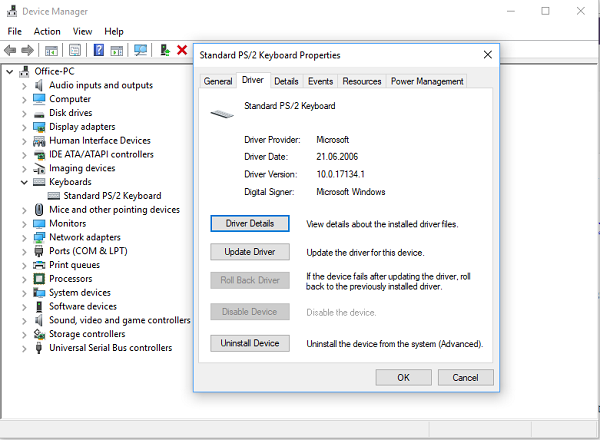
It may be that one of the latest driver updates for the keyboard caused the issue. You might want to roll back the keyboard driver to see if it fixes it for you.
- Right-click on the Windows Key, and open Device Manager.
- Find your keyboard under the Keyboard section.
- Right click > Properties > Driver
- See if you can roll back the driver. If this option is disabled, you can uninstall the driver, and let Windows configure it again.
You can also choose to download the latest driver from the OEM website and update it accordingly. This should fix any misconfiguration with the keyboard.
8] Turn off Filter Keys
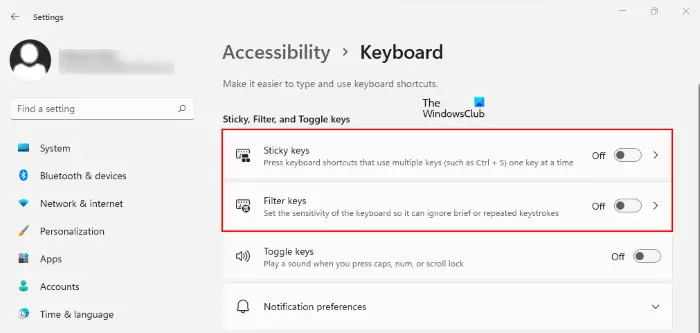
Filter Keys is a feature that you can turn on to ignore repeated keystrokes. In some cases, Filter Keys also affect the Windows key. Disable Filter Keys if you have enabled it and see if this brings any changes.
9] Troubleshoot in Clean Boot State
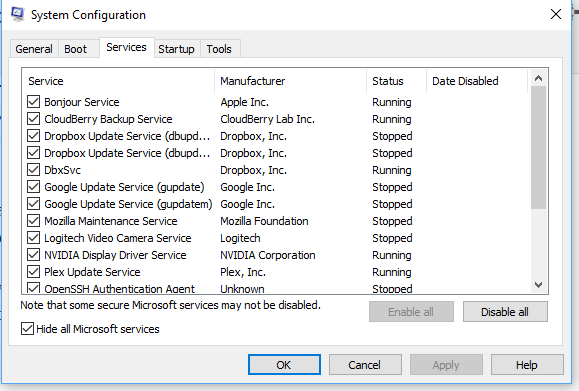
Clean Boot is a state of Windows that runs the PC with minimally required drivers, and applications. Once in Clean Boot, follow the steps below:
- Type msconfig in the Run prompt. This will open the System Configuration window.
- Under the Services tab, check the box that says Hide all Microsoft Services.
- Now disable the remaining services one by one, and restart your PC to see if it resolves the issue.
10] Create a new user account
If none of the above solutions worked for you, your user profile might be corrupted. To check this, create a new user account and then log into that account. Now, check if the Windows key works in the new user account. If this resolves your issue, you can keep using the new user account and delete the old one (if you want).
It’s a cumbersome process and will take time, but it’s probably last on the list if nothing else works.
How do I fix my Windows key is not working?
If your Windows key is not working, first, check if the Win key is disabled. If you find it disabled, enabling it again will fix the issue. Other fixes that you can try are restarting Windows Explorer, disabling Game Mode, troubleshooting in a Clean Boot State, etc. We have explained all possible fixes to fix the Windows key or WinKey not working issue on Windows 11/10 in this article.
How do I know if my Windows key is working?
Press the Windows logo key on your keyboard and the Start menu will appear on your screen. Apart from that, you can also try some other keyboard shortcuts, like Win + R opens the Run command box. Moreover, you can also use free keyboard tester software for the same. These methods will let you know if your Windows key is working or not.
If you are talking about the Windows license key, you can check if it is genuine or legit by using the PID Checker tools or via the Software Licensing User Interface.
I am hoping one of these suggestions will help fix the Windows key or WinKey not working issue on Windows 11/10.
Related reads:
- Function keys not working
- WinKey+Space bar combination not working
- Spacebar or Enter key is not working
- Caps Lock key not working
- Num Lock key not working
- Shift key not working.
