
When working in low-light environments, you can turn on the keyboard’s backlit function. This helps you get your work done comfortably but, on a few occasions, the function may fail to respond or work weirdly. If your backlit keyboard is not working on your Windows desktop or laptop, please read this post.

Many keyboards offer a backlit option, where the backlight switches on after a certain time of day or when the surroundings are dark. This allows the user to work even at night. However, at times the backlit keyboard doesn’t turn ON.
There could be several reasons you are unable to turn on your keyboard’s backlight. Maybe you forget to turn on the backlit switch, the keyboard backlit option is disabled in BIOS, the backlit keyboard timeout settings are not configured properly, etc.
Backlit keyboard not working in Windows 11/10
If you have Windows 11/10 installed on your PC and all your hotkeys work fine except the backlit keyboard, you can try the following methods. There’s no need to buy a USB snake light that only illuminates one area.
- Check if your keyboard supports the backlight option
- Check if there’s a switch to enable the backlit keyboard
- Adjust the brightness level
- Check Backlit timeout settings
- Run the Keyboard troubleshooter
- Update Keyboard drivers
- Troubleshoot in Clean Boot
- Enter BIOS Setup Utility
Let’s cover the above methods in a bit of detail.
1] Check if your keyboard supports the backlight option
When purchasing a keyboard, many users assume it must have a backlight, since most modern keyboards do. However, that isn’t the case. Even with high-end modern computers, the laptop may or may not have a backlit keyboard.
Please resolve this issue with your system manufacturer. However, if the backlight has worked with your system previously and the issue is recent, then proceed with the following solutions.
2] Check if there’s a switch to enable the backlit keyboard
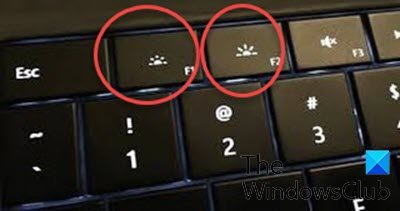
A lot of laptops have a system in which the backlit keyboard needs to be fired up using a combination of keys. Check if you can turn the keyboard lights on or off using the keys.
The keyboard backlight has three modes: Off, Low, High.
In some keyboards, the combination is Fn+F4. In some it is Fn+F5. On some laptops, to turn the backlight on or off, you must press Fn + Spacebar on the keyboard. Please confirm the combination with your system manufacturer.
3] Adjust the Brightness level
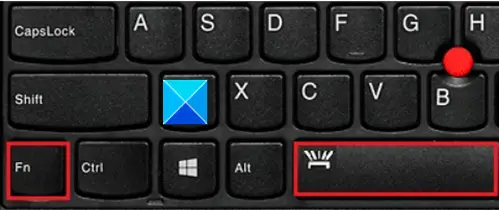
If the backlit function is not working, you have likely set the brightness to an extremely low level. To adjust the backlight brightness, press the key with the backlight icon 2 or 3 times in a row. The keyboard backlight dims and brightens. You may need to press the Fn (function) key simultaneously to activate the backlight key.
If you are using a Lenovo computer or PC, open Lenovo Vantage. For Windows 10, Lenovo Settings has been replaced with Lenovo Vantage. It offers an easy-to-use interface to Personalize your settings, run device diagnostics, and more.
Open Lenovo Vantage.
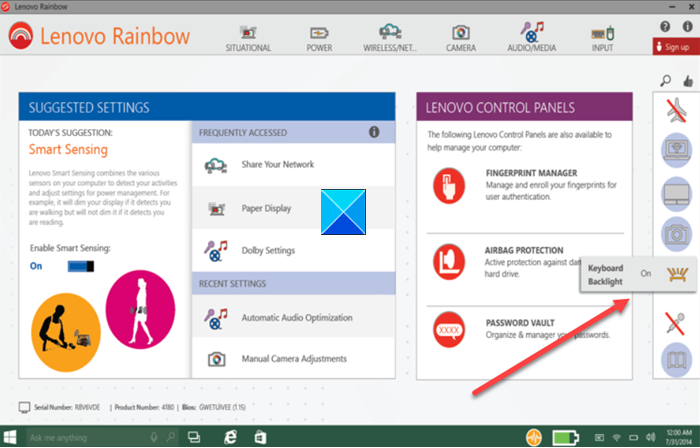
From the left panel of the homepage, look for the keyboard backlight icon.
When found, tap or click to change it.
Read: How to change Keyboard Backlight Color in Windows
4] Check Backlit timeout settings
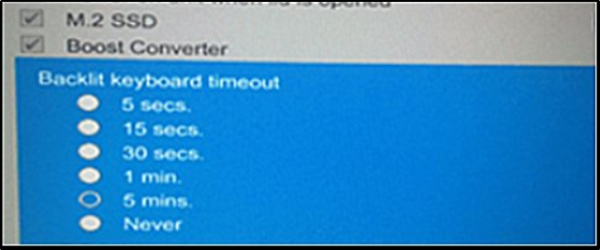
If the backlight stays on for only a few seconds, you may need to change the Keyboard Backlight timeout settings in the BIOS.
5] Run the Keyboard troubleshooter
The Keyboard troubleshooter is an excellent tool to diagnose issues related to the keyboard and resolve them if possible. The procedure to run the Keyboard troubleshooter is as follows:
- Right-click on the Start button and select Settings from the menu.
- In the Settings window, go to the System tab in the left pane.
- In the right pane, scroll down and select Troubleshoot.
- In the Troubleshoot window, select Other troubleshooters.
- Scroll down to the Keyboard troubleshooter and click on Run corresponding to it.
The Keyboard troubleshooter will diagnose problems with the backlit keyboard and resolve them if possible.
6] Update Keyboard drivers

If your keyboard is sensor-based and the drivers are obsolete, it may not work because it won’t be able to detect when the light goes off. In such a case, you need to update the Keyboard drivers.
You could use the Intel Driver and Support Assistant to update the system’s drivers.
7] Troubleshoot in Clean Boot
In case third-party software is causing the problem with your keyboard, the best way to isolate this cause would be to perform a Clean Boot on your system. By doing so, any third-party program influencing the keyboard would not launch automatically at startup. Later, you can isolate the software through hit and trial.
8] Enter the BIOS set up utility
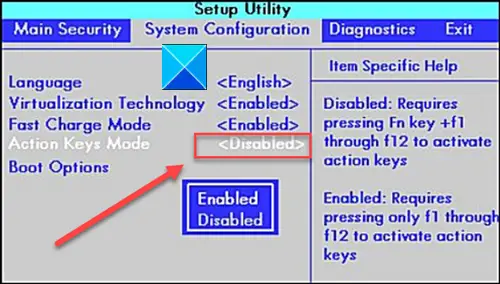
Firstly, make sure the computer has the latest System Setup (BIOS) and is configured correctly.
- Enter the BIOS setup or BIOS Setup Utility
- Use the arrow keys to navigate to the System Configuration tab.
- Under it, locate Action Keys Mode. Make sure to enable this mode if it is not enabled already.
On some BIOSes, you will see it under System Configuration > Keyboard Illumination. The options may be:
- Disabled or Off – The keyboard illumination is off.
- Dim – The keyboard illumination is at half brightness.
- Bright – The keyboard illumination is at full brightness.
You might want to also make sure that your BIOS is updated to the latest version.
Read: Keyboard keeps disconnecting in Windows
How to check if your computer has a backlit keyboard?
This can be confirmed by physically inspecting your keyboard or by contacting the seller. The reason is that even keyboards in the most modern high-end laptops might not have a backlit keyboard. This usually happens to adjust other design features.
