
You can Turn Keyboard lighting on and off on a Computer using the hardware button or a software. If you are using a backlit or LED keyboard and experience issues with its lighting turning on or off unexpectedly, we will explore how to resolve this. Many laptops offer a backlit keyboard, and some also feature LED-enabled keyboards. Both of these keyboards offer configurations that control their light states, allowing you to customize them accordingly.

Turn Keyboard lighting On or Off on a Laptop
Before we start, there is a significant difference between Backlit keyboards and LED keyboard. The former is dependent on ambient light while the latter offers manual control. I have an LED keyboard, and I keep it turned on all the time just for the fancy. We will cover the following topics in this post:
- Turn on or off a backlit keyboard
- Turn on or off an LED keyboard
- Software configuration
- Update BIOS
We have talked about this topic in general. If you have a document from the OEM on this topic, then that is your best guide.
1] How to turn on or off a backlit keyboard?
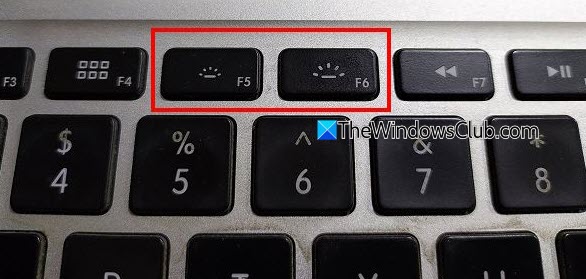
Most of the Backlit keyboards are in auto mode. If there is enough light, they will not turn on. You can check that by turning off the light, and if it automatically lights up, then it means it is working, and you have nothing to worry about.
However, if it doesn’t light up, then look for a unique key, aka illumination icon on the keyboard (it might be available as a combination with Function keys), which can increase the brightness. Apple offers two sets of keys, while companies like HP use the same keys (F5, F9, or F11 keypress, or a dual-action Fn + F5, F9, or F11 keypress), Dell uses F10, and Lenovo uses Fn + Spacebar.
There is one more way to do it. You can turn on the backlit of your keyboard without Fn (or Function) key on a Windows 11/10 computer. For this, first, open the Windows Mobility Center, and look for the Keyboard Backlighting option. Click on the Keyboard icon there. Now you will see On and Off options for Keyboard lighting. You can also adjust available settings for keyboard lighting, and keyboard brightness type (Bright or Dim), and press the OK button to save the changes.
In the case of Apple keyboard, even if set the maximum level of brightness, the keyboard doesn’t light up, but in the case of HP or Dell, you can force it to turn on. Remember, this will depend on OEMs, but everyone will offer a unique key that can manage this.
Here is one more thing which I have noticed on Apple MacBook Air. If the brightness of the display is too hight, it will dim or turn off the backlit keyboard.
Related: How to change Keyboard Backlit Timeout settings in Windows
2] How to turn on or off an LED keyboard?
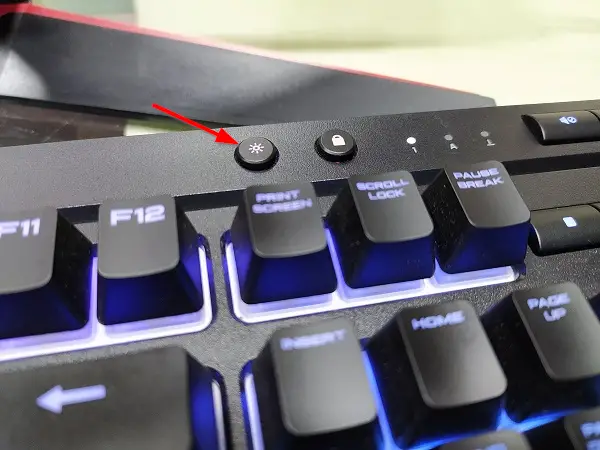
LED keyboards have a different concept. If you fancy colorful lights that change based on your usage, or you want to design your own idea, then they fit well. I am using the Corsair LED keyboard, and I can choose a color for individual keys using their software.
Keyboards like these offer a dedicated button or illumination icon that can control brightness. So if I press mine three times, it turns off all the lights. When I touch it for the fourth time, the keyboard lights up to its maximum brightness again. If you are new to the keyboard and unsure, look for these keys or refer to the manual.
3] Software configuration
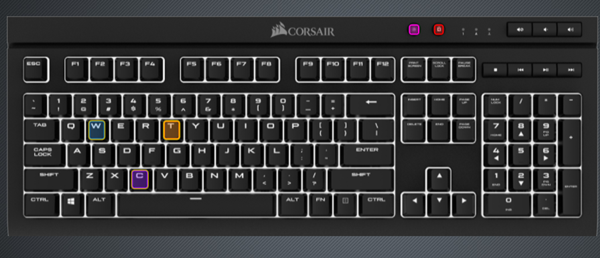
Sometimes the OEMs offer special software for their keyboard, especially those who allow you remap keys for gaming. This software can also turn off the lights, and even if you press the hardware, nothing will happen. So if there is any such software, and you had changed it, undo it.
It is typically the case with gaming keyboards that feature LED lights. If you were in between designing a profile and leaving it in between, it may have turned off the lights. You can figure it out if some of the keys have lights while others don’t.
4] Update BIOS
I have gone through some of the OEMs’ manuals, and some also recommend updating the BIOS. It is useful if the keys with the illumination icon do not work as expected or are disabled in the BIOS. It will have similar options-
- Disabled or Off: It will completely turn off the keyboard illumination.
- Dim: It will set illumination at half brightness.
- Bright – The keyboard will appear at full brightness.
I hope these tips were useful and helped you to turn Keyboard Lighting on and off.
Keyboard backlight won’t turn off on Windows 11
Why can’t I turn on backlit keyboard?
If the backlit keyboard is not working or turning on in your Windows 11/10 system, then you should adjust the brightness level and check the backlit timeout settings. The built-in Keyboard troubleshooter can also help you find the issues (if any) and fix them. If these options don’t work, access the BIOS Setup Utility and enable Action Keys Mode.
