
The backlight on your keyboard makes it easier to work in the dark or when there is no light. This convenience can sometimes consume a lot of energy from our PC. You can manually increase or decrease the brightness of a backlit keyboard with keyboard shortcuts, such as function keys. Instead of manually adjusting brightness, you can let Windows take care of it. In this guide, we show you how to enable or disable keyboard backlight auto-brightness on Windows 11.
What is Keyboard backlight autobrightness?
The backlight of backlit keyboards changes with ambient light or your energy-saving plans. It happens to lower brightness in well-lit conditions and increase brightness in the dark ambiance. This way, the device can save some power without compromising on the convenience of backlight.
How to enable or disable keyboard backlight auto brightness on Windows 11
You can enable or disable the auto-brightness of your keyboard backlight in three ways on Windows 11. Here’s how you can do it.
- Using the Energy Saver options
- Using the Keyboard settings
- Using the manufacturer’s utility
Let’s get into the details.
1] Using the Energy Saver options
The energy-saving options in the Settings app are one of the easiest ways to enable or disable the backlit keyboard’s autobrightness. Open the Settings app on your PC. Click System. Go to Power & battery settings. Expand the Energy saver tab.
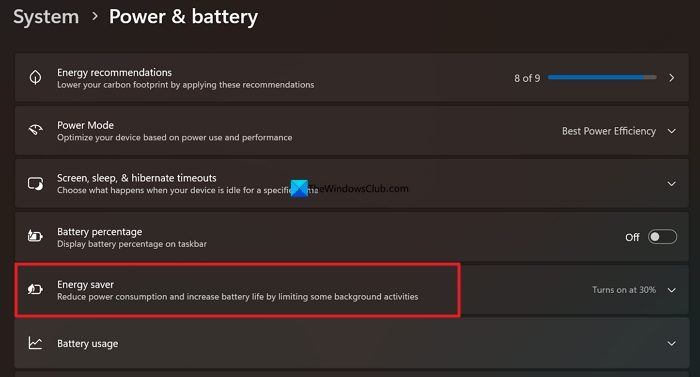
If your laptop has a built-in backlit keyboard, you will see Lower keyboard brightness when using energy saver. Toggle the button beside it to turn it on. When you turn it on, the keyboard backlight brightness will automatically lower when energy saver is enabled. Similarly, when you turn the feature off, it does not impact the brightness of the backlit keyboard even in energy saver mode.
2] Using the Keyboard settings
Microsoft has added Keyboard backlight options in the Keyboard settings in the Settings app. You can use them to adjust the brightness of your backlit keyboard automatically. It uses an ambient light sensor to change the brightness automatically.
Open the Settings app on your PC and go to Bluetooth & devices. Click the Keyboard tab.
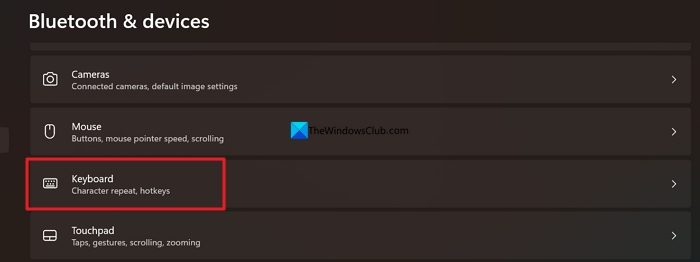
You will see Keyboard backlight options if your laptop has a built-in backlit keyboard. Toggle the button on beside Change keyboard brightness automatically when lighting changes. The brightness of the backlit keyboard changes with time, powered by the ambient sensor of your PC. If you turn the toggle off, the brightness does not adjust with time.
3] Using the manufacturer’s utility
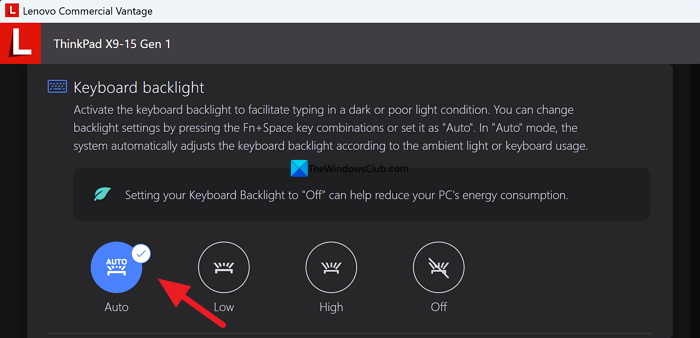
Some manufacturer apps like Lenovo Vantage offer autobrightness features for backlit keyboards. Dell also provides it through its utility. The feature is still not an industry-standard one. Only a few manufacturers offer it. Check the app provided by your keyboard manufacturer and see if there are any options to automate the brightness of a backlit keyboard based on the ambiance.
Read: Change Keyboard Backlit Timeout settings in Windows 11
How to keep keyboard backlight always on Lenovo?
To keep the backlight of your Lenovo laptop’s keyboard always on, open the Lenovo Vantage app and click the hamburger icon at the top-right. Select Device and then Input & Accessories. Under the Keyboard Backlight section, click High to keep the backlit keyboard at full brightness all the time, regardless of the ambient light. If you want to keep the backlight but change the brightness with the ambiance, click Auto.
Read: Change Keyboard Backlight Color in Windows 11.
