
If your Mouse or Keyboard keeps disconnecting and reconnecting in Windows 11/10, this post will help you resolve the issue. A mouse or Keyboard is an essential input device, but they are still prone to bugs and errors.
Why does my Mouse or Keyboard keep disconnecting?
There isn’t any specific reason why this issue may occur. However, many users have reported that this issue primarily occurs due to component issues. Primary reasons for this could be:
- Power Management settings
- Misconfigured settings
- Power supply issues
- Wireless or Bluetooth connection problems
- Outdated drivers
Mouse or Keyboard keeps disconnecting and reconnecting in Windows 11
If the Mouse or Keyboard keeps disconnecting and reconnecting in Windows 11/10 follow these suggestions to fix the issue:
- Turn off Power Saving options
- Run Keyboard troubleshooter
- Update Mouse and Keyboard drivers
- Reinstall Universal Serial Bus Controller Driver
- Disable USB Selective Suspend
- Try a Different USB Port
- Check your Mouse or Keyboard for physical damages
Now, let us see these in detail.
1] Turn off Power Saving Options
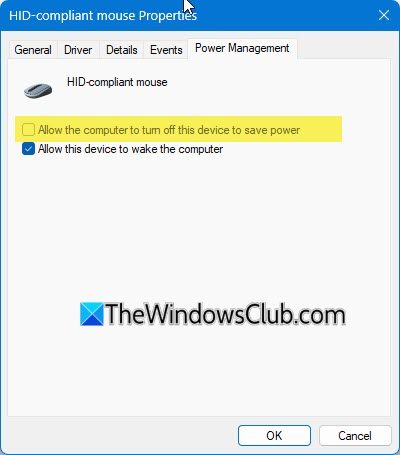
Windows disconnects idle devices if power-saving options are enabled. This could be the reason why your mouse or keyboard keeps disconnecting. Here is how you can turn off power-saving options:
- Press the Windows key + R to open the Run dialogue box.
- Type devmgmt.msc and hit Enter to open Device Manager.
- Expand the Keyboards (Or Mouse) option, right-click on your Keyboard (Or Mouse), and select Properties.
- Navigate to the Power Management tab and uncheck the Allow the computer to turn off the device to save power option.
- Now click on OK to save the changes.
Read: Bluetooth keyboard or mouse keeps going to Sleep
2] Run Keyboard Troubleshooter
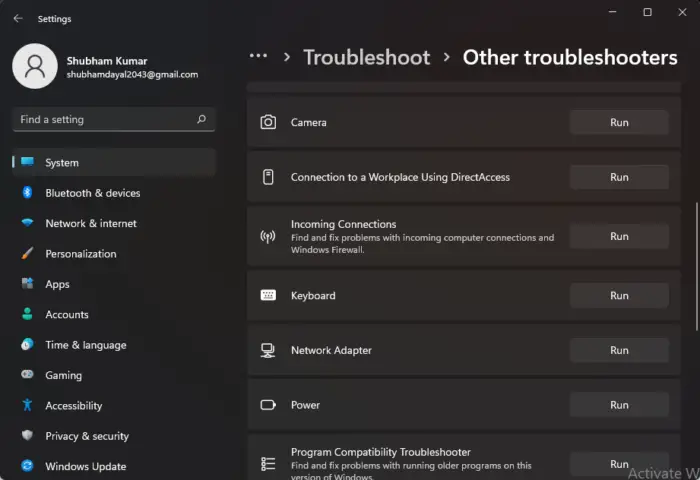
Running Windows Keyboard troubleshooter can diagnose and solve the problem quickly. It is an inbuilt Microsoft function that automatically scans and fixes minor bugs and errors. Here’s how to run the Keyboard troubleshooter:
- Press Windows key + I to open Settings.
- Click on System > Troubleshoot > Other Troubleshooters.
- Now scroll down and click on Run beside Keyboard.
- If any errors are found, Windows will automatically fix them.
3] Update Mouse and Keyboard Drivers
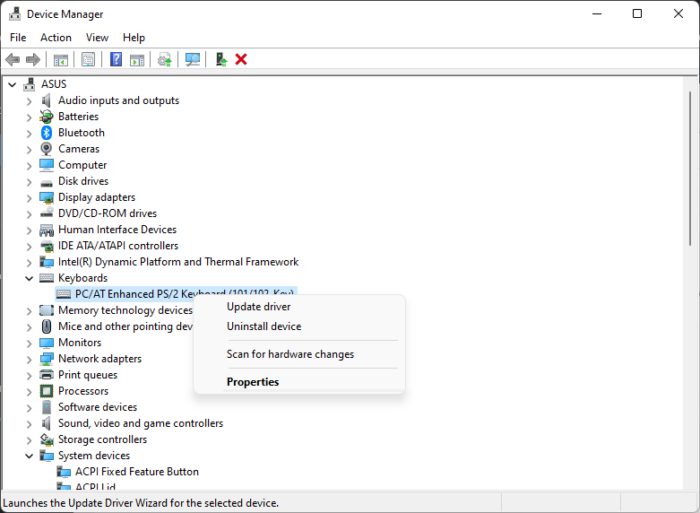
Updated or corrupt keyboard drivers can also cause the mouse or keyboard to disconnect. Update your mouse or keyboard drivers and check if the keyboard error is fixed. Here is how you can do it:
- Press Windows key + R to open the Run dialogue box.
- Type devmgmt.msc and hit Enter to open Device Manager.
- Expand the Keyboards (Or Mouse) option and right-click on your keyboard or mouse.
- Now click on Update Driver and follow the instructions on the screen.
These posts will show you how to download and update Mouse or Keyboard drivers.
Read: USB keeps disconnecting and reconnecting
4] Reinstall Universal Serial Bus Controller Driver
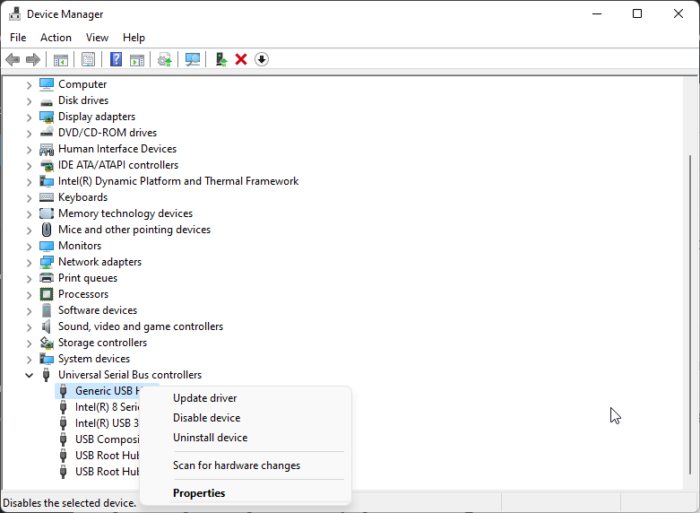
Another reason for this issue could be corrupt Universal Serial Bus drivers. If that is the case, reinstalling the drivers can help. Here’s how to do it:
- Press Windows key + R to open the Run dialogue box.
- Type devmgmt.msc and hit Enter to open Device Manager.
- Expand Universal Serial Bus Controllers and right-click on Generic USB Hub.
- Select Uninstall device.
- Once done, restart your device, and Windows will automatically install the latest version of its drivers.
5] Disable USB Selective Suspend
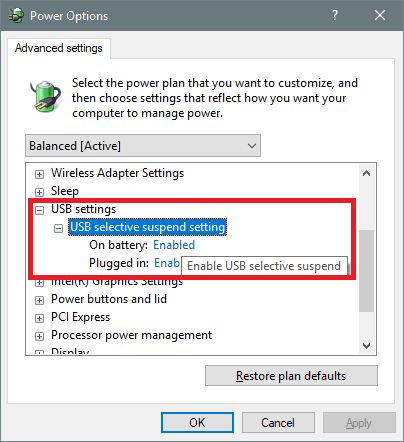
Open Control Panel > Power Options > Change plan settings > Change advanced power settings > Expand USB settings > USB selective suspend setting > Disabled.
See if this helps.
6] Try a Different USB Port
Plug the mouse or keyboard into another port and see. Maybe try the devices on another PC and check. Also, avoid using USB hubs or extension cables.
6] Check your Mouse Keyboard for Physical damage
If none of these steps help, the error may be with your keyboard. Try using the keyboard on another PC; if the issue persists, consider purchasing a new keyboard.
Read: Keyboard shortcuts to Shut down or Lock Windows computer
Why does my PC keep disconnecting my keyboard?
Typically, this issue occurs due to misconfigured power settings, which lead to power supply problems and cause the keyboard to malfunction. However, other reasons, such as outdated drivers and connection issues, can also cause keyboards to disconnect in Windows.
Why does my keyboard turn off automatically?
This usually occurs when power-saving options are enabled on your device. However, in many cases, it’s found that the keyboard itself was faulty. Check for any damage to the keyboard or the USB port. Clean the ports if you notice any dirt on them, and then try reconnecting the keyboard.
Why does my Logitech mouse keep disconnecting?
If your mouse is connected to a faulty USB port, it may disconnect and reconnect repeatedly. Try plugging your mouse in and out, or plug it into a different port. If this doesn’t work, your mouse is possibly damaged. If using a wireless mouse, replace its batteries to see if the issue is resolved.
Why does my Bluetooth keyboard keeps disconnecting?
If you’re using a Bluetooth keyboard that keeps disconnecting, update the Bluetooth drivers on your device. Additionally, replace the keyboard’s batteries, as this could be causing an unstable connection between the keyboard and your PC.
Fix: Backlit keyboard not working or turning on in Windows.
