
Some Windows users are experiencing a weird problem on their computers. When they use the scroll wheel of their mice, it zooms in and out instead of scrolling. The problem usually occurs in web browsers and Microsoft Excel. However, other apps may also be affected by this issue. If your mouse wheel is zooming instead of scrolling, the solutions provided in this article may help you fix it.

Mouse wheel is zooming instead of scrolling on Windows PC
The mouse wheel zooming in and out instead of scrolling usually happens when the Ctrl key is stuck. However, other causes can trigger this problem. Try the following solutions if you are experiencing the same problem on your Windows 11/10 computer.
- Check your Ctrl key
- Disable the Zoom on roll with IntelliMouse feature (solution for Microsoft Excel)
- Change or reset your keyboard layout
- Update or reinstall your mouse driver
- Disable the Pinch Zoom option
Let’s see all these solutions in detail.
1] Check your Ctrl key
As explained earlier, this problem most often occurs when the Ctrl key is stuck. Most web browsers and some apps let you zoom in and out by holding the Ctrl key and moving the mouse scroll wheel. The Ctrl key on your keyboard may be stuck, which is why you are experiencing this problem. There are many ways by which you can check this; have a look:
- Free keyboard tester software: You can install free keyboard tester software that lets you check the functionality of your keyboard.
- Online keyboard testing tools: If you do not want to install third-party software, you can check the functionality of your keyboard with free online keyboard checker and tester tools.
- Connect another keyboard to your system and check if the issue appears. If another keyboard is not available, you can use your friend’s keyboard.
- Disable the Ctrl key: You can disable a keyboard key of your choice in Windows 11/10. Disable the Ctrl key of your keyboard and see if the problem appears. If this fixes your problem, the issue is occurring due to the Ctrl key.
- Disable your laptop keyboard: You can disable your laptop keyboard and connect an external keyboard. This will let you know whether the problem is associated with your laptop keyboard or not.
2] Disable the Zoom on roll with IntelliMouse feature (solution for Microsoft Excel)
If the problem is occurring only in Microsoft Excel, there are high possibilities that the Zoom on roll with IntelliMouse feature is enabled in Excel. Check this and turn it off (if you found this feature active). The following steps will help you with that:
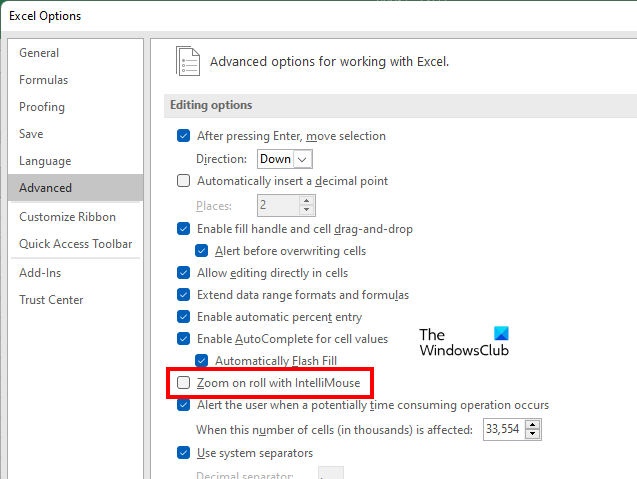
- Open Microsoft Excel and open a spreadsheet in it or create a new one.
- Go to “File > Options.”
- Select the Advanced category from the left side.
- Under the Editing options section, see whether the Zoom on roll with IntelliMouse checkbox is selected. If yes, uncheck it.
- Click OK to save the changes.
This should fix the issue in Excel.
3] Change or reset your keyboard layout
One more thing that you can try is to change your keyboard layout or reset your keyboard settings. It might be possible that some software has changed the setting of your keyboard. In such a case, resetting its settings to default can fix the problem.
4] Update or reinstall your mouse driver
A driver is software that connects a hardware device to the operating system. Any hardware device that you connect to your Windows computer requires a specific driver to operate. If the driver malfunctions, the device stops working or works improperly.
If the problem persists despite trying the above solutions, your mouse or touchpad driver may be corrupted. In this case, updating the driver fixes the problem. To update your mouse or touchpad driver, open the Optional Updates page of Windows Update and see if an update for your mouse or touchpad driver is available. If yes, install it.
If there is no update available on the Optional Updates page, reinstalling the mouse or touchpad driver can fix the issue. The following steps will help you:
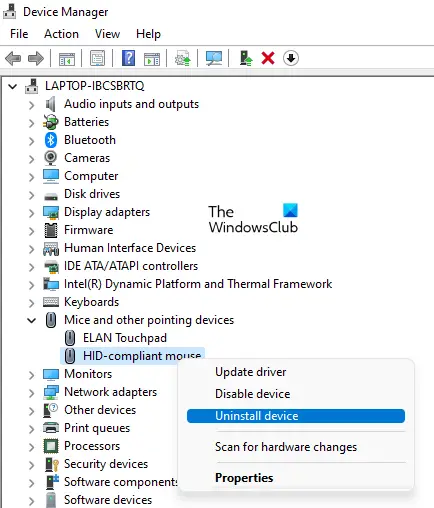
- Open the Device Manager.
- Expand the Mice and other pointing devices node.
- Right-click on your mouse or touchpad driver and select Uninstall device.
- Close the Device Manager and restart your system. Windows will automatically detect the hardware changes and install the missing mouse or touchpad driver.
If this does not fix the problem, download the latest version of your mouse or touchpad driver from the manufacturer’s website. Now, uninstall the mouse or touchpad driver by following the steps above, then run the file you just downloaded to install the driver manually.
Read: Mouse cursor is moving in the opposite direction on Windows PC.
5] Disable the Pinch Zoom option
If the problem occurs only when using the touchpad, it may be due to the Pinch Zoom feature. Windows laptops have a feature that lets you zoom in and out by pinching on the touchpad with two fingers. On the other hand, you can scroll up and down by moving your two fingers up and down on the touchpad. These two touchpad gestures can sometimes conflict. This conflict may cause zooming in and out instead of scrolling.
You can resolve this problem by disabling the Pinch Zoom option. To do so, follow the steps written below:
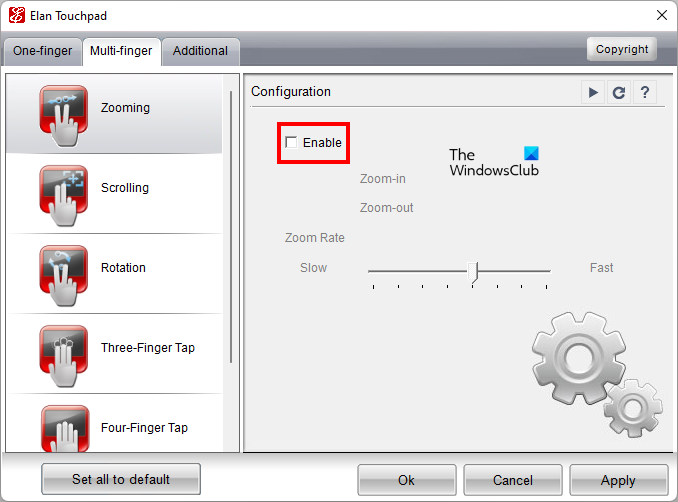
- Open the Control Panel.
- Select Large icons in the View by mode.
- Click Mouse. Alternatively, you can also type Mouse in the Control Panel Search bar.
- In the Mouse Properties window, select the ELAN tab.
- Click on the Options button.
- Under the Multi-finger tab, select Zooming.
- Deselect the Enable checkbox.
Hope this helps.
Why does my mouse only zooming instead of scrolling?
There are many reasons your mouse zooms instead of scrolls. Most commonly, this problem occurs when the Ctrl key gets stuck. In some apps and web browsers, holding the Ctrl key while moving the scroll wheel zooms in and out. So, your Ctrl key may be stuck. Check your keyboard’s Ctrl key to fix this problem. You can use another keyboard or install free keyboard tester software.
Another possible cause is an incorrect keyboard layout. In Windows 11/10, you can select your preferred keyboard layout. If you share the computer, someone may have changed your keyboard layout, which could be why you are experiencing this problem. Check your keyboard layout in Windows Settings.
The issue can also occur if your keyboard settings are changed. Some software can change the keyboard settings. If that is the case, resetting the keyboard settings to default will fix the problem.
If everything is OK but the problem persists, your mouse driver may be corrupted. You can fix a corrupted driver on a Windows device by updating or reinstalling the device driver.
How do I stop my mouse from zooming in and out?
As you know, the Ctrl + mouse scroll combination zooms in and out in web browsers and some apps. If you want to stop your mouse from zooming in and out, you can disable Ctrl Scroll zoom in Windows. Because Windows has no built-in feature to disable Ctrl+Scroll zoom, you need to install dedicated software for this purpose. No Mouse Wheel Zoom is one program that lets you disable Ctrl+Scroll zoom on Windows.
Read next: Mouse pointer moves when pressing arrow keys.
