
If the mouse pointer moves when pressing arrow keys on your system, the suggestions described in this article will help you fix the problem. Keyboards and mice are the most used input devices. If any of them stops working or works incorrectly, it creates a problem for the user. This issue can be caused by software conflicts, incorrect Windows Settings, hardware issues and more.
Mouse pointer moves when pressing arrow keys
The following solutions will help you get rid of this problem on your Windows 11/10 PC.
- Restart your computer
- Run the Hardware and Devices Troubleshooter
- Close Microsoft Paint
- Turn off the Mouse keys option
- Troubleshoot in a Clean Boot state
Let’s see all these fixes in detail.
1] Restart your computer
Before you try anything else, restart your computer, Restarting the device fixes the problems that occur due to a minor glitch. If the problem appears again after restarting your computer, try the next potential fix.
2] Run the Hardware and Devices Troubleshooter
The Hardware and Devices Troubleshooter is an automated tool that helps users fix hardware-related problems on their Windows computers. The issue that you are facing might be due to a hardware issue. Therefore, running the Hardware and Devices Troubleshooter may help.
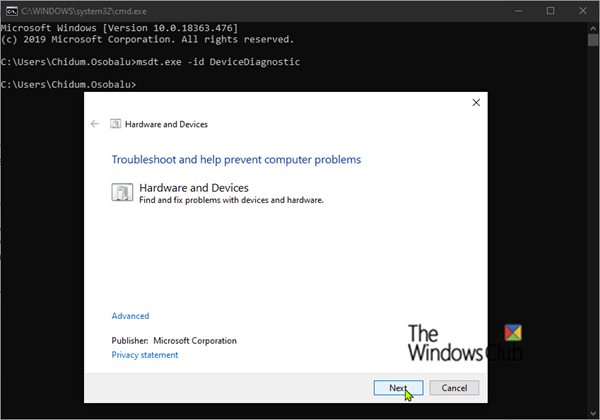
You can run the Hardware and Devices Troubleshooter by executing the following command in an elevated Command Prompt.
msdt.exe -id DeviceDiagnostic
3] Close Microsoft Paint
Many users have found Microsoft Paint the cause of this problem. In Microsoft Paint, you can move the cursor by pressing the arrow keys. Sometimes, Microsoft Paint keeps running in the background and controls mouse movement with the arrow keys. This usually occurs due to a software glitch. Check if Microsoft Paint is running in the background or not. If yes, kill the process. The steps to do that are as follows:
- Open the Task Manager.
- Look for Microsoft paint under the Processes tab.
- Right-click on the Microsoft Paint process and select End task.
This should fix the issue.
4] Turn off the Mouse keys option
The Mouse keys option in Windows 11/10 lets users move their mouse cursor with the help of a numeric keypad. This feature is helpful if you have no mouse or your mouse is not working fine. Though this feature lets you move your mouse cursor with the numeric keypad and not with arrow keys, disabling it fixed many users’ problems. You should also check this. If it is enabled on your system, disable it and see if it brings any changes.
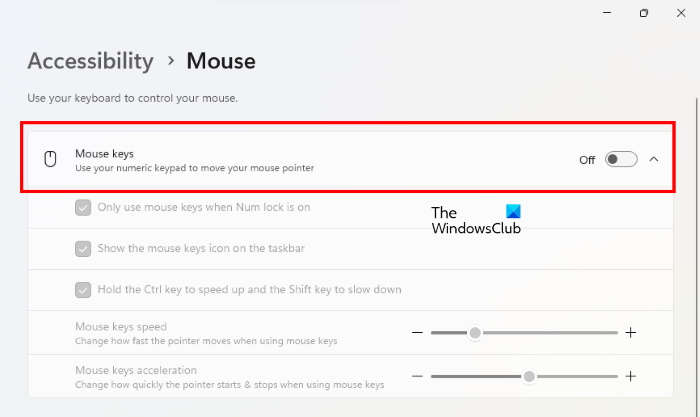
The steps to turn off the Mouse keys option in Windows 11/10 are as follows:
- In Windows 11, open Settings and go to “Accessibility > mouse.”
- In Windows 10, open Settings and go to “Ease of Access > Mouse.”
Turn off the button next to the Mouse keys option.
5] Troubleshoot in a Clean Boot state
If none of the above solutions help, a third-party background program may be causing the problem. To find that program, start your system in a Clean Boot state. Clean Boot starts Windows with only essential Services and apps. All other apps remain disabled in Clean Boot. After starting your system in the Clean Boot state, check if the problem persists. If not, one of the background apps that you have disabled is the culprit. Now, enable some background apps and restart your system in normal mode. Check if the problem persists. If so, the culprit is among the programs you just enabled. Now, disable the background apps one by one and check whether the issue persists after disabling each program. This way, you can identify the problematic background app. Once you find it, consider uninstalling it.
Read: Mouse wheel is zooming instead of scrolling
You can control your mouse cursor with the numeric keypad after enabling the Mouse keys feature in Windows 11/10. If your keyboard is controlling your mouse, check if you have enabled this feature or not. If the Mouse keys are already disabled, the cause of the problem lies somewhere else. If you have installed any mouse software, it might be controlling your mouse. To check this, end the program in Task Manager if it is running in the background, then see whether the issue persists.
Why does my mouse arrow keep moving on its own?
If your mouse cursor keeps moving on its own, your system might have been infected by a virus. We suggest you run a full system scan with your antivirus. Other causes of this problem are a conflicting third-party background app, corrupted or outdated mouse driver, and hardware issues.
Connect your mouse to another computer (if available). You can use your friend’s computer to test your mouse. You can also use free software to track your mouse movement, such as OdoPlus. If your mouse is working fine on another computer, your mouse driver might be corrupted. In this case, update your mouse driver via Windows Optional Updates feature.
If a conflicting background application is causing the problem, troubleshooting in a Clean Boot state will help you find the culprit.
Read next: Mouse cursor is moving in the opposite direction on Windows PC.
