
Sometimes, programs on your Windows 11/10 PC are denied access to graphics hardware. The message says that an Application has been blocked from accessing Graphics hardware. One common scenario is when your PC freezes while playing a game. This can misconfigure the driver, and when an application tries to access the graphics driver, it fails. In this guide, we share how you can fix Application that has been blocked from accessing graphics hardware error.
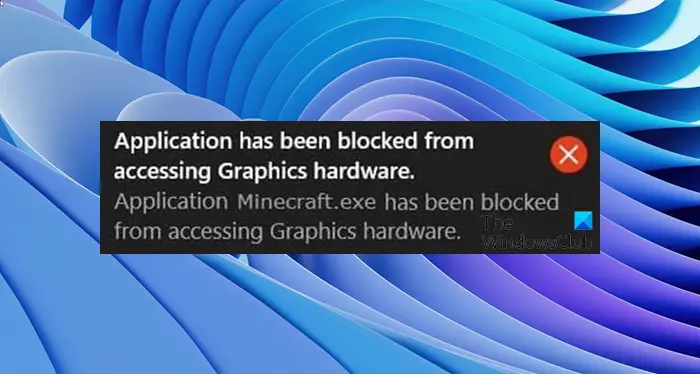
Application has been blocked from accessing Graphics hardware
In my experience, this problem usually happens when the driver isn’t compatible with your current Windows 11/10 version, especially after a major update. This causes the GPU to take longer to respond to graphics requests and often fails. Let’s take a look at the possible solutions.
1] Uninstall and reinstall the graphics card driver
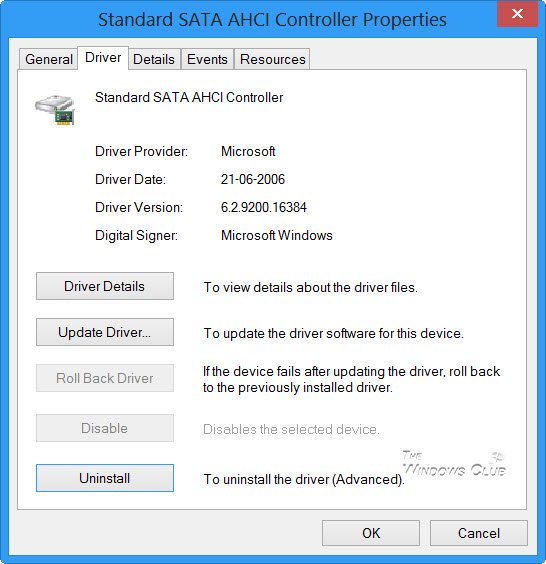
This is the first thing you need to try. Often, drivers downloaded from Windows Update are misconfigured. The best way is to download the latest drivers from the OEM site. Search the website using your graphics card name. Check out our post on Uninstall and reinstall the drivers. When installing the driver, make sure to run the program in compatibility mode for Windows 11/10.
2] Run the Hardware Devices troubleshooter
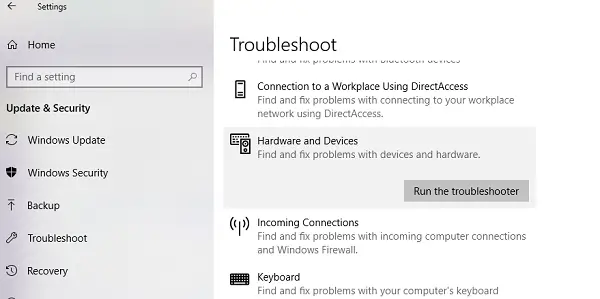
Windows includes a built-in tool to troubleshoot hardware devices. It is available under Settings > Troubleshoot. Run it, and if there is a problem which the application can fix, it will do so. Read more about how to use the Hardware Devices Troubleshooter.
3] Give access to graphics hardware to applications
Windows 11
In Windows 11, you can select which apps can use your graphics hardware. By default, this option is set to Power Saving mode where Windows decides the Graphics preference for different apps. But if you want, you can change this setting. The following steps will help you with that:
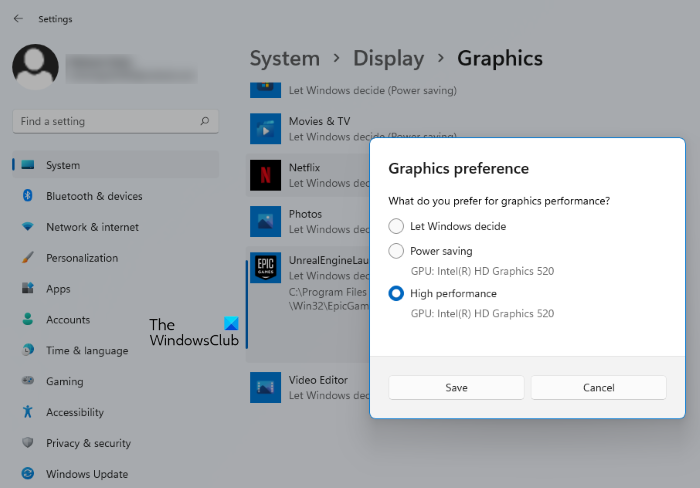
- Right-click on the Windows 11 Start Menu and select Settings.
- In the Settings app, make sure that you have selected the System category on the left side.
- Now, click on the Display tab on the right side.
- Scroll down on the Display page. You will find the Graphics tab under the Related Settings section. Click on it.
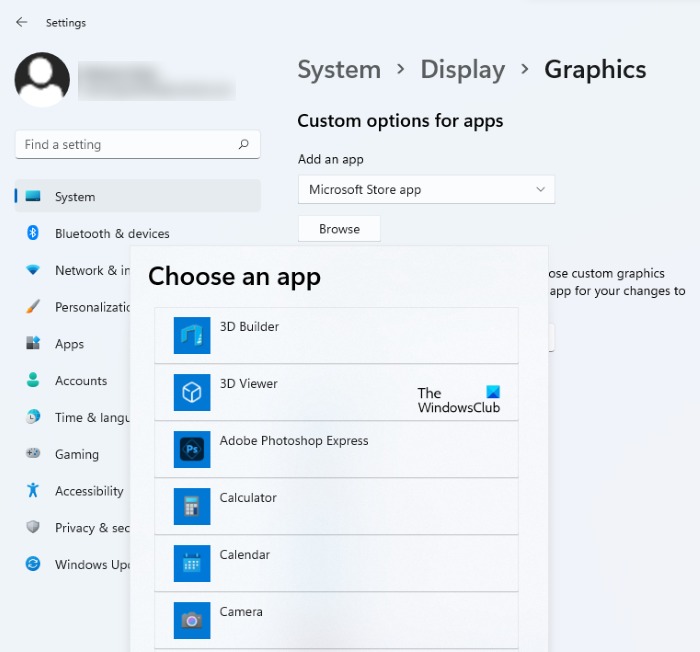
- On the Graphics page, you will see a list of apps for which you can select the Graphics preference. If your app is not available in the list, you can add it by clicking on the Browse button.
- Now, select an app and then click on the Options button.
- Select the desired option and click on the Save button. The changes will not take effect immediately after saving the Graphics preference for a particular app. You have to restart the app.
You can also give your graphics card access to the Microsoft Store apps. To do this, select Microsoft Store apps in the drop-down menu when adding an app. After that when you click on the Browse button, Windows will show you the list of all Microsoft Store apps to select from.
Windows 10
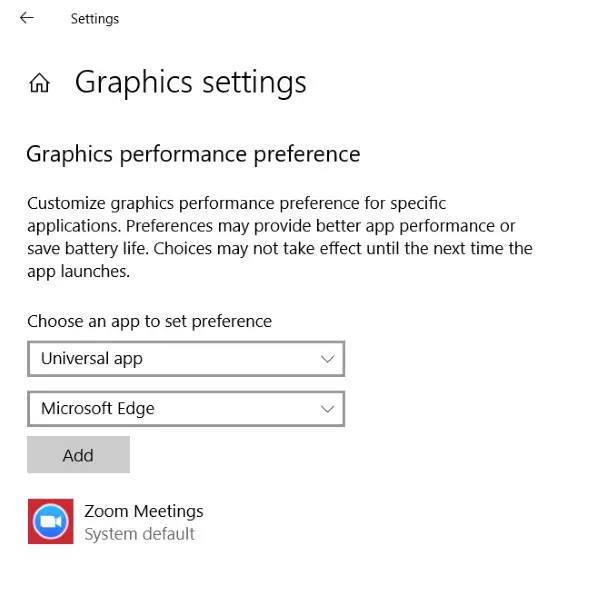
Windows 10 Graphics settings let you dedicate applications to a graphics card. This helps if you have issues with specific applications accessing graphics hardware. It works for both WIN32 Applications and Apps from the store.
You can find this specific option under Settings > Display > Graphics Settings. Using this will not improve performance, but also can save a lot of battery life.
Read more about using Graphics settings in Windows.
4] Disable TDR checker
TDR stands for Timeout Detection and Recovery. This feature first appeared in Windows Vista and then has been there till Windows 11/10. The system is built to recover system graphics when the OS fails to receive a response within a certain amount of time. The default is set to 2 seconds.
The graphics card may take longer because of an intensive task, and the OS may assume there’s a problem and restart the graphics as a recovery method. The solution we suggest now is to increase the TDR time to more than 8 seconds. This gives the OS more time to react.
Note: In case you cannot find these keys, we suggest you create them by following the guide on docs.microsoft.com.
Exit all the applications on the PC.
Type regedit on the search box, and launch it with admin privileges.
Browse to:
HKEY_LOCAL_MACHINE\SYSTEM\ControlSet002 \Control\GraphicsDrivers or HKEY_LOCAL_MACHINE\SYSTEM\ControlSet001 \Control\GraphicsDrivers
Whichever is available – depending on your Windows version i.e. 32-bit or 64-bit, and do the following:
For 32-bit Windows:
- Select DWORD (32-bit) value.
- Type TdrDelay as the Name and click Enter.
- Double-click TdrDelay and add 8 for the Value data and click OK.
For 64-bit Windows :
- Select QWORD (64-bit) value.
- Type TdrDelay as the Name and click Enter.
- Double-click TdrDelay and add 8 for the Value data and click OK.
Restart your PC so the changes take effect.
This registry change adds another 8 seconds of delay to the TDR checker. So if the GPU responds back in 10 seconds, it still works. You may have to change this value to see what exactly works for you.
If it still doesn’t work, you may have to take an aggressive step, and completely turn of TDR. You can do this by changing the “TdrLevel” enter the data value as 0, and then delete the TdrDelay key.
Restart your PC once again.
I hope these suggestions help. If something solves your problem, please let us know in the comments.
How do I reinstall the graphics driver?
To reinstall the graphics driver, first, you have to uninstall it. The steps to uninstall the graphics driver are as follows:
- Right-click on the Start Menu and select Device Manager.
- In the Device Manager, expand the Display adapters node and right-click on your graphics driver. Click on the Uninstall device option.
- Click on the Uninstall button. Follow the on-screen instructions.
After the uninstallation process gets completed, you will have two options to reinstall the graphics driver:
- Restart your computer: You can restart your computer after uninstalling the graphics driver and let Windows reinstall the latest version of the graphics driver automatically.
- Install the graphics driver from the manufacturer’s website: You can visit your manufacturer’s website and download the latest version of the graphics driver and install it on your system manually.
How do I update my graphics driver?
You can update your graphics card driver from the Device Manager. Simply right-click on your graphics driver in the Device Manager and select the Update driver option. Follow the on-screen instructions to update your graphics card driver.
