
The Device Manager in Windows lets you view the hardware installed on your computer, along with its Properties. It lets you change hardware settings, identify device drivers for each device, view and change settings and properties, and install, uninstall, update, rollback, enable, disable the drivers.
While you can use a free Driver Updater software, this article will tell you how to Backup, Uninstall, Disable, Roll Back, Update Device Drivers using the Device Manager in Windows 11/10/8/7. Before you begin, you might want to find out the Driver version of the existing driver on your computer..
Device Manager in Windows 11/10
While on the Windows 11/10 desktop, open the WinX Menu and select Device Manager to open it.
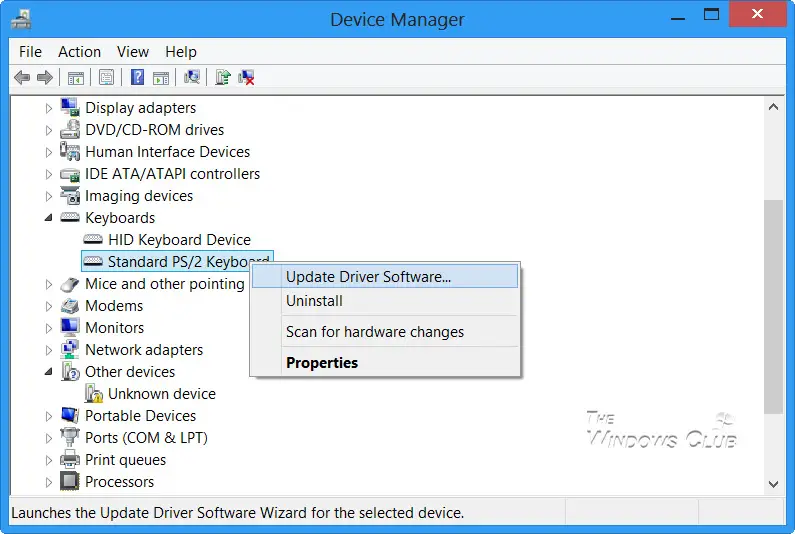
Locate the driver, and right-click on it. You will see options to:
- Update Driver Software
- Uninstall Driver Software.
- Install Drivers
Uninstall Drivers in Windows
If you wish to uninstall the driver, click on Uninstall.
Display Driver Uninstaller will help you completely uninstall AMD, INTEL, NVIDIA Drivers.
Read: Where to download drivers for Windows?
Update Drivers in Windows
NOTE: You can now run Windows Updates and see if any driver updates are available under Optional Updates. It’s a preferred, quicker, and easier way.
If you wish to check for updates and update the Driver, click on Update Driver Software. The wizard will open and offer you two options:
- To search online automatically
- To browse to the driver software on your computer
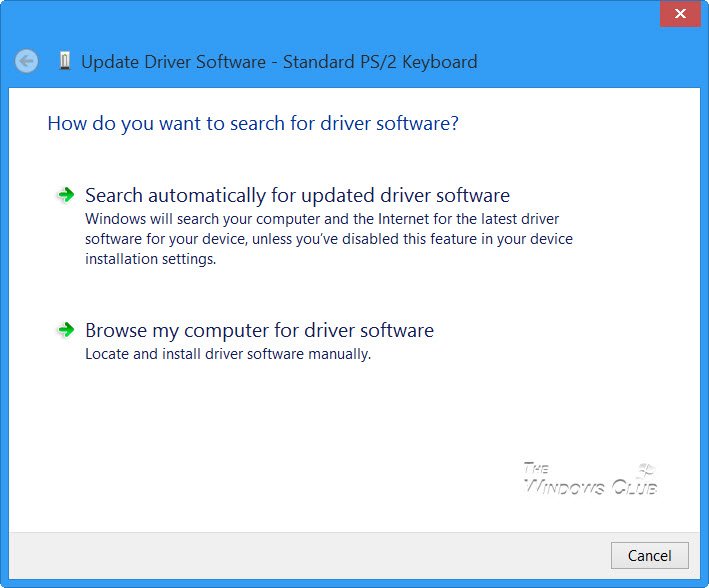
Select and click on the option you want, to proceed further.
NOTES:
- In Windows 10, version 1909 and earlier, Windows installs the highest-ranking driver from Windows Update, regardless of whether it is classified as Automatic or Manual.
- Starting in Windows 10 version 2004, and in Windows 11, Windows only searches the local computer. When it fails to find a driver, Device Manager shows a button labeled Search for updated drivers on Windows Update, which opens the Settings app to the Windows Update page. To find this button, right-click a device and select Properties. On the Driver tab, select Update Driver and then Search automatically for drivers.
These posts will show you in detail, how to update Graphics Drivers or Bluetooth drivers. You can also update Drivers using Command Prompt.
Read: How to remove old and useless Drivers in Windows
Roll back, Disable, Enable Drivers in Windows
The right-click context menu will also let you open the Driver’s properties. Click on Properties to open the Properties box. Select the Driver tab.
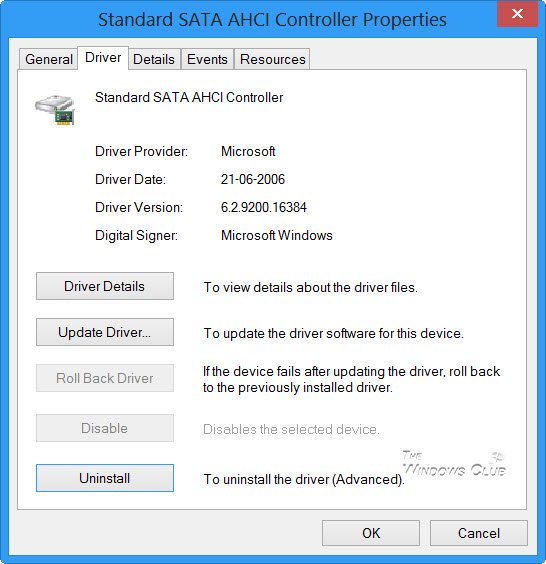
Here you will see more options:
- Update Drivers: This will start the Hardware Update Wizard.
- Roll Back Driver: This will uninstall the most recently updated driver and will roll back your configuration, to the earlier version. You may need to roll back a driver if you find that your device fails after updating the driver.
- Disable (or Enable) Driver: This will disable the Driver, until you enable it back again.
- Uninstall Driver: This will uninstall completely the driver’s files and registry settings for the selected hardware.
This post shows how you can how to Backup and Restore Drivers. You can also export and backup Device Drivers using PowerShell.
A tip in short:
Follow one of the methods below to update your device drivers:
- You may check for Driver Updates via Windows Update to update your drivers
- You may visit the manufacturer’s site to download the drivers.
- Use a free driver update software
- If you have the INF driver file already on your computer then:
- Open Device Manager.
- Click the driver category to expand the menu.
- Then choose the relevant driver and right-click on it.
- Select Update Driver.
- Follow the on-screen wizard to finish updating your audio drivers.
If you are looking for more information on this subject, you may find it here:

