
In this post, we show you how to optimize Power Usage on Windows 11 or Windows 10. The Power Management technologies in Windows provide platform and processor efficiencies that reduce power consumption and can help lower energy costs. It also provides a better user experience with longer battery life for specific scenarios.
Laptop Battery Usage Tips

Optimize Power Usage on Windows 11/10
Here are some tips and FAQs on how to use your laptop’s battery properly:
Do I need to fully discharge and charge the battery?
In lithium-based batteries, this is, in fact, a myth; it only applies to older Nickel-based batteries. So fully discharging and charging the battery is completely useless and even harmful. Lithium-Ion batteries do not suffer from a “memory effect”, a poor-performing laptop battery may be caused by damage or age which means time for a new one.
Lithium-ion batteries have anywhere from 300 to 600 charge cycles, which are 2 to 4 years of use for the average user.
Read: How to limit Battery Charge in Windows
Should I remove the battery when A/C is plugged in?
Many laptop users have this question, and we will answer it right now: The answer is: YES and NO, it depends on the situation.
Having a battery fully charged and the laptop plugged in is not harmful, because as soon as the charge level reaches 100%, the battery stops receiving charging energy, and this energy is bypassed directly to the laptop’s power supply system.
However, there’s a disadvantage to keeping the battery in its socket when the laptop is plugged in, but only if it’s currently experiencing excessive heating caused by the laptop’s hardware.
– Full battery discharges (until laptop power shutdown, 0%) should be avoided because this stresses the battery a lot and can even damage it. It’s recommended to perform partial discharges to capacity levels of 20~30% and frequent charges, instead of performing a full discharge followed by a full charge.
Some would have you believe that you need to fully discharge a laptop battery before recharging it, which is not necessary. Lithium-Ion laptop batteries have a limited amount of charge cycles (cycle = fully discharged and then fully charged), so if you fully discharge your battery every time before charging, then you greatly shorten the life of the pack.
– To store a battery for long periods, its charge capacity should be around 40%, and it should be stored in a fresh and dry location. A fridge can be used (0°C-10 °C), but only if the battery remains isolated from any humidity. One must reiterate that the battery’s worst enemy is heat, so leaving the laptop in the car on a hot summer day is an easy way to drain the battery.
Read: How to charge your Phone in Sleep Mode with the Laptop lid closed.
Laptop battery optimizer software
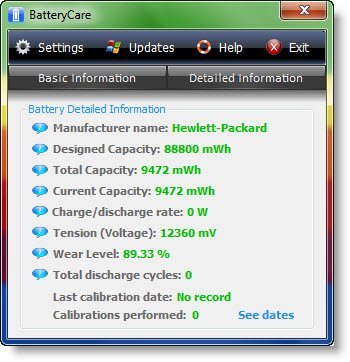
BatteryCare is a freeware that optimizes the usage and performance of the modern laptop’s battery. It monitors the battery’s discharge cycles, helping to increase its autonomy and improve its lifetime. It provides you with information like the battery’s total capacity, voltage, CPU temperature, and manufacturer, if the information is available. The program also tracks your battery’s discharge cycle.
Besides this, when using the battery, there’s the possibility to suspend some Operating System features that help to degrade the autonomy (only in Windows Vista or higher):
- Windows Aero, the theme that allows for visual effects like window transparency, requires graphics card acceleration, which obviously will help to decrease the battery lifetime;
- SuperFetch, ReadyBoost, and SearchIndexer are three Windows 10/8/7/Vista services that, even in battery mode, utilize the hard disk extensively and increase total power consumption, thereby decreasing battery lifetime. Suspending these services has absolutely no negative impact on the performance or security of the system.
BatteryCare resumes these features once the laptop is plugged into A/C power.
Battery Optimizer is a freeware that will run advanced diagnostics and testing and offer recommendations on how you could make better use of your battery. It will also tell you the health or state of your battery.
If you want to get to know your battery better, use BatteryInfoView. It is a free tool for laptops and netbooks that display a lot of information about your computer’s battery.
Read: Your battery has experienced permanent failure and needs to be replaced.
Windows 11/10 does play a sound when the battery reaches a critical stage. You can also set it to raise a notification when it is fully charged.
You can confirm it as follows:
Open Control Panel > Sound > Sounds > Highlight / Test that the Critical battery alarm is working OK.
If you are a Windows 11/10 user, you can enable the Battery Saver Mode.
Also read: Turn off Windows laptop screen with ScreenOff.
How to optimize a laptop for the best battery life?
To optimize a laptop for the best battery life, disable unused features like Wi-Fi, Bluetooth, and touchpad gestures. Dim the screen and turn off the keyboard backlight in bright conditions. Prevent overheating by using a cooling pad and keeping the laptop on a hard, flat surface.
What is the best practice for laptop battery usage?
To optimize laptop battery life, avoid letting it consistently drop below 20% and charging it to 100%. Instead, keep the battery level between 20% and 80% for daily use. These practices help reduce battery cell wear and prolong the overall lifespan.
More posts about your Battery that are sure to interest you:
- Cellphone & Laptop Battery Explosion – Reasons and Prevention
- Alert, System battery voltage is low
- Best Laptop Battery Test software & Diagnostic tools
- Tips to fix Battery drain issues.
- Power Efficiency Diagnostic Report Tool in Windows to check the health of your battery
- Tips to Improve battery life of Wireless Keyboard and Mouse
- Laptop Battery indicator icon showing battery as empty in spite of being full
- Change Critical & Low-Level Battery Action in Windows.
