
Managing battery usage is the foremost aspect for conserving battery performance and prolonging battery life. Moreover, Windows 11/10 is constantly updated, adding new features that make managing battery life easier. While the constant upgrades seem to significantly improve overall battery life, some users have reported battery drain issues. When it comes to battery drain, display brightness and processors are the biggest consumers. Additionally, complex hardware processing tasks will eventually drain your battery.
Laptop Battery draining fast all of a sudden in Windows 11
Before discussing solutions to fix these battery drain problems, we suggest you unplug the accessories connected to the system. Also, try to reduce your startup programs, close all non-essential programs, and lower the screen brightness, which may help boost battery life. In addition to these tips, you may want to consider the following solutions to extend battery life.
1] Turn on the Battery Saver Mode
Sometimes, after a system update, Battery Saver mode may be toggled off, and you may need to turn it on manually. Battery Saver mode allows users to control battery power consumption to maximize on-time. By enabling battery-saver mode, your system will automatically restrict all applications running in the background. To enable Battery Saver Mode, follow these steps:
Windows 11
First, right-click the Start button on the Taskbar and choose Settings from the list of options. Alternatively, you can use Win+I keyboard shortcut to go to the settings window directly.
Next, select System from the side panel on the left.
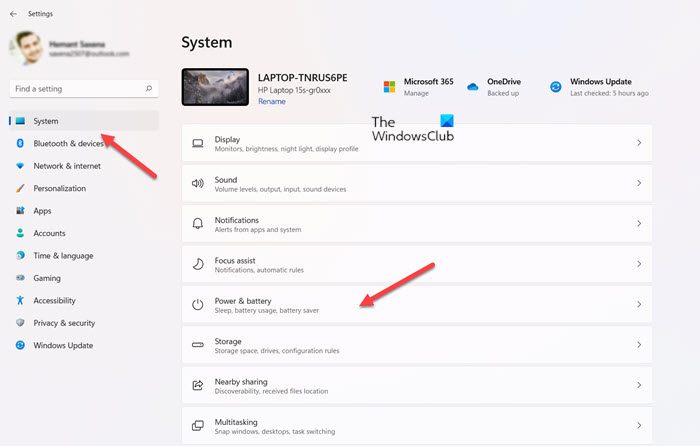
On the right, Move to Power & battery settings. Expand its settings and scroll down to Battery section.
There, hit the drop-down button next to Battery saver entry.
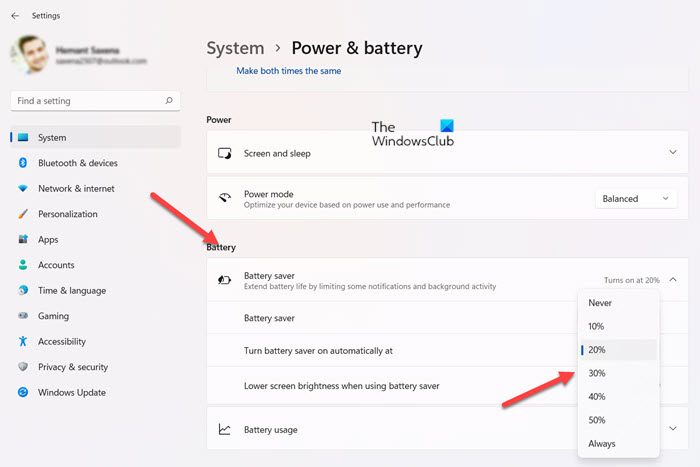
Click the drop-down menu adjacent to Turn battery saver on automatically at item and from the list of options displayed, select the desired option.
Read: How to put apps to Sleep in Windows
Windows 10
Go to Settings and click on System.
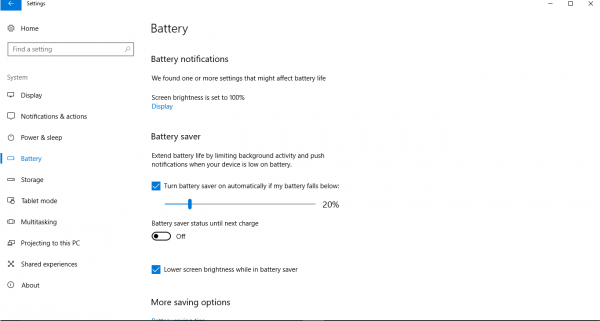
Click on the Battery option on the left side of the System window.
Locate the Battery Saver settings and toggle the setting – Turn on battery saver on automatically if my battery falls below. Move the slider to a suitable position.
Related: Laptop Battery drains after shutdown
2] Check Battery usage by apps
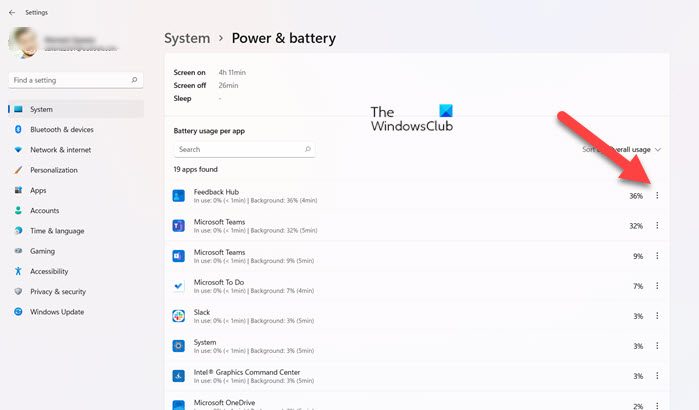
To find out the battery usage of each app follow these steps in Windows 11.
Under Battery section, just below Battery saver settings, hit the Battery usage drop-down button. Then, under Battery usage per app, check the apps consuming more power.
Click the Menu (visible as 3 vertical dots), choose Manage background activity and turn off App permissions for Camera, Location, etc.
To find out the battery usage of each app follow these steps in Windows 10.
In the battery settings, Click on the option ‘Battery Usage by app‘.
The ‘Battery usage by app’ window is displayed with all the apps and the percentage of battery consumption.
Identify the ones you think are using very high power, and decide whether you want to restrict usage, disable, or remove the app (s).
Read: Windows Laptop Battery drains in Sleep Mode.
3] Use Sleep Study Tool to find out what drains your battery
Windows Sleep Study Tool is a new tool from Microsoft that helps you study what exactly is draining your battery power in a Windows InstantGo-supported computer.
Fix: Microsoft Edge battery drain issues
4] Troubleshoot Power problems with PowerCfg
PowerCfg is a command-line utility that scans your computer for 60 seconds to assess your system’s power efficiency and track issues that are draining battery life. The tool provides detailed results in an HTML report so you can evaluate the cause of battery drain. In this way, you can take the necessary steps to extend battery life. Follow these steps to generate a power report and evaluate your system’s efficiency.
Run Command Prompt as administrator and execute the following command:
powercfg /energy
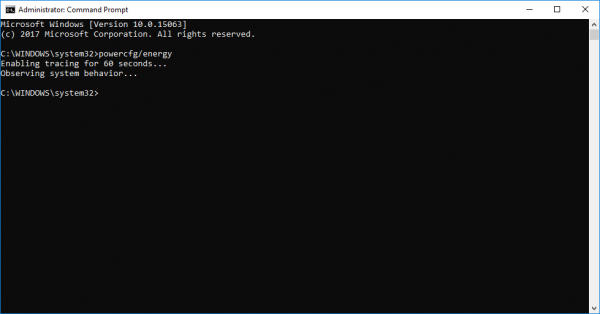
This will generate a detailed HTML report which you can check for errors.
To generate a complete battery health report type the following command in the command prompt:
powercfg /batteryreport
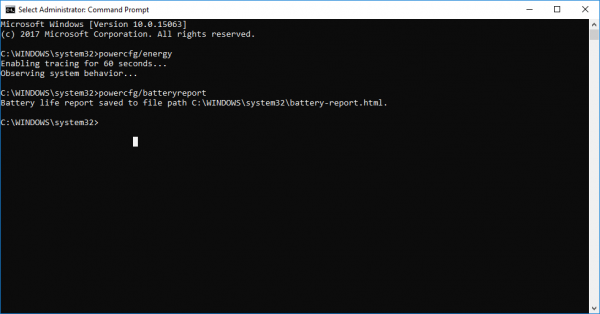
Hit Enter.
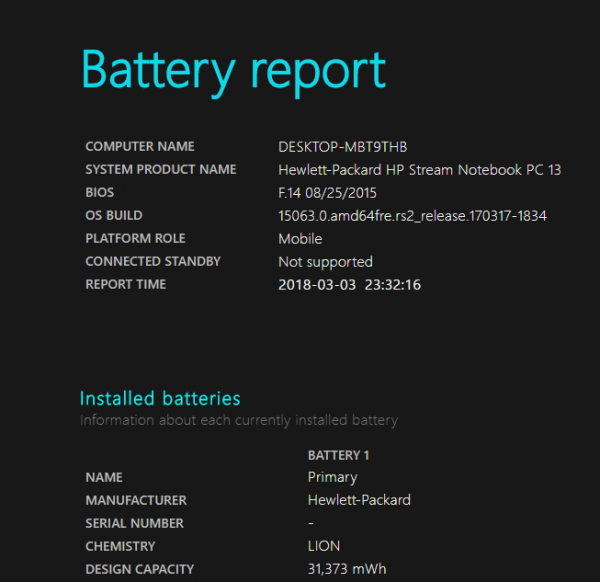
This will provide a detailed HTML report on battery issues, charge ratings, battery usage history and battery charge periods.
You can also run this command to determine the devices that are set so that the user can wake the computer and turn them off by using the following command:
powercfg –devicequery wake_armed
For more information about the PowerCFG options, run POWERCFG /? command in an elevated prompt.
Related: Rapid Battery drain on Windows laptop using Hybrid Graphics
5] Run Power Troubleshooter
Run the Power Troubleshooter and let it check for and automatically detect and fix Power issues.
Read: How to limit Battery Charge in Windows
6] Extend Battery life with customized Power Plans
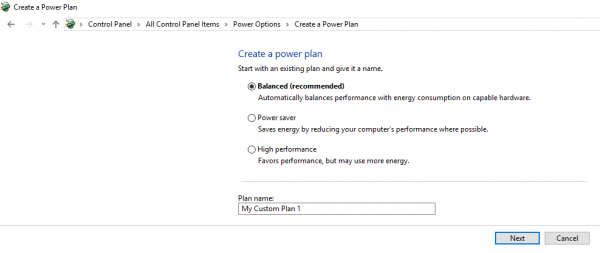
Power plans help conserve energy while maximizing system performance. They let you prioritize between battery life and performance. They let you customize battery usage by planning and adjusting screen brightness, whether the system is in sleep mode, charging mode or plugged in. You can change the display, brightness and sleep settings either when the system is on battery or when it is plugged in. Moreover, you can change advanced power settings or restore them to default. The following steps will guide you in using power plans.
Go to the Control Panel and click on Power Options.
In the Power Options, choose to Create a Power plan. Now you will be able to Create a Power plan as per your needs.
If the above solution doesn’t work for you, check if your drivers are updated. Most of the time, outdated drivers consume a lot of battery, so it is important to update the drivers to maximize device battery life as well as prevent other system-related problems from happening.
Why is my laptop battery draining so fast in Windows 11?
Your laptop battery in Windows 11 may be draining quickly due to background apps, high resource usage (CPU/GPU), recent updates that alter power policies, or normal battery wear. To address this issue, enable Battery/Power Saver, reduce background activity, and check battery health.
Laptop battery draining fast when printing
If your laptop battery drains quickly while printing, first keep the laptop plugged into power during print jobs, then check that your printer is not drawing power through USB (use a separate power source), update printer drivers to ensure efficiency, reduce background apps that consume battery while printing, and if possible, lower print quality or switch to draft mode to minimize resource use.
Does Battery Saver work on PC?
Yes! When you enable the battery saver feature, it blocks apps running in the background. Users can still allow specific individual apps to run while in battery saver mode. On Windows, you can enable battery saver when the battery level drops below a certain threshold.
Laptop battery suddenly drops to 0%
A laptop battery dropping suddenly to zero usually indicates a deteriorating battery that’s lost capacity. This often occurs with older batteries that are incapable of holding a charge. It could also be due to a calibration issue where the software misreads battery levels. You should consider replacing the battery.
How good is Windows Battery Saver?
It works really well. The setting automatically dims your display’s brightness. It’s one of the most useful but rarely used tricks that can save battery life on every single device. In addition, the mode throttles background apps that aren’t currently in use, even if they’re desktop apps.
Read next:
- Tips to Conserve Battery Power & extend Battery Life
- Best Laptop Battery Test software & Diagnostic tools.
- Laptop Battery Usage Tips & Optimization Guide.
