
Windows 11/10 comes with native ability to project to another screen (wired or wireless). All you need to do is press Win+P and it will display options to manage the extended display. However, at times, you might encounter the following error message – Your PC can’t project to another screen. This prevents you from projecting your PC to the other screen. The full error message goes as:
Your PC can’t project to another screen, Try reinstalling the driver or using a different video card.
The problem could be with loosely connected hardware, the display adapter driver, or a recent Windows Update which messed up the settings.
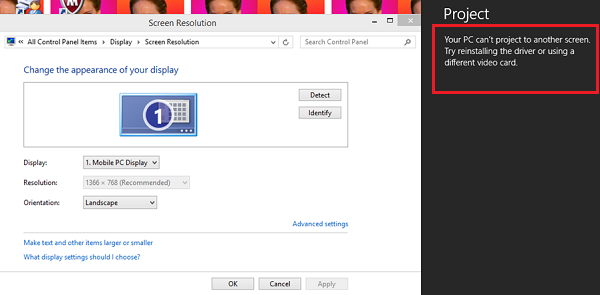
Your PC can’t project to another screen, Try reinstalling the driver
The error message Your PC can’t project to another screen usually appears in Windows 11 when there’s a problem with display drivers, Miracast compatibility, or connection settings. Try the following solutions sequentially to resolve the problem:
- Check if your PC supports Miracast
- Check the hardware cable connections
- Run the Hardware and Devices Troubleshooter
- Update the display adapter drivers
- Reinstall Display hardware
- Replace Graphics Card.
1] Check if your PC supports Miracast
Press Win + R, type dxdiag, save the report, and look under “Miracast” in the Display tab. If it says “Available,” make sure both devices are on the same Wi‑Fi network.
You can also reset the projection settings by pressing Win+P and re‑selecting “Duplicate” or “Extend.”
2] Check the hardware cable connections
Before proceeding, check the hardware connection. The cables should be connected tightly and in the correct ports. Make sure no pin is missing from the ports. You might also consider changing the wires if they look damaged.
3] Run the Hardware and Devices Troubleshooter
The Hardware and Devices troubleshooter checks for changes and problems with the hardware connections and associated drivers. It corrects the issues of possible.
You can open the command prompt, then type or copy and paste the command below and hit Enter to launch the Hardware Troubleshooter:
msdt.exe -id DeviceDiagnostic
Run it and see if it helps.
Read: Projecting to this PC option is greyed out in Windows
4] Update the display adapter drivers
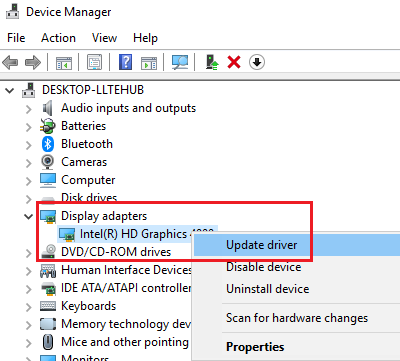
If the problem is with the display adapter drivers, updating them could help in resolving the issue. To update the Graphics Driver:
- Open Run prompt (Win + R) and type devmgmt.msc.
- Press Enter to open the Device Manager window.
- Expand the list of Display adapters and right-click on the graphics card driver.
- Select Update driver.
Restart the system once done.
You could also consider downloading the display drivers from the manufacturer’s website and installing them. There are multiple ways to update Drivers in Windows.
5] Reinstall Display Hardware
Under Device Manager, you can choose to uninstall the device completely. Once done, restart the computer. Windows will automatically detect the device and reinstall the driver via Windows Update.
6] Replace Graphics Card
The last resort is when nothing works, and the only way out is to change your graphics card. However, make sure to consult an expert before proceeding.
We hope one of these fixes helps you resolve the Your PC can’t project to another screen error. Let us know which one worked for you.
