
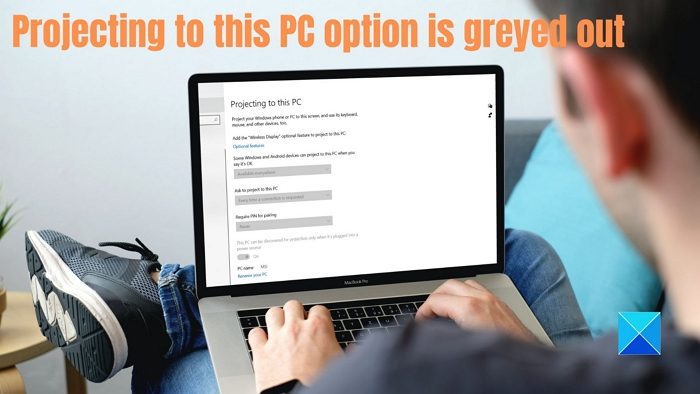
Projecting to this PC is a special feature of Windows which allows streaming apps and content from another device to show on your PC. It is also called mirroring, but it works without wires. And that is where Miracast also comes into the picture, because it helps cast one device’s screen to another. That said, if Projecting to this PC option is greyed out or disabled in Windows 11/10, here is how to fix the problem.
Why does this problem happen?
The most probable reasons are hardware and software issues. Sometimes we get the latest PC but only realize later that the native support of this feature is not available. We need to check not only whether the GPU supports it, but also whether the Wi-Fi adapter supports it on your PC.
Projecting to this PC option is greyed out in Windows 11
Before we go ahead, make sure you’ve tried it with multiple devices to rule out physical damage. That out of the way, there are only two ways to fix the problem
- Install the Wireless Display Optional feature
- Check Wi-Fi Direct support
Use an admin account to do this.
1] Install Wireless Display Optional feature
Microsoft offers this as an optional feature that users need to download and install.
- Open Windows Settings (Win + I)
- Navigate to System > Projecting to this PC.
- Under Add the Wireless Display optional feature to project to this PC, select Optional features.
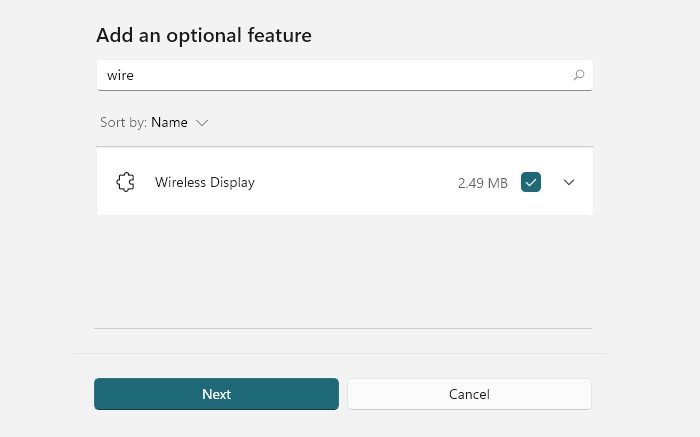
- To Add, click on View features and type wireless display.
- Once it appears, select the check box next to it, and install.
You can go to Settings > Apps > Optional features if you can’t find it here. Click on the View features button to bring up the search box. Type Wireless display and once it appears, check the box and install it.
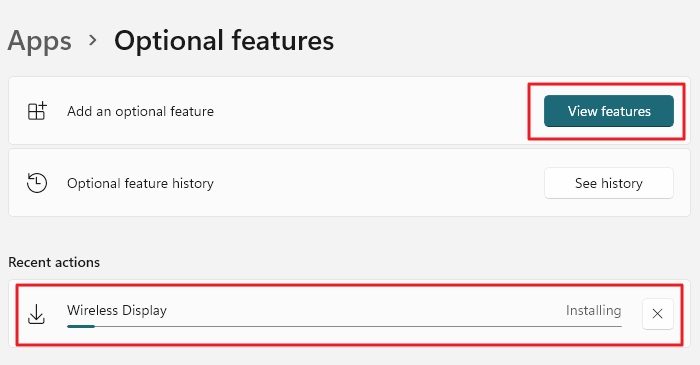
Once done, go back to the projecting preferences on the Projecting to this PC page in Settings and check whether the error is gone. Now try and see if everything works as expected.
Read: Your PC can’t project to another screen, Try reinstalling the driver
2] Check WiFi-Direct Support
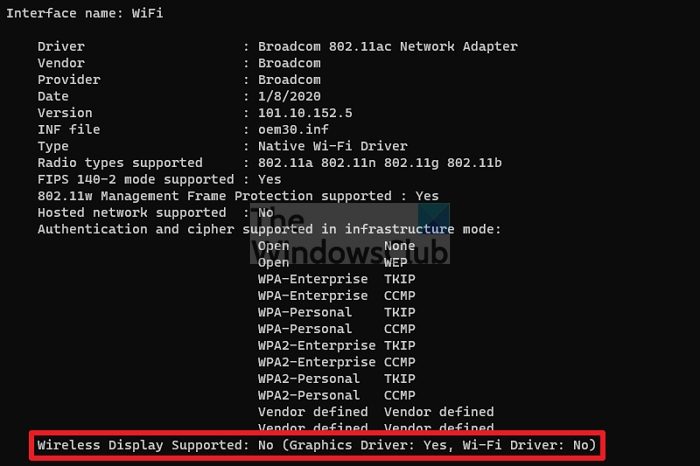
If the above doesn’t work, then it is possible that your WiFi-Adapter doesn’t support WiFi-Direct for projection to work correctly. Execute the following command on an elevated Command Prompt or Windows terminal, and check on the status of Wireless Display Supported. If it says the PC doesn’t support Miracast or has no wireless interface, you cannot use this feature. Here is the command:
netsh wlan show drivers
The status has two parts—Graphics Driver and WiFi Driver. So GPU support is needed, and the Wifi driver should also support it.
That said, it’s still important to update the driver, as it may help. The Network drivers are installed with Windows or through the OEM software installed. But you can try it once to see if it resolves the issue.
Projecting to this PC is an advanced Windows feature that lets you mirror another device to yours. For this to work, both the hardware and software need to support it.
What does Projecting to PC mean?
With the projection feature, you can use another computer’s monitor to display on this PC. It is almost like mirroring but without wires. You can keep working on your PC while projecting another PC to one of the monitors on your PC.
Read: Allow or Stop Windows from asking PIN for Projecting to the PC
How do I project my PC to my TV?
You can do that either using a Miracast adapter or connecting the TV using an HDMI cable. You will need a compatible cable that connects a video output port to the TV’s video input port.
What is the difference between Miracast and Wi-Fi Display?
There is none. Wi-Fi Display is the original name for the Miracast technology. It has been updated to Miracast, and devices that support it are called Miracast devices. If you are looking for a device that supports it, check the specs on the product’s official page.
What are the best WiFi Display Adaptors?
A lot of companies sell Wi-Fi display adaptors. Some come with the monitor, while others are plug-and-play. For example, Dell S2317HWi LED-Lit Monitor, SAMSUNG M5 Series Smart Monitor, and Bimawen Wireless Portable Monitor support WiFi display. When it comes to adaptors, Microsoft, ScreenBeam, and SmartSee are some companies that sell them.
