
In case you receive Destination Folder Access Denied, You’ll need to provide administrator permission to delete this folder error message on a Windows machine; here is a simple fix that will let you solve the error and delete the folder within moments. Whenever a new file or folder is created, Windows will assign a set of default permissions to it. These are called Effective Permissions. If a user doesn’t have the required permissions, Windows will show that error. This method will also work if you receive You’ll need to provide administrator permission to rename this folder error message.
Destination Folder Access Denied in Windows 11
Let’s say that you have uninstalled software using Control Panel. When you uninstall software using the Control Panel, the configuration files and Registry keys get stored in some locations. In most cases, the uninstaller can remove all the files and registry entries. But at times, some folders remain, and you may get an error You’ll need to provide administrator permission to delete this folder while trying to remove these folders. Sometimes you may also see this error message when deleting other folders.
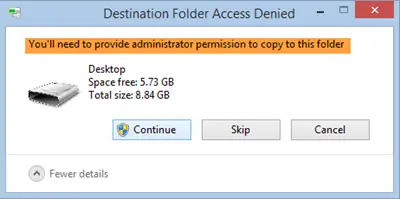
In the error dialog box, you will Continue, Skip & Cancel buttons. If you click the “Continue” button, you will receive another message – You require permission from [username] to make changes to this folder. Ultimately, you will not be able to delete the folder in any way.
You’ll need to provide administrator permission to delete this folder
To fix this issue, you have to gain Permission to delete it. You will have to take ownership of the folder and here is what you need to do.
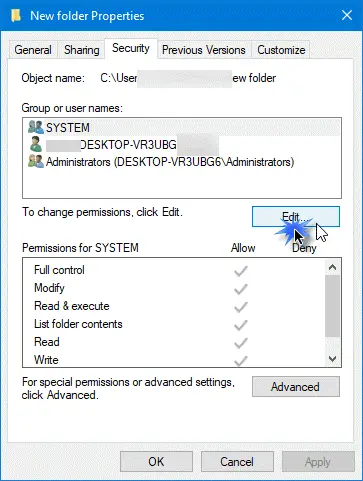
Right-click on the folder that you want to delete and go to Properties. After that, you will see a Security tab. Switch to that tab. Here you will find an Edit button. Click on it.
After that hit the Add button, you will get an empty box with a text called Enter the object names to select. Write down
Write Everyone in the empty box and then click on the Check Names button.
Now, select Everyone under Group or user names section and allow Full control in the corresponding box.
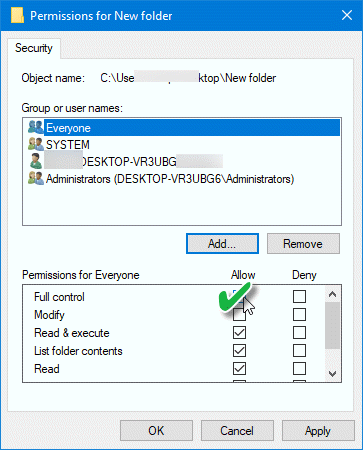
Finally, click on the Apply button.
TIPs:
- Ultimate Windows Tweaker will let you add the Take Ownership of Files and Folders entry easily to Windows 11/10 context menu. Once you have done this, right-click on the folder and click on Take ownership. You will now be able to delete that folder.
- You can also remove File Access Denied or Access is Denied error messages easily using a freeware called Permissions Time Machine. DropPermission is another tool that lets you instantly overcome the You don’t have permission to error messages.
- If you receive this error message for Network Shared folders, you need to turn on Network Discovery. If that does not help, run the Shared Folders Troubleshooter via the Troubleshooters Page.
- If you are unable to change File or Folder Permissions, then this post will show you how to troubleshoot File and Folder Permission Issues in Windows.
How do I delete Undeletable files?
Usually, another application locks these files, so you can’t delete them. Hence the term Undelable. The best way to remove these files is to restart the Windows PC in Safe Mode and delete them. However, if the file is a system file, you should not delete it. If you delete these files, it will break the system in one way or another.
How do I fix I need administrator permission?
There is no fix except for the PC admin to make you an Admin, so you can delete files or perform actions that require administrator permission. If you try to add or remove a user with a standard account, you will be prompted by UAC to enter the administrator account PIN or password.
Other similar errors you may receive on a Windows machine:
- Access Denied error when accessing files or folders
- Access is Denied error while installing software
- Location is not available, Access is denied
- Windows could not start Service. Access Is Denied
- Failed to enumerate objects in the container. Access is denied
- Access is denied when opening an encrypted file.
