
Many users have reported facing GRAPHICS DEVICE REMOVED, The GPU will not respond to more commands error in WWE 2K26 on Windows 11/10. The error message indicates an issue with the installed graphics card. The problem started after downloading the latest patch update. So, if you are also struggling with the same problem, continue with this troubleshooting guide to resolve the issue.
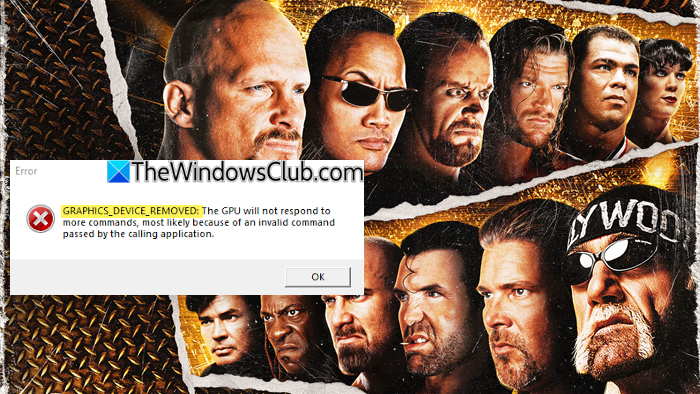
GRAPHICS DEVICE REMOVED, The GPU will not respond to more commands error in WWE game
Below is a list of all the effective workarounds you can try to fix WWE 2K26 GRAPHICS DEVICE REMOVED GPU not responding on Windows 11/10.
- Restart the Game and PC
- Disable CPU overclocking (if applicable)
- Reduce in-game texture and graphics quality
- Set the FPS limit
- Run the game in Windowed Mode
- Update the Graphics Driver
- Reinstall the Game
- Contact 2K Customer Support
1] Restart the Game and PC
The very first thing that you should do the to restart the game. As it turns out, the graphics problem can be caused by a temporary glitch, and in this case, restarting is the best thing you can do. So, restart the game and check if it makes any difference. Furthermore, if restarting the game doesn’t resolve the issue, restart the system and then launch the game. Check whether the problem persists; if so, try the next solution.
2] Disable CPU overclocking (if applicable)
In this solution, you will have to stop overclocking your CPU. On the one hand, you can run the slower cheap at a faster rate by overclocking the CPU. But at the same time, it can also be a primary reason you face the mentioned problem. So, if you have overclocked your system, reverse the changes made using the overclocking software you used. To do so, simply open the software look for the option to disable the overlocking. Once you are done with the process, restart the system, and check if the problem is solved or not.
3] Reduce in-game texture and graphics quality
The next thing you can try is reducing the texture and graphics quality. As it turns out, WWE is a graphics-intensive game, but if you are trying to run it on a low-end device at maximum settings, you are most likely to encounter the problem mentioned. You will have to reduce the in-game texture and graphics quality to solve the issue. Here is how it’s done.
- Launch Steam on your Windows PC.
- Navigate to the Library option.
- Choose WWE 2K22 from the list of available games, and click on the Play option to run the game.
- Go to the Settings menu, and then select the Graphics settings.
- Now, choose the Texture and Graphics quality according to your device specifications.
- Once you have found the right match, save the settings and re-launch the game.
Check if the problem persists. If yes, try the next solution.
4] Set the FPS limit
Another thing that can trigger the mentioned problem is Frame Per Second (FPS). Again, if you are running the game on a low-end device without limiting the FPS, it’s no surprise you are facing the problem. As a solution, limit to FPS by accessing the in-game settings. Alternatively, you can also use Nvidia Control Panel ( if applicable ) to get the work done. Although the FPS limit depends on the device’s specifications, we recommend limiting it to 60 FPS for optimal performance.
5] Run the game in Windowed Mode
Running the game in Windowed mode is another effective solution you can try. To run the game in Windows mode, follow the window steps.
- Launch Steam and open the Library.
- Select WWE from the list of installed games, and click on Play.
- Go to the in-game settings, and select Graphics Settings.
- Change Windowed mode to Yes.
Now, press the space key (depending on configured keys) to launch the game in Windowed mode. See if the problem is fixed or not.
6] Update the Graphics Driver
It is quite clear by the error message itself that the problem is related to the installed Graphics Driver. Thus, to solve the problem, you will have to download the latest Graphics Driver update. Here’s how it’s done.
- Check for Driver Updates via Windows Update to update your drivers
- Navigate to the manufacturer’s site to download the drivers.
- You can use a free driver update software
- If you have the INF driver file already on your computer, then:
-
- Open Device Manager.
- Click the driver category to expand the menu.
- Then choose the relevant driver and right-click on it.
- Select Update Driver.
- Follow the on-screen wizard to complete the update to your graphics drivers.
Restart your system after installing the update. Launch the game and check if the problem persists.
7] Reinstall the Game
There can be some issues during the installation, which is causing the WWE GRAPHICS DEVICE REMOVED GPU not responding problem on your Windows PC. In this case, you can go through the re-installation process to solve the issue. But make sure you follow this step only if none of the above solutions were helpful.
Read: Fix WWE 2K22 keeps crashing on PC after startup
8] Contact 2K Customer Support
The last thing you can try is to contact 2K customer support. There can be an issue with the copy of the game you are having. You can’t do anything other than contact the customer support team in this case. Contact them, and ask them to look into the problem.
Read: Fix WWE 2K26 white screen problem on Windows PC
Why is WWE 2K26 so laggy?
There can be multiple reasons why you are facing lag in WWE. But among all, the main culprit can be outdated graphics drivers. Along with this, the problem can also occur if you haven’t downloaded the latest Windows update, overclocked the CPU, or have missing or corrupted game files. It’s very easy to fix the WWE lag problem.
Why does my WWE 2K26 keep crashing?
If there’s an issue with the installed DirectX, WWE will keep crashing on your system. You will need to download the latest DirectX version from the Microsoft DirectX End-user Runtime Web Install page to resolve the problem.
Read Next: Fix WWE Error Unable to communicate with the server at this time.
