
This post features different workarounds you can try if you face WWE 2K25 or 2K26 white screen problem in Windows 11/10. WWE 2K26 is the latest WWE game available for Windows PC. It has completely revamped graphics and improved gameplay. But like any other Windows game, it also isn’t free from problems. Many users have reported encountering a white screen issue when playing WWE on their Windows PCs. So, if you are facing the same problem, follow this troubleshooting guide to resolve the issue.
Fix WWE 2K25 or 2K26 white screen crash problem on PC
Below is a list of all the effective solutions you can try to fix the WWE 2K25 or 2K26 white screen problem on Windows PC.
- Restart the Game and PC
- Check the Server status
- Run the Game in High-Performance Mode
- Update Graphics driver
- Verify Integrity of Game Files
- Temporarily disable the antivirus program
- Reinstall the Microsoft Visual C++
- Reinstall the Game
Now, let’s take a look at all the solutions in detail.
1] Restart the Game and PC
The first thing you should do is restart WWE on your system. As it turns out, there can be a temporary issue causing the problem. So, restart the game and check if it solves the problem. If the problem continues, you can restart the PC and check if it makes a difference.
2] Check the Server status
If there’s any ongoing server issue with the game, you will face different problems, including the white screen issue. You can check for a server issue by visiting WWE 2K’s official Twitter handle. In this situation, you can’t do anything other than wait until the developer fixes the problem.
3] Run the Game in High-Performance Mode
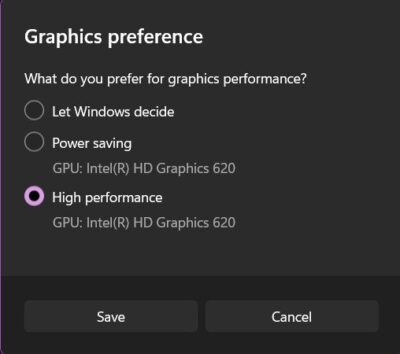
The next thing you can try is to change the game’s graphics settings. By default, Windows decides what graphic performance it wants to allocate to a particular application. However, you can also change the settings manually to enhance application performance. To do so, follow the steps below.
- Open the Settings menu by pressing Windows + I shortcut key.
- In the System option, go to Display > Graphics.
- Tap the Browse option, then go to the location where you installed WWE 2K25 or 2K26 on your PC.
- Choose the exe file of the WWE 2K25 or 2K26.
- Once the game is added to the list, tap on it.
- Tap on Options.
- From the context menu, click on High Performance.
- Click on Save.
Now, launch the game and check if the problem is solved or not.
4] Update the Graphics Driver
Downloading the latest graphics driver update is another effective solution you can try to get rid of the white screen problem. As it turns out, WWE is a graphics-oriented game; thus, you need to make sure you have the latest graphics driver installed on your system to run the game without any problem. Here are the steps to update the drivers.
- Update the installed graphics driver by visiting the manufacturer’s official website.
- You can download the latest graphics driver updates via Windows update.
- You can update the driver using different driver updating software.
- If your system already features an INF driver, follow the below steps.
-
- Open the Device Manager.
- Tap on the Display Adaptors to expand the menu.
- Right-click on the installed driver and choose Update Driver.
- Follow the on-screen instructions to complete the update process.
Once the update and installation are complete, launch the game and check whether the problem persists. If yes, try the next solution.
See: Fix Minecraft stuck on White Loading Screen
5] Verify Integrity of Game Files
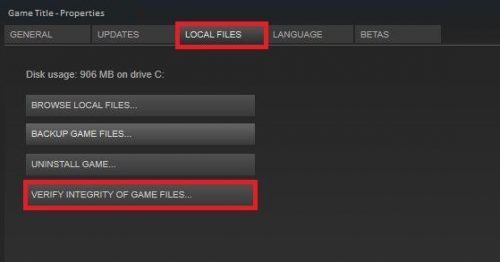
If, by any chance, the game files have been corrupted or have gone missing, you will face the white screen problem. You can escape the situation by verifying the integrity of game files. Here’s how it’s done.
- Launch Steam on your Windows PC and click on the Library option present at the top section of the window.
- Locate and right-click on WWE.
- From the context menu, choose the Properties option.
- In the following window, click on the Local Files tab.
- Choose the Verify integrity of game files option.
Open WWE 2K25 or 2K26 and check whether the white screen issue is fixed.
See: How to fix White Screen on Windows laptop or Computer monitor
6] Temporarily disable the antivirus program
Any installed antivirus program can also be the major reason causing the problem. As a solution, you can disable any antivirus program temporarily while playing the game. Go through the process and check if it solves the problem.
7] Reinstall the Microsoft Visual C++
The solution is to reinstall the installed Microsoft C++. Here are the steps you need to follow to get the work done.
- Open the Start Menu by pressing the Windows key.
- In the space provided, type Apps and features and press the enter key.
- Right-click on the installed Microsoft C++ programs and choose the Uninstall option.
- Now, download the latest Microsoft C++ Redistributable Package by heading towards the Microsoft Download Center.
Once you are done with the installation process, launch WWE and check whether the problem is fixed.
Read: Fix Google Chrome blank white screen on Windows
8] Reinstall the Game
In the worst-case scenario, if none of the above-mentioned solutions helps you solve the problem, the last thing you can try is to reinstall the game. It may be that an issue during installation is causing the problem. Thus, reinstall WWE 2K25 or 2K26 to fix the white screen problem on Windows PC.
Why is my game a white screen?
There can be multiple reasons why your game is showing a white screen. But among all, the major culprit can be an incompatible graphics driver. The situation mainly arises if you haven’t downloaded the latest graphics driver update for a long time. So, update the driver and check whether it makes any difference.
How do I fix a stuck loading screen?
It’s very easy to fix a stuck loading screen. Unplugging the USB dongle, performing a disk surface test, and enabling safe mode are all useful methods in this situation. Additionally, performing a system repair, restoring the system to a previous healthy state, and clearing the CMOS memory are ideal solutions for the situation.
Read Next: Microsoft Teams is showing a blank white or black screen.
