
If Word, Excel, and PowerPoint automatically reset settings on exit in Windows 11/10, here is how you can fix the issue. No matter whether you use Microsoft 365, Office 2024, or any other version, you can follow this guide to fix this problem.
Why are Word, Excel, PowerPoint automatically reset settings on exit?
If Word, Excel, and PowerPoint automatically reset settings on exit, one of these could be the reason:
- You do not have permission to access Normal.dotm file, which stores the default template.
- The default template is read-only.
- Word, Excel, or PowerPoint doesn’t have permission to write to Registry files.
- Your user account doesn’t have permission to access the C:\Users\user-name\AppData\Roaming\Microsoft\Templates folder.
- Your system administrator is preventing you from changing or saving settings.
Word, Excel, PowerPoint automatically reset settings on exit
If Word, Excel, and PowerPoint automatically reset settings on exit, follow these solutions:
- Check the folder permissions
- Check registry file permission
- Check if default template is set to read-only
- Set the correct personal template file
- Troubleshoot Word/Excel/PowerPoint in Safe Mode
- Disable all add-ins
To learn more about these solutions, continue reading.
1] Check the folder permissions
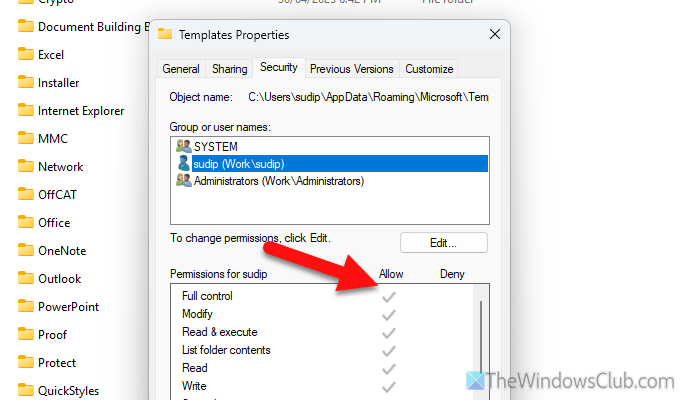
It is the very first thing you must do, as all those Microsoft 365 apps use a specific folder to store the default template. If your user account doesn’t have permission to access that specific folder, you won’t be able to save changes.
Having said that, the location of the folder is this:
C:\Users\user-name\AppData\Roaming\Microsoft\Templates
Therefore, head to that location and right-click on the Templates folder. Then, right-click on this folder and go to the Security tab.
Select the user account and check if it has Full control or not. If not, click the Edit button and obtain Full control.
Read: How to change File and Folder permissions in Windows 11
2] Check registry file permission
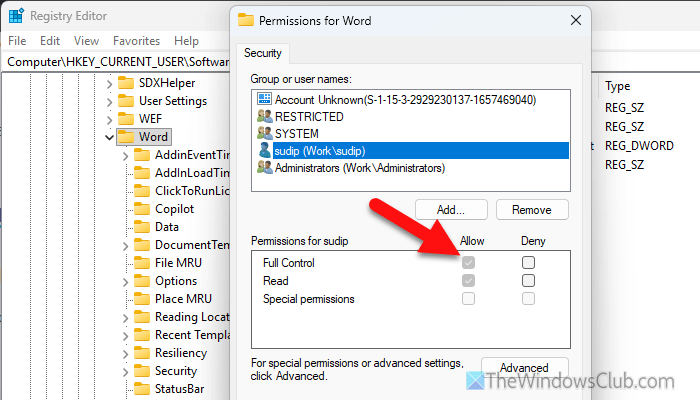
When you install Microsoft 365, it registers it in the Registry Editor, and the path looks something like this:
HKEY_CURRENT_USER\Software\Microsoft\Office\16.0
No matter what you change in the Microsoft 365 apps, all of them get saved here. If your user account doesn’t have the permission to access it, it could cause the aforementioned error.
Therefore, open the Registry Editor on your computer and navigate to the path mentioned above. Then, go through this detailed guide to check the Registry file permission and obtain full access to it.
3] Check if default template is set to read-only
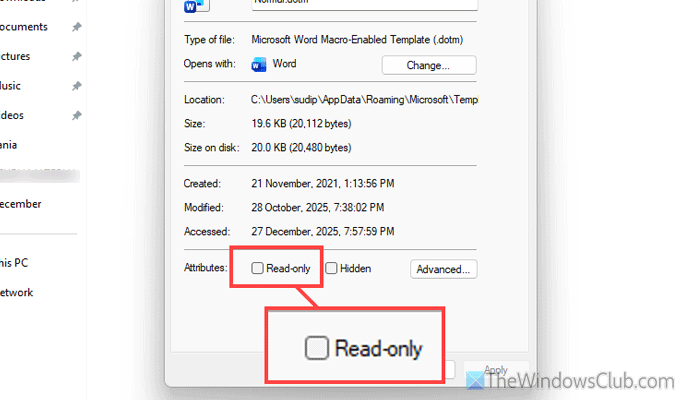
If the default template of Word, Excel, and PowerPoint is set to Read-only, you cannot make changes to it or save any changes in that template file. To check the status of the default template file of Word, Excel, and PowerPoint, follow these steps.
First, open the File Explorer and navigate to this path:
C:\Users\user-name\AppData\Roaming\Microsoft\Templates
Here you can find a file named Normal.dotm, book.xltx, sheet.xltx, Office Theme.thmx. Right-click on each of them, and check if the Read-only option is enabled or not.
If yes, remove the corresponding checkbox and click the OK button. However, if you can’t uncheck the Read-only option, go through these solutions.
Read: How to remove Read-only from an Excel document?
4] Set the correct personal template file
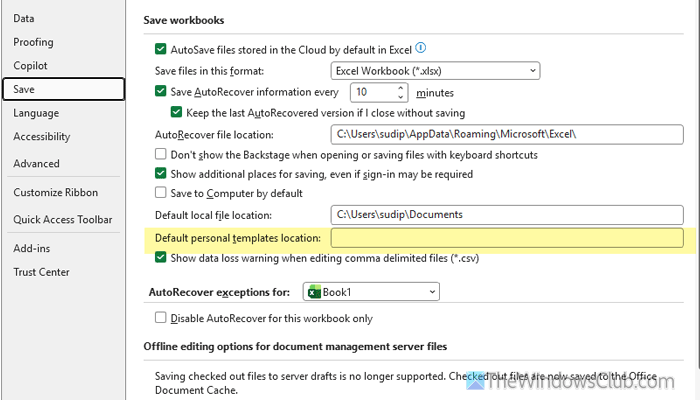
To set the correct personal template file, follow these steps:
First, open Word, Excel, or PowerPoint and click on File > Options. Then, switch to the Save tab and head to the Default personal templates location.
Then, enter the correct location and click the OK button.
Read: How to change Normal Template (Normal.dotm) in Word
5] Troubleshoot Word/Excel/PowerPoint in Safe Mode
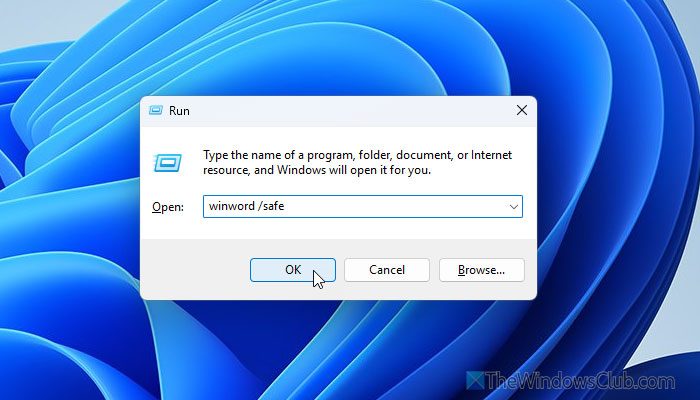
At times, this problem may arise due to some internal glitch or bug. If so, you can check and verify it by running these Microsoft 365 apps in Safe Mode.
To run Word, Excel, and PowerPoint in Safe Mode, follow these steps:
First, press Win+R to open the Run prompt. Then, enter these commands:
winword /safe

excel /safe

powerpnt /safe
If the same problem doesn’t appear in Safe Mode, it is suggested to disable all add-ins.
6] Disable all add-ins
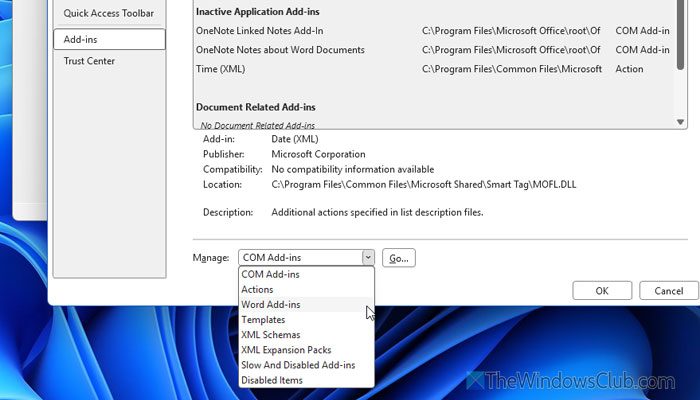
To disable all add-ins of Word, Excel, and PowerPoint, follow these steps:
- Open Word/Excel/PowerPoint and go to File > Options.
- Switch to the Add-ins tab.
- Select COM Add-ins if you want to check general add-ins.
- Select Word Add-ins/Excel Add-ins/PowerPoint Add-ins to check app-specific add-ins.
- Click the Go button.
- Remove the tick from all checkboxes and click the OK button.
Then check whether the same problem occurs. If not, enable one add-in at a time to find the culprit.
Read: View, manage, install, and remove Add-ins from Office programs
Why do my Excel settings keep changing?
If you use workbook-specific functions and open a different workbook, you may encounter such scenarios. Apart from that, if the default template file is corrupt, you may come across the same problem.
How to make Microsoft Word back to default settings?
To make Microsoft Word go back to default settings, open the Registry Editor and go to this path: HKEY_CURRENT_USER\Software\Microsoft\Office\16.0\Word. Then, delete these three keys: Data, Options, and Wizards.
