
If you want to remove unnecessary apps, tweak hidden settings, or personalize your system using a single tool, Winhance is a great option.
Over time, Windows can accumulate unnecessary apps, background services, and telemetry features that may affect performance and privacy. Winhance, also known as the Windows Enhancement utility, is a free, open-source tool that helps you debloat, optimize, and customize your Windows 11/10 PC with ease.
In this guide, we will show you how to download and use Winhance to improve your Windows experience.
Winhance is a free Windows Optimization, Debloat & Personalization Tool
Before we see how to download and use Winhance on Windows 11/10, let’s take a quick look at its key features.
Key Features of Winhance
Winhance helps in:
- Removing pre-installed apps and bloatware
- Installing and managing Windows apps, features, and third-party software
- Enhancing privacy by disabling telemetry, tracking, and ads
- Optimizing system and gaming performance through advanced settings
- Managing power, update, notification, and sound configurations
- Customizing Windows interface, including themes, taskbar, Start menu, and File Explorer
- Saving and restoring system configurations using import/export options
- Automating setup using custom Windows installation media and unattended setup tools
Download Winhance on Windows
Go to the official Winhance.net website and click the Download button in the top-right corner. Once downloaded, double-click the .exe file to launch the setup wizard. Read and accept the license agreement, then click Next to continue.
You’ll be prompted to choose an installation type: portable installation (runs without installing), or regular installation (recommended for most users). Select the desired option and follow the prompts.
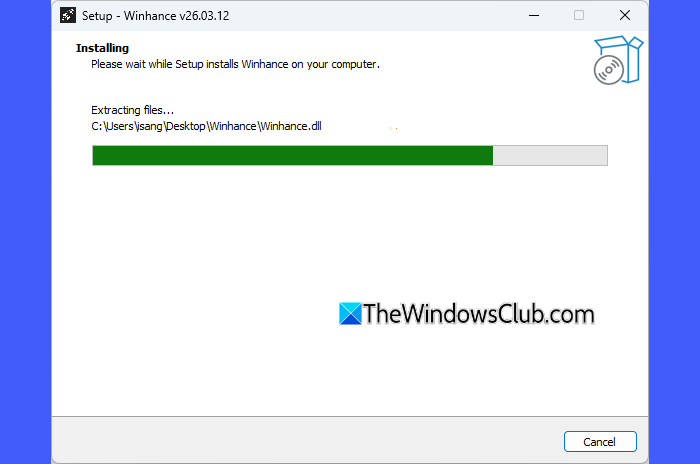
Once installed, run Winhance using administrator rights.
On the very first launch, Winhance automatically creates a system restore point and registry backups to safeguard your system before making any changes. In addition to this, it also creates a configuration backup, which is a snapshot of your current Windows settings. This allows you to restore your system configuration later if needed.
Understanding the User Interface
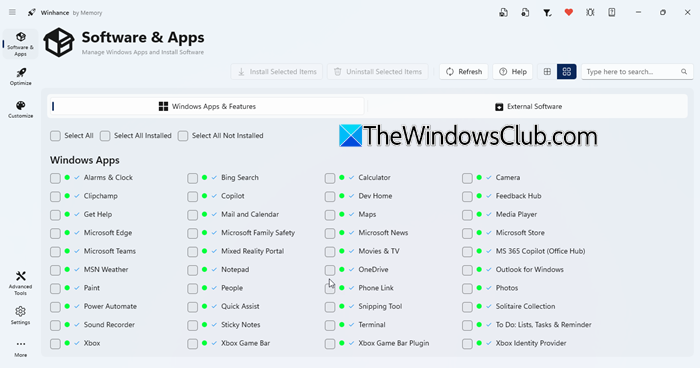
Winhance is divided into four main sections, each designed to help you manage different aspects of your Windows system:
- Software & Apps: Lets you manage built-in Windows apps and install or remove essential software.
- Optimize: Provides system tuning options to improve performance, privacy, and gaming experience.
- Customize: Allows you to personalize the taskbar, Start menu, and File Explorer.
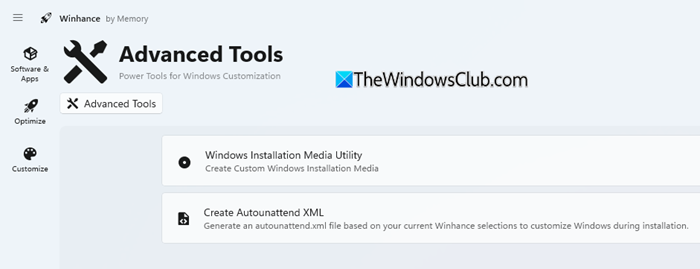
- Advanced Tools: Includes utilities like WIMUtil and the Autounattend XML generator for creating custom Windows installations.
Use Winhance to Debloat Windows
Winhance lets you remove built-in apps, legacy capabilities, and optional features that are often difficult to uninstall through standard Windows settings. Additionally, it integrates with Microsoft WinGet to provide a seamless way to install over 100 popular third-party apps, including browsers, development tools, gaming platforms, and more.
To debloat Windows, go to the Software & Apps section. This section uses several visual indicators to help you understand the current state of each app. For example, a Green dot indicates the app is currently present on your system, and a Red dot means it is uninstalled. Click the Help button to learn about them.

To remove apps from your system:
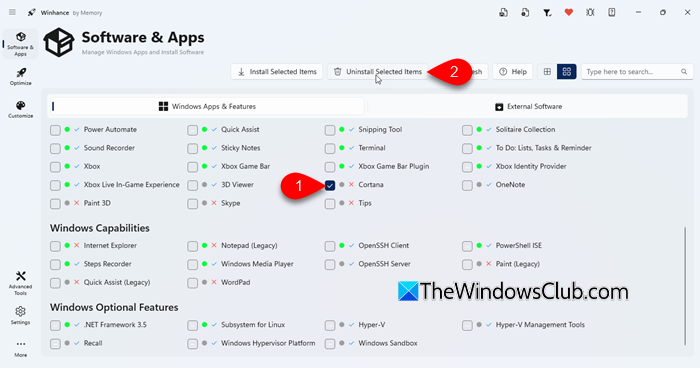
- Go to the Windows Apps & Features tab, select the checkboxes for the apps you want to remove. You can select apps that are “Not Installed” to ensure Windows doesn’t try to reinstall them later.
- Click Uninstall Selected Items.
To install third-party software:
- Go to the External Software tab.
- Select the item(s) you want to install.
- Click Install Selected Items.
Use Winhance to Optimize Windows
The Optimizations section gives you access to a wide range of system settings grouped into categories such as Privacy & Security, Power, Gaming & Performance, and more.
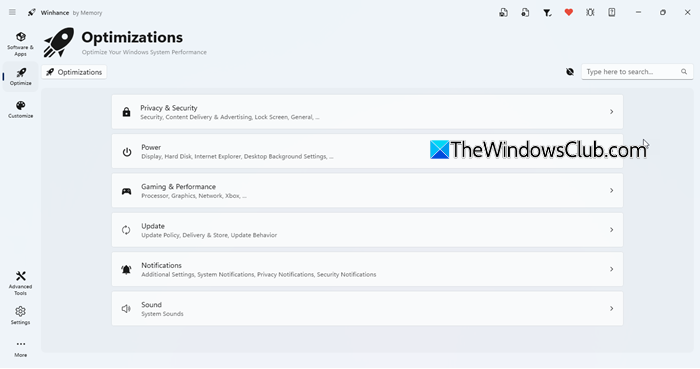
You can enable or disable these settings using simple toggle switches and easily control how your system behaves. For example, you can reduce telemetry, disable ads, adjust power settings, manage Windows Update behavior, or tweak performance-related options for CPU, graphics, and network.
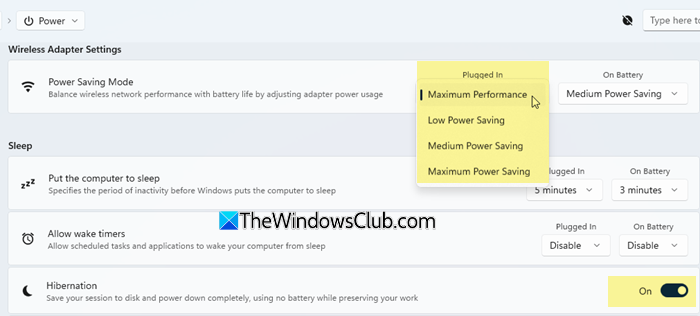
Note: While the tool offers many options, we recommend applying necessary settings only, as some tweaks may affect system functionality.
Use Winhance to Customize Windows
The Customizations section focuses on changing the look and behavior of Windows without manually editing the Registry. Settings are organized into categories like Windows Theme, Taskbar, Start Menu, and Explorer, and can be applied instantly using toggle controls.
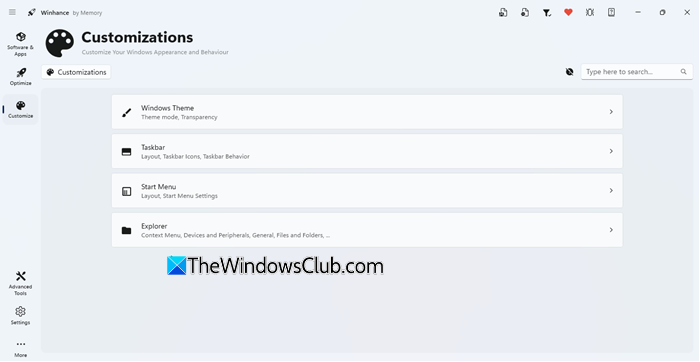
For example, you can switch between Light and Dark modes, adjust taskbar layout, refine the Start menu experience, and simplify File Explorer by removing unnecessary elements.
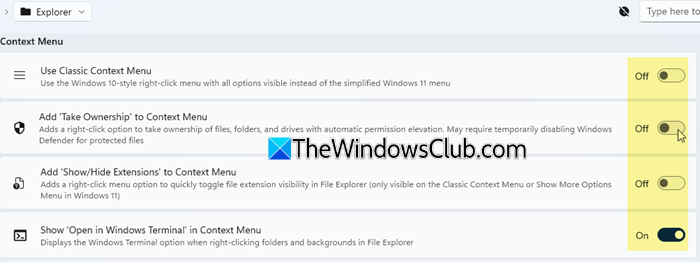
These options help create a more personalized and functional desktop environment that matches your style and workflow.
Advanced Tools and Settings
The Advanced Tools section is intended for experienced users who want deeper control over Windows configuration. It includes utilities for creating custom Windows installation media and generating automated setup files based on your selected preferences.
Additionally, the Settings section allows you to manage backups, restore configurations, and adjust Winhance behavior, ensuring you can safely apply and revert changes when needed.
Note: As with any system-level tool, proceed with caution. While these tweaks can improve performance and usability, incorrect changes may cause issues. We recommend reviewing each option carefully and creating a system restore point before making changes.
I hope you find this useful.
TIP: Ultimate Windows Tweaker for Windows can be used to judiciously tweak your Windows 11 and personalize your computing experience, and can make your system faster and more private.
Is Winhance free?
Yes, Winhance is completely free to use. There are no paid versions or subscriptions, and all its features are available without any cost. It is also an open-source tool, so its code is publicly available for review by anyone.
Read: Best free Crapware, Junkware or Bloatware Removal Tools for Windows
How to debloat Windows completely?
You can debloat Windows by removing pre-installed apps, disabling unnecessary background services, and turning off telemetry and ads. While this can be done manually, the process is time-consuming and requires navigating multiple menus. Tools like Winhance simplify it by providing all these options in one place.
Read: SmartFix lets you recover Windows computer after a malware attack.
