
In this guide, we will show you how to clean and optimize your Windows 11/10 performance using Kudu, a free and open-source system maintenance software. Regular system maintenance can help keep your PC running smoothly and ensure that unnecessary files, unused applications, and other unwanted items do not take up valuable storage space.
There are several PC cleaning and optimization tools available, and we regularly review them to help you find the ones that are actually useful. Adding to that list, we are taking a look at Kudu today. It brings together several system maintenance and optimization tools in a single interface, allowing you to clean your PC, manage applications, monitor system performance, and perform other maintenance tasks.
KUDU Performance, Maintenance and Optimization software for Windows PC
Kudu is completely free for personal use. It comes as an ad-free desktop app, which makes the overall experience simple and distraction-free. For organizational use, Kudu also offers a paid version with centralized cloud management.
Download and Install Kudu software
You can download Kudu for free from its official website using this link. The download consists of a setup.exe file. Once downloaded, double-click the file to launch the Kudu installer. The setup takes only a few minutes and includes no bundled software or confusing installation options.
Use Kudu to Clean and Optimize your PC
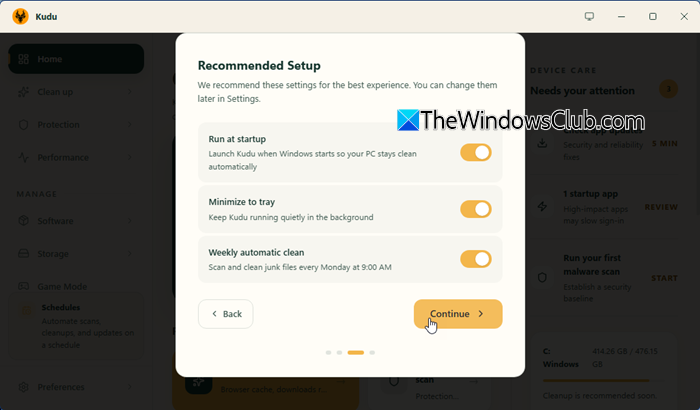
When you first launch Kudu, you will need to configure a few basic settings, such as your preferred language, whether Kudu should run at startup, and whether it should be minimized to the system tray. Kudu supports 30 languages, so you can choose the language you are most comfortable with. Once you complete the initial setup, you can start using Kudu to clean and optimize your PC.
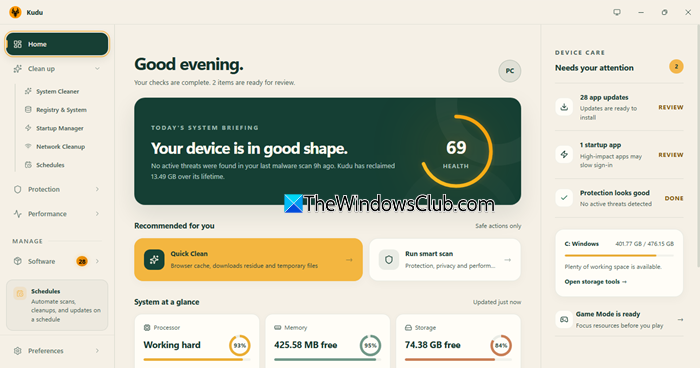
Like other PC optimization tools, Kudu offers options for both quick and deep cleaning. Its home screen gives you an overview of your PC’s health at a glance and provides quick access to recommended scans and maintenance tasks. Other features are neatly organized in the navigation pane on the left, while notifications appear on the right, allowing you to review them and take the required action.
Kudu software includes more than 15 tools to clean, optimize, and protect Windows PCs. These include System Cleaner, Malware Scanner, Performance Monitor, Startup Manager, Disk Analyzer, Privacy Shield, and several other tools. You can access these tools from the navigation pane and use them individually based on your requirements.
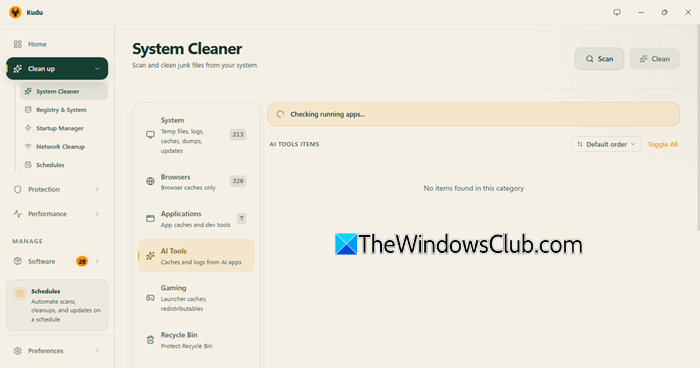
Clean up is the first option in the left navigation pane. When you expand it, you will find several tools, including System Cleaner, Registry & System, Startup Manager, Network Cleanup, and Schedules.
The System Cleaner scans your PC for unnecessary files and lets you remove them to free up disk space. To start a scan, click Scan in the top-right corner. Once the scan is complete, Kudu displays the items it has found across different categories, such as System, Browsers, Applications, AI Tools, Gaming, and Recycle Bin. You can review the scan results and click Clean to remove the selected items.
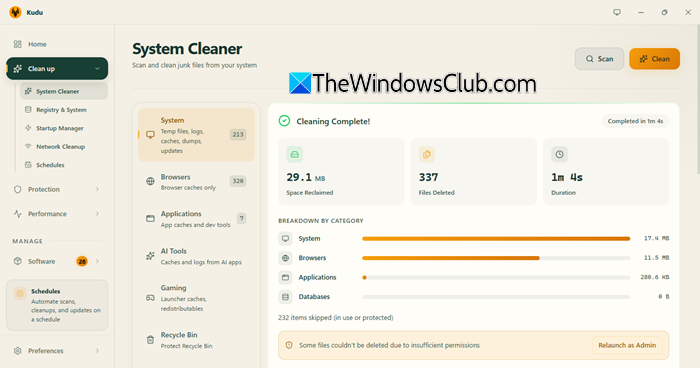
After the cleaning process is complete, Kudu displays a summary showing the amount of space reclaimed, number of files deleted, and the cleaning duration. It also provides a category-wise breakdown so you can see how much space was recovered from each category. If you want to see exactly what Kudu has identified as unnecessary files, select a category from the left and scroll down a bit. Kudu will display the corresponding items, along with the number of files and the amount of space they occupy.
The Clean up section is just one part of what Kudu offers. You can explore other sections, such as Protection, Performance, and Software, from the left navigation pane. Kudu includes more than 15 dedicated tools, with each tool designed for a specific system maintenance, optimization, security, or management task.
Key Features of Kudu
Kudu brings together several system maintenance, optimization, security, and management tools in a single interface. Its key features include:
Cleaning Tools & Junk File Removal: Provides six cleaning categories, each targeting a different area of your system to free up disk space.
Security Scanning & Privacy Hardening: Includes a multi-engine malware scanner with 70+ signature patterns and a privacy shield with access to 35+ privacy and security settings.

System Optimization & Registry Cleaning: Includes a suite of optimization tools for registry cleaning, startup management, debloating, and more.
Scheduling & Scan History: Lets you automate system cleaning and keep track of previous scans. Kudu stores the history of your last 100 scans, allowing you to review what was cleaned over time.
Performance Monitoring & Software Updates: Lets you monitor system performance, update software, manage drivers, and uninstall programs from a central interface.
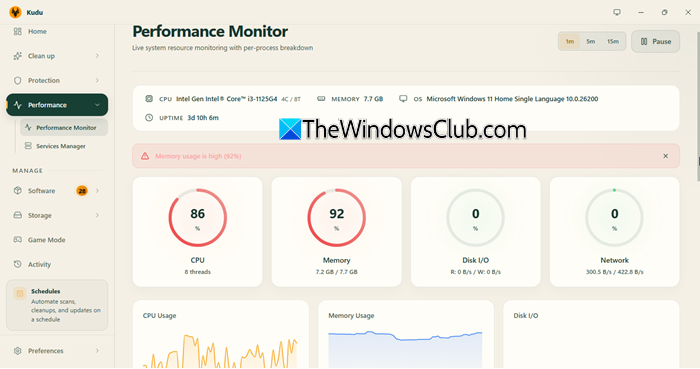
Cloud Integration & Remote Management: Provides cloud-based management capabilities for managing systems remotely, particularly useful for organizational environments.
Command-Line Interface (CLI): Provides command-line options for users who prefer to perform maintenance tasks through the terminal.
We used Kudu on Windows 11 and were amazed by the options and features that it offered. What we liked best about this PC optimizer was its UI – All the tools are well laid out and easy to access and use, even for a layman. Not only will this impressive free tool help you clean up and maintain Windows, it will also help you protect and manage your PC safely. Its ad-free interface and broad feature set make it a convenient alternative to using multiple paid utilities for everyday PC maintenance.
What is the best PC maintenance software?
The best PC maintenance software depends on your individual needs and preferences. If you want a simple, distraction-free, free, and open-source solution, Kudu seems to be the best option at the time of writing. However, you can also consider other PC cleaners like Glary, Wise, IOBit, etc. if you prefer an established PC maintenance tool with a long track record.
Is Kudu open source?
Yes, Kudu Desktop is open source under the MIT license, and the full suite of 15+ tools is free, with no trials, feature gating, or ads. Sponsors support the project, which helps keep the desktop app free for everyone.
