
Windows PCs come with many apps and programs installed with the operating system. In addition, manufacturers install a few more apps that we normally do not install or use. It won’t make any difference if they are installed and stay unopened. They run at startup and consume resources while we are working on the apps we install. It kills the purpose of having a personal laptop with preferred apps. If you are looking for ways to uninstall and stop manufacturers from installing manufacturers’ bloatware automatically on Windows 11, this guide is for you.
How to stop automatic installation of manufacturer’s bloatware in Windows 11
We can remove or uninstall bloatware from our Windows PC easily. We can also prevent Windows from installing unwanted apps. But how can we prevent the manufacturer from installing their bloatware on our Windows 11/10 PC? Here’s how.
- Stop automatic installation of the manufacturer’s bloatware using the Settings app
- Stop automatic installation of the manufacturer’s bloatware using the Registry Editor
- Stop automatic installation of the manufacturer’s bloatware using Group Policy
Let’s get into the details of each method and stop bloatware from installing automatically.
1] Stop automatic installation of the manufacturer’s bloatware using the Settings app
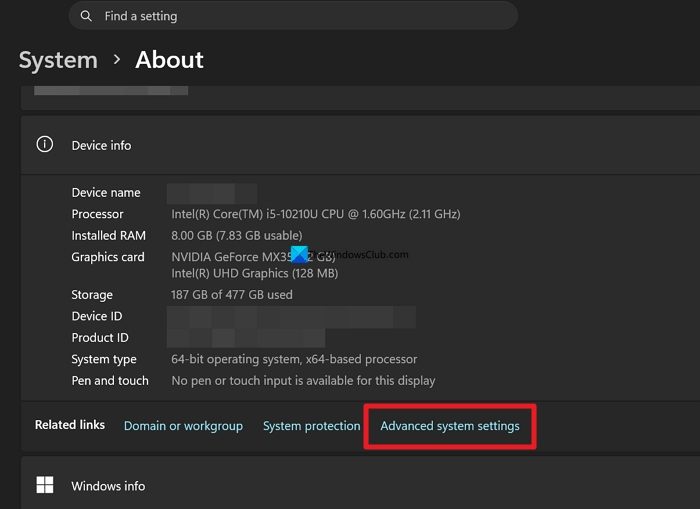
Settings app provides a way to block automatic installation of apps from the manufacturer. Open the Settings app on your PC. Click System and go to the About tab. Click Advanced system settings under Device info.
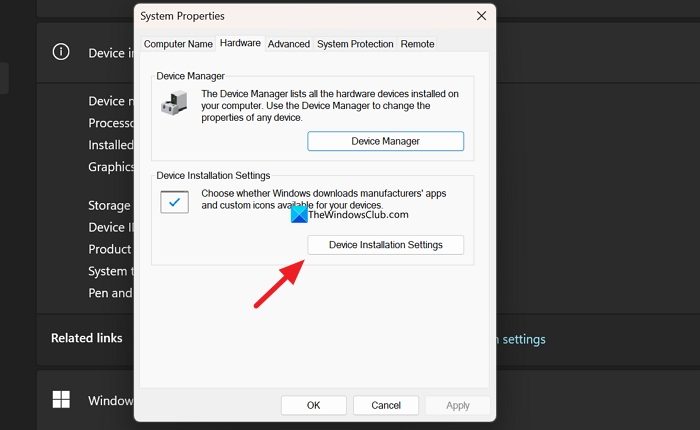
It opens a System Properties window. Click the Hardware tab. Then, click Device Installation Settings.
In the Device installation settings, click the button beside No (your device might not work as expected).
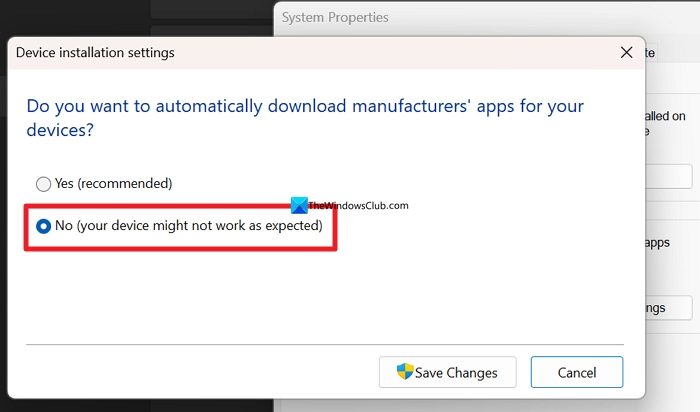
Then, click the Save Changes button to save your choice. It will stop automatic download and installation of the manufacturer’s bloatware.
2] Stop automatic installation of the manufacturer’s bloatware using the Registry Editor
The other way to disable automatic installation of apps or bloatware from your device manufacturer is through the Registry Editor. Open the Registry Editor on your PC. Before making any changes, please back up your registry so as not to mess up anything.
Navigate to the following path in the Registry Editor. Copy and paste the path into the Registry Editor address bar.
Computer\HKEY_LOCAL_MACHINE\SOFTWARE\Microsoft\Windows\CurrentVersion\Device Metadata
In the path, double-click the PreventDeviceMetadataFromNetwork D-WORD file. Under Value data, enter 1 and click OK to save the changes.
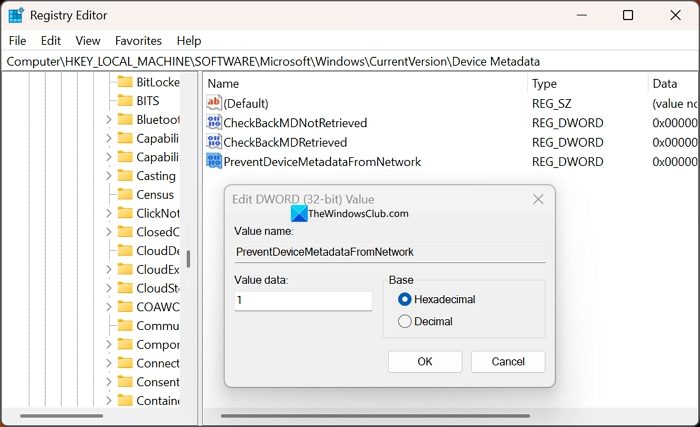
Close the Registry Editor and restart your PC.
3] Stop automatic installation of the manufacturer’s bloatware using Group Policy
If you are a Windows Pro user, you can stop the automatic installation of the manufacturer’s bloatware apps using the Local Group Policy Editor. Open the Local Group Policy Editor and navigate to the following path.
Computer Configuration > Administrative Templates > System > Device Installation
In the path, double-click Prevent automatic download of applications associated with device metadata.
In Prevent automatic download of applications associated with device metadata, check the button beside Enabled. Click Apply and OK to save the changes.
Related read: Block users from installing or running programs in Windows 11
How do I turn off bloatware on Windows 11?
First, uninstall the bloatware on your Windows 11 PC using a third-party uninstaller program like BCUninstaller. Then, turn off the option that enables automatic download and installation of the manufacturer’s apps onto your device. You will not see bloatware until you reinstall Windows 11.
How do I get rid of bloatware on my PC?
Bloatware on a Windows 11 PC can be removed with PowerShell commands or using a third-party uninstaller program like BCUninstaller. Using a Bloatware Removal Tool is much easier than running commands. Just download the BCUninstaller program and run it. It will show all the programs on your PC. Select the apps you don’t use, including bloatware, and uninstall them at once.
Read: How to stop Apps from running in the background in Windows 11.
