
Windows 11 Personalization Settings come with a wide range of settings that help you to customize and personalize your Windows PC. You can change the theme of your Windows PC, customize the Start Menu, personalize the Taskbar behavior, use multiple desktops, and a lot more!
Windows 11 Personalization Settings
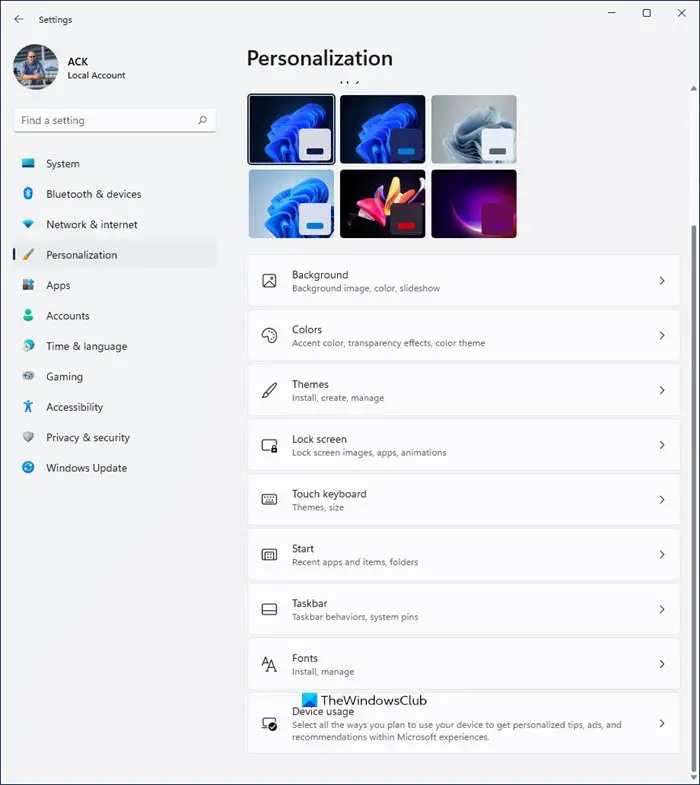
To open the Windows 11 Personalization Settings, right-click on the Start Menu > Settings > Personalization. You can make a lot of changes to your PC such as changing the background image, setting up a color theme, customizing the lock screen and taskbar, installing new font styles, and so on. In this guide, we will look into all of these Personalization Settings in detail which will enable you to personalize the look and feel of your Windows 11 PC.
Windows 11 Personalization Settings can be categorized as follows:
- Background
- Colors
- Themes
- Lock Screen
- Touch keyboard
- Start
- Taskbar
- Fonts
- Device Usage
Let us take a look at them.
1] Background:
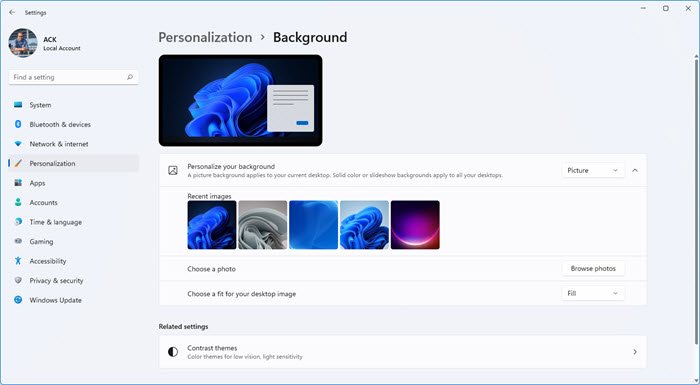
Background Settings enable you to personalize your Windows 11 desktop background with either a picture, solid color, or even a slideshow. You can set a timer to change the background picture automatically every 1 minute, 10 minutes, 30 minutes, 1 hour, 6 hours, or 1 day. It also suggests an option to shuffle the picture order. Next, you will find a drop-down button that lets you choose a fit for your desktop image – Fill, Fit, Stretch, Tile, Center, Span. Try out these options to find your best suitable preference!
2] Colors:
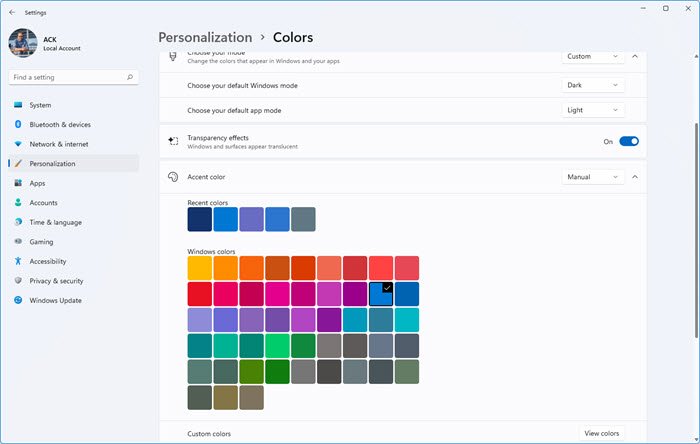
Here, you can choose the color mode for your Windows desktop and apps: Light, Dark, or the Custom option. The Custom option allows you to individually select the default color mode—light or dark—for both the Windows mode and the App mode. You can enable the Transparency effects if you would like to have a translucent effect on Windows and its surfaces, such as the Taskbar. Then, you will see the option to choose between Manual and Automatic accent colors. The Manual option allows you to choose any color from the given range of colors; you can also choose and preview a custom accent color. Lastly, you will see two options below that you can turn on if you wish to show the accent color on Start and Taskbar, and show accent color on title bars and window borders.
3] Themes:
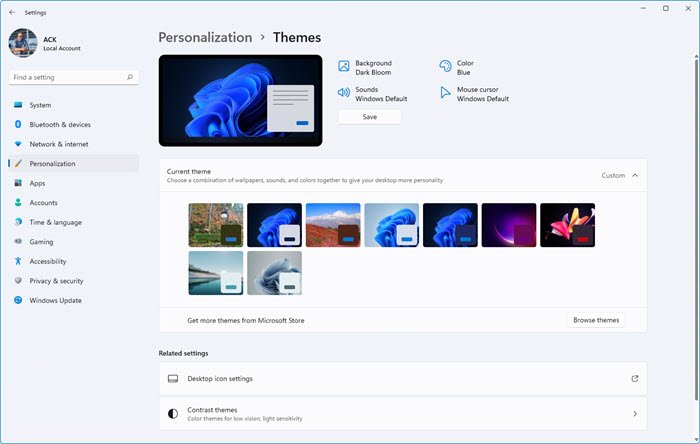
Themes are a combination of various features such as desktop wallpapers, color scheme, sounds, and such, which gives your Windows desktop a unique look and feel to it. You can choose a current theme from the shown themes or you can also browse for more themes from the Microsoft Store. Choose or customize a theme that gives the right personality to your Windows 11 desktop!
4] Lock Screen:
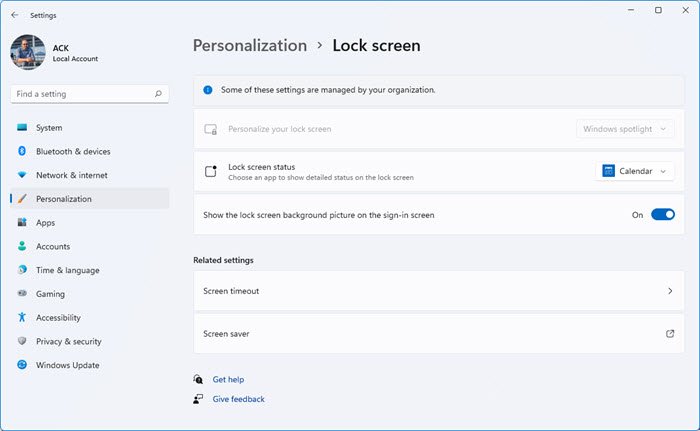
These settings let you personalize your Lock Screen and lock screen status. You may choose an app such as calendar, mail, weather, 3D viewer, Xbox console champion for your lock screen status. If you wish, you can also turn on the option to show the lock screen background picture on the sign-in screen.
5] Touch Keyboard:
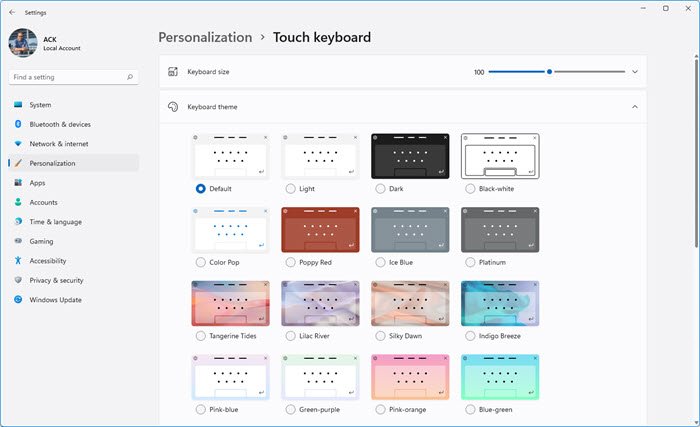
This section of settings includes keyboard size, keyboard theme, key background, and key text. To begin, use the slider to adjust the keyboard size as needed. Then, you have the keyboard theme, which you can choose from a variety of options: Light, Dark, Black-White, Ice Blue, Poppy Red, or the default theme, or a custom theme of your choice. The Custom theme allows you to choose colors for Windows, text, and keys; and also lets you preview the way it looks. Turn on the key background option if you like to have a background behind your keys. Key text size allows you to choose from small, medium, or large options. At the end of all these settings, you can view your keyboard changes and preview it.
5] Start:
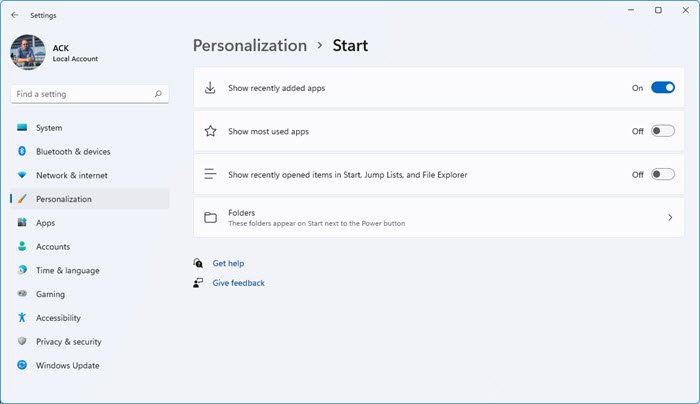
These settings pertain to the Windows 11 Start Menu. You can choose to show the recently added apps, most used apps, and recently opened items in Start, Jump Lists, and File Explorer. You can also choose the folders you wish to show on Start.
7] Taskbar:
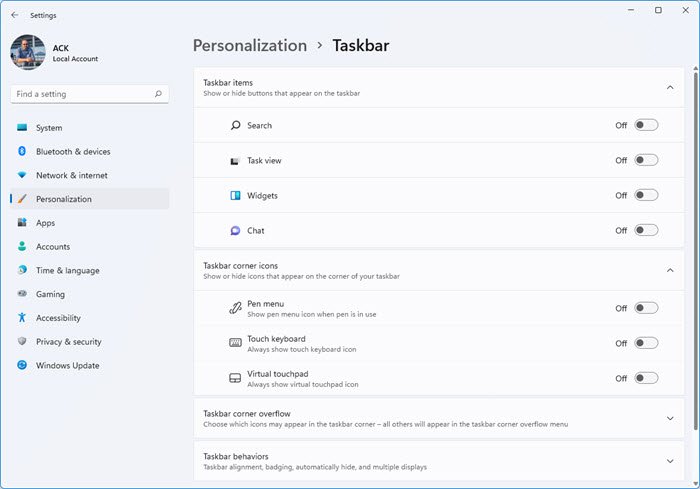
These settings will allow you to control the behavior of the Taskbar. You can choose to show or hide Taskbar items, such as Search, Task View, Widgets, Chat, Pen Menu, Touch Keyboard, Virtual Touchpad, and others. Under Taskbar corner overflow, you can turn on the buttons for the items you wish to choose in the Taskbar corner and Taskbar corner overflow menu. Lastly, you have several settings for Taskbar behaviors, including Taskbar alignment, badging, and multiple displays.
8] Fonts:
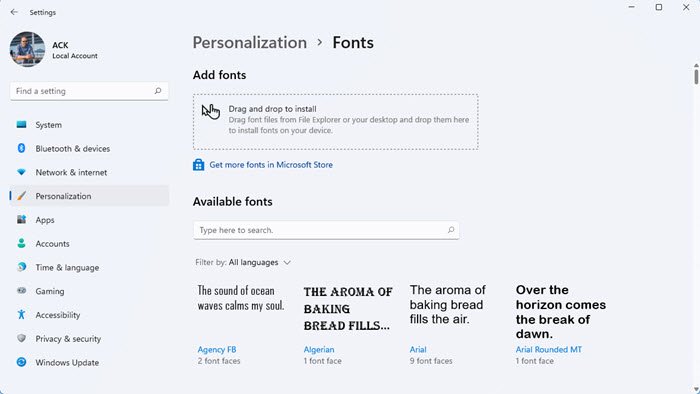
You will find a vast option of fonts that you can choose from, that you can also filter by specific or all languages. If you are looking for a certain font type, you can search for the same in the search box. To add more fonts, you can install new fonts by dragging font files from the File Explorer or desktop. Click on ‘Get more fonts in Microsoft Store’ to explore more options.
9] Device usage:
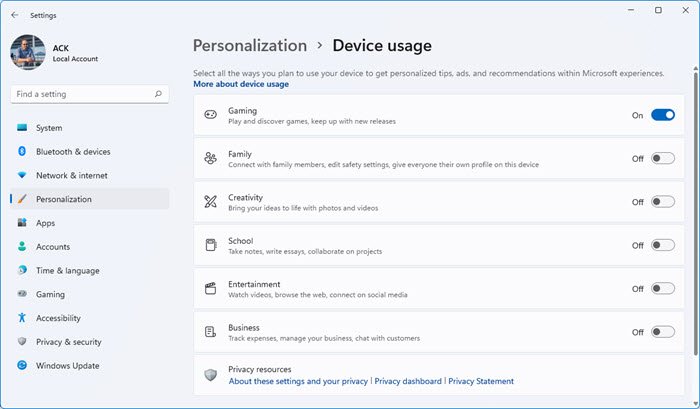
These Windows 11 Settings allow you to manage your Windows device by turning on or turning off personalized tips, recommendations, and ads regarding gaming, family, creativity, school, entertainment, business, privacy resources, etc.
All these settings are part of the Windows 11 Personalization Settings, which allow you to customize and personalize your Windows 11 PC.
Hope this tutorial was simple and easy to understand.
How do I change the theme in Windows 11?
To change the theme in Windows 11, follow these steps:
- Press Win+I to open the Windows Settings.
- Go to Personalization > Themes.
- Select a theme you want to apply.
- Click on the theme to enable it.
How do I customize the Start menu in Windows 11?
Open Windows 11 Settings > Personalization > Start. here, you have the following ways to customize the Windows 11 Start Menu and change its look:
- Move Start Menu to the left side
- Change Start Menu color
- Pin or unpin apps
- Remove apps from the Recommended list
- Hide recently opened items/apps in Start Menu
- Show or hide Library folders.
What helps you to customize your computer?
To customize your Windows 11 computer, navigate to Windows Settings > Personalization. Here you can find several options to change the overall look of your computer. For example, you can change the color scheme, theme, wallpaper, lock screen, Start menu, Taskbar, etc., as per your requirements.
What settings should I disable in Windows 11?
There are numerous settings you can disable in Windows 11 to make your PC run faster. For example, you can disable the animation effects for Windows and apps. On the other hand, you can turn off Hyper-V if you do not use a virtual machine, PreFetch, etc. It is recommended to navigate to the Apps section, locate the app you want to remove, and then remove it accordingly.
